Notifications not showing on Android often come from an app's notification permission, a silent category, or a mode that hides alerts. Turn on notifications for the affected app first.
If messages appear only when you open it, check its background restrictions instead; if alerts disappear only while locked, check lock-screen visibility.
Swipe down from the top before changing anything. A notification sitting in the notification shade, the panel you pull down, has arrived, even if the phone didn't make a sound or show a banner.
In this guide
1. Enable app notifications and their categories
On Pixel and phones with a similar layout, open Settings > Notifications > App notifications. Find the app that stays quiet and allow its notifications. If the list shows recently used apps, switch the filter to find the one you need.
On Galaxy, open Settings > Apps > the affected app > Notifications and enable Allow notifications there. The notification permission applies to that app; allowing messages from another app won't change it.
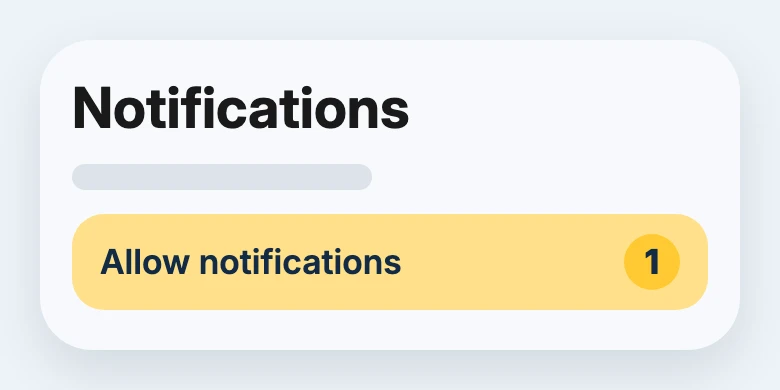
Android 13 and newer ask many newly installed apps for notification permission. A previous refusal can leave the app working normally while its alerts stay blocked. Use its system notification settings to allow them again.
Check categories such as messages or reminders too. An app can have permission to send notifications but still have a disabled category. Enable the category you need; the main switch doesn't cover every type of alert.
Google's Android notification guide explains app permissions, categories, and silent alerts. After changing one, trigger the app event again or request another message.
An alert you already dismissed won't show whether the new setting works. Look for a new notification while the app is closed. If it appears in the shade but stays quiet, continue with its alert behavior.
2. Restore banners and sound for a silent category
Press and hold a notification from the affected app, then open its settings. Select the category involved. On Android screens that offer Alerting and Silent, choose Alerting when you want sound or vibration.
On those screens, Pop on screen enables the unlocked-screen banner. A category can appear in the notification shade without a banner, so check this separately if that's the only missing part.
On Galaxy, choose the category and review Allow notifications, Alert, and Show as pop-up. These settings control that category. If sound is missing, adjust the notification volume rather than media volume.
If Galaxy hides the category list, open Settings > Notifications > Advanced settings and enable Manage notification categories for each app. Return to App notifications, choose the app, and open Notification categories.
The icon dot is separate. Notification dot on app icon doesn't repair delivery, and turning it off doesn't stop notifications arriving. Check the shade, banner, or sound you need to see whether notifications are arriving.
3. Stop a mode from filtering the alert
Open Quick Settings and check whether Do Not Disturb, Bedtime, or another mode is active. On current Pixels, tap Modes and open the active mode. Turn it off briefly, then try a fresh notification.
If that restores the alert, adjust the mode instead of leaving it off permanently. In Settings > Modes > the mode, review Notification filters, including Apps, and allow alerts from the app you need.
On current Pixels, check More settings > Display settings > Display options for filtered notifications. These choices can hide visual alerts as well as silence them, which can leave the shade or screen empty when a notification arrives.
On older Android versions, use Settings > Sound & vibration > Do Not Disturb, or find Do Not Disturb with Settings search. Galaxy has Settings > Notifications > Do not disturb. Check its schedule if alerts disappear each evening.
A phone that won't ring for ordinary calls also needs ringer and call checks. App notification settings alone won't fix a disabled call ringer or a call that fails to reach your number.
4. Show notifications on the locked phone
If alerts appear after unlocking but not before, open the phone's lock-screen notification controls. On current Pixels, use Settings > Notifications > Notifications on lock screen and review which notifications and content can appear.
Older Android layouts use Settings > Apps & notifications > Notifications > Notifications on lock screen, sometimes labeled On lock screen. Choose Show alerting and silent notifications or the available equivalent for showing notifications.
Keep private message contents hidden if that suits you. Hiding sensitive content and hiding the entire notification are different choices. A notification can show the app name without exposing the message on the locked display.
On Galaxy, check Settings > Notifications > Lock screen notifications when that option is present. Exact layouts vary by One UI release. Use Settings search for lock-screen notifications if your phone places it elsewhere.
After changing this, lock the phone and request a new alert. If the unlocked shade works but the locked screen still doesn't, return to the app's own lock-screen restriction and the active mode's display choices.
5. Fix notifications that arrive only after opening the app
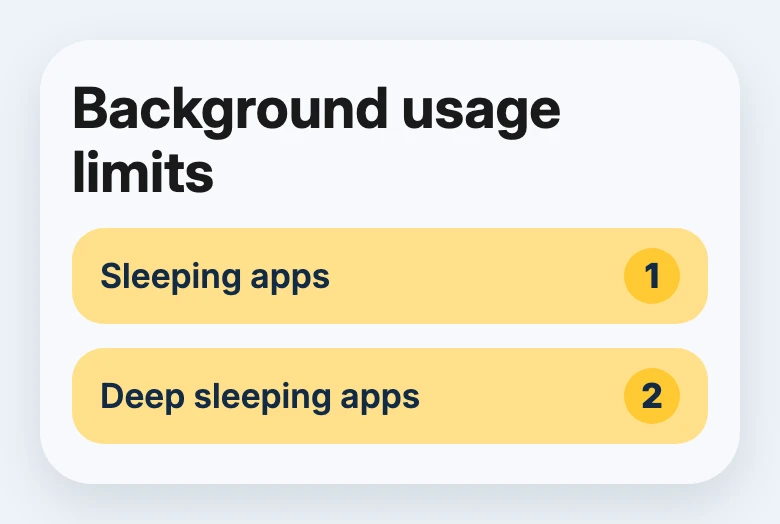
On Galaxy, open Settings > Device care > Battery > Background usage limits. Some versions start with Battery and device care > Battery. Find the app in Sleeping apps and remove it from that list.
Check Deep sleeping apps as well. Touch and hold the app and select Remove. Sleeping apps can lose functions while closed, including sending notifications, so allowing notification permission alone may not fix this pattern.
On Pixel, turn off Battery Saver briefly and test again. Battery Saver and Adaptive Battery can stop or delay some alerts. If delivery changes, check that app's battery settings before changing them for every app.
Open the app once after these changes, then close it for the next test. If a message arrives promptly while it's closed, notifications are coming through again. A message missing inside the app itself needs an account or connection check.
For an email-specific failure, the Gmail notification guide covers its account, label, and sync controls. Those in-app choices matter even when Android allows Gmail notifications.
6. Check the app's own settings and report what fails
Open the app's notification preferences and check muted conversations, account-specific alerts, and reminders. If fresh alerts still fail, install its Google Play update and restart Android.
If only one app fails, contact its developer through the help menu or App support on Google Play. Give your phone model and Android or One UI version. Say whether alerts are missing from the shade or lock screen, or arrive without sound.
For failures across several apps, use the phone maker's support service. Say whether disabling a mode or battery restriction changed delivery. That tells support what changed and which settings to check.
The Short Version
Permit the needed app categories, then check silent alerts, modes, and lock-screen visibility. Alerts arriving only after opening an app need battery and sleeping-app checks. For one failing account, check its app's sync settings.
Checked November 29, 2026.
 If you have any business, I can build it online