Microsoft apps that close immediately on Android need app updates and a phone restart first.
When several work apps fail together, update Intune Company Portal too: they can share the same work-account protection software. An app that opens but refuses sign-in or editing needs its account or subscription checked instead.
Choose the fix that matches what you see. A crash, a blocked work account, and a document that opens read-only aren't the same failure, even when all three are described as Microsoft apps not working.
In this guide
1. Update the affected apps and their shared work software
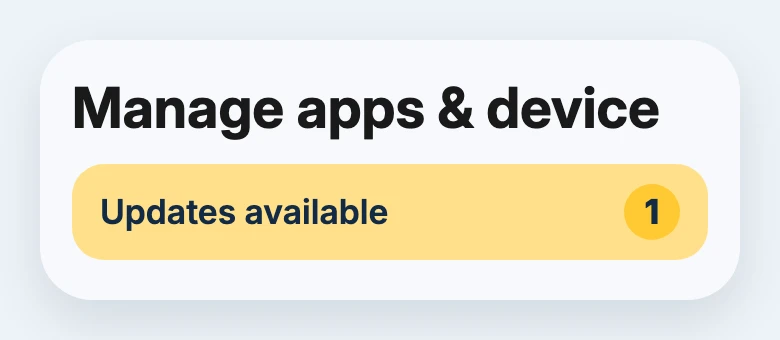
Open Google Play Store, tap your profile icon, and choose Manage apps & device. Under Updates available, install updates for the affected Microsoft apps. The menu may say Manage apps & devices on some versions.
If you use a work or school account, check Intune Company Portal for an update. It helps apply an organization's rules to protected apps, so a fault in the shared protection software can stop several Microsoft apps.
Microsoft's Intune app troubleshooting table lists updates for the affected app and Company Portal under Failed app launch. Follow this route when that message appears instead of resetting every Office app separately.
Restart the phone after updating. On Pixel 6 and newer, hold Power + Volume Up for a few seconds, then tap Restart. On older Pixels, a roughly 30-second Power-button hold restarts the phone.
On Galaxy or another Android phone, use the power menu's Restart control. If Power brings up an assistant instead, use your model's power-menu shortcut. After restarting, open one affected app and retry the action that failed.
If every app now opens, check a work document or mailbox too. Seeing the app's startup screen isn't enough. Check whether you can finish the sign-in that made it close before.
Check internet access when a Microsoft app opens but won't load cloud files. Reconnect the phone, then retry that file. The right license can't make cloud documents download over a broken connection.
2. End the stuck session and remove temporary files
For an app that still freezes or closes, open Settings > Apps and select it. On Pixel, use See all apps if needed. Tap Force stop, confirm, and reopen the app. Force stop ends the stuck session but keeps saved app data.
If it still fails, return to its app information and open Storage & cache > Clear cache on Pixel. On many Galaxy phones, the route is Settings > Apps > the app > Storage > Clear cache.
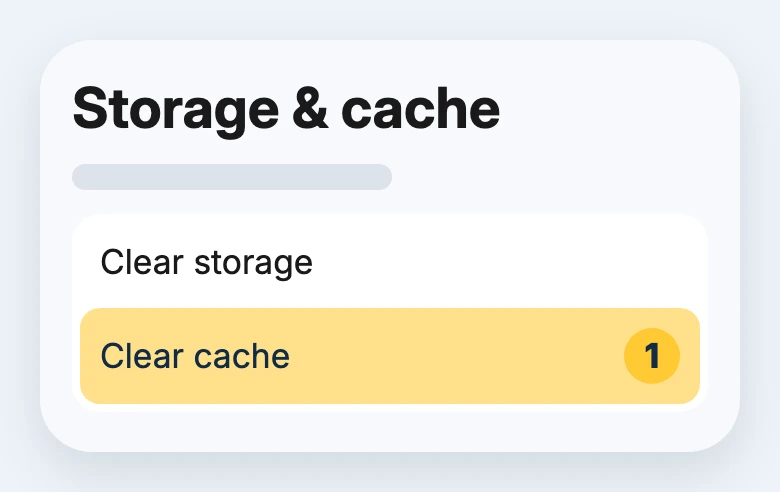
Clearing the cache removes temporary files that the app can recreate. Clear storage or Clear data removes local app data and can require signing in again. Choose the cache control first; those similar names have different consequences.
Open the same document or mailbox again. If that works while the other apps also work, keep using the repaired app. If several apps still fail together, continue with the work-account and system checks before erasing each one's data.
I'd clear one affected app's cache before reinstalling the whole group. It's a smaller change to check, and you can keep your account set up while you work out what's wrong.
3. Treat a work-account block as an access problem
A message such as App not set up or You don't have access to Office apps right now points to an account restriction rather than an app crash. Your organization may require a protected device, a specific network, or another sign-in step.
Open Company Portal if your organization uses it. Complete its requested update, sign-in, or step to make your device meet its rules. Clearing Word's cache won't approve a device your organization has blocked.
For App not set up, ask IT whether the app-protection policy includes both your account and this app. For Failed app launch after updates, ask them to collect Company Portal logs and check the app-protection error.
Tell IT which message appears and whether apps using personal accounts still open. That helps separate a work-policy problem from a phone-wide failure. Don't remove the work profile to bypass the message; that can remove work apps and data.
4. Refresh Outlook data when the app opens but won't sync
If Outlook opens but your inbox has missing or outdated information, try an account refresh instead of the crash fixes. In Outlook, open Settings, select the affected email account, and choose Reset Account.
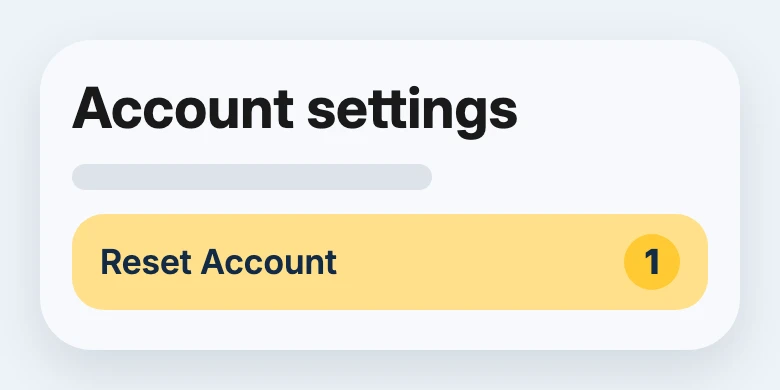
The Outlook account reset steps apply to incomplete or incorrect data after closing and reopening the app hasn't helped. Check the affected account rather than resetting an unrelated mailbox.
Wait for the account to refresh, then open a recent message and test the calendar if that was affected. If mail refreshes only while Outlook is open, check whether the phone is limiting Outlook's background or battery activity.
For missing Outlook calendars or contacts while mail arrives, follow the Outlook Android sync checks. The account connection type can limit which information syncs.
5. Check editing rights and the phone's software
A document asking for a subscription when you use a premium feature hasn't necessarily failed. Word, Excel, and PowerPoint features depend on the account and plan. Use the account attached to the subscription you want.
Your work and personal Microsoft accounts can have different rights. Have your administrator review the license assigned to you when a business feature is unavailable. The Word on Android guide covers opening and saving documents.
For apps that still crash, install available Android updates. On Pixel, open Settings > System > Software updates. Galaxy phones usually use Settings > Software update > Download and install. Follow the update screen for your device.
An older Android 16 QPR3 beta had a compatibility fault affecting Intune-managed Microsoft apps. A later release fixed that compatibility problem. For beta-related failures, give IT the Android build and follow its supported update path.
That historical issue isn't a reason to install beta software as a repair. For a phone already on a current stable release, continue with the affected app's support route rather than assuming an old beta bug explains every crash.
6. Reset local data only when your files are safe
Before clearing app storage or reinstalling, check that your documents and drafts are saved somewhere you can still access. Unsynced local work can be lost. Have your login details and a way to verify the sign-in ready for account setup.
Then use the affected app's Android Storage & cache > Clear storage control, or Storage > Clear data on the matching Galaxy screen. Set up that one app again and test it before repeating the change elsewhere.
For Outlook, use Settings > Help & Feedback > Contact Support. Other apps have a help menu or support details in Google Play. Send the app version, phone model, Android build, and whether personal or work accounts fail.
The Short Version
Update the apps, Company Portal when used, and Android. Check cache for crashes, IT access for blocked work accounts, and Outlook's account reset for incomplete mail. Protect local work before clearing app storage.
Checked November 29, 2026.
 If you have any business, I can build it online