
To see your own face in Zoom on Android, join the meeting and tap Start Video. Your camera picture appears in the meeting, usually as a small thumbnail when someone else is speaking. Tap the screen first if the controls are hidden.
A missing picture can mean video is off, the wrong camera is selected or camera access is blocked. If your face is visible but small, the meeting layout is usually the reason. Look for your thumbnail before changing permissions.
Turn on the camera inside the meeting
Open the meeting in the Zoom Workplace Android app. Tap the meeting screen to reveal its controls, then tap Start Video. Allow camera access if Android asks for it and you want to send video to the meeting.
The camera control changes when video starts. Look for a moving picture from the phone's camera rather than your profile photo or initials. A photo can remain visible while live video is stopped.
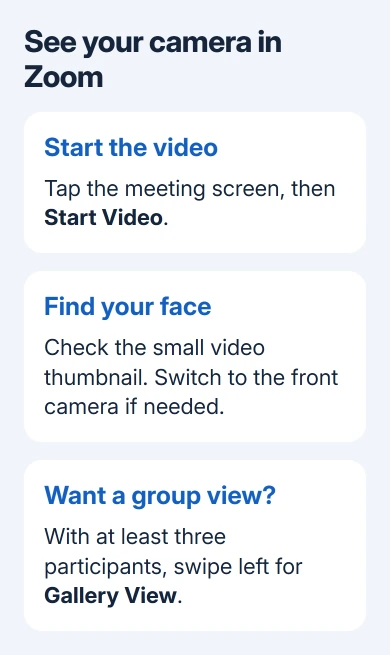
Starting video lets other participants see your camera picture. To check how you look before they can see you, use the preview setting in the next section.
If the picture shows the room behind the phone, use the camera-switch control to select the front camera. That's different from changing the meeting layout: switching cameras changes the picture your phone sends to other participants.
If you can see your face moving in the thumbnail, camera access is already working for that session. Changing Android permissions won't make that picture larger. Move to the layout section instead.
Preview your face before joining someone else's meeting
Zoom says Android has a setting for video preview before entry. Sign in to the app, tap Settings at the bottom right, then open Meetings.
Turn on Always Show Video Preview. If Always Turn Off My Video is also enabled, turn it off to use the preview. That second setting can prevent the preview from appearing even when the first one is on.
Join another person's meeting using its link or meeting ID. Enter the passcode if requested. The preview lets you check the camera image before choosing whether to join with video.
Check framing, lighting and the selected camera at the angle you'll use during the call. Looking down at a phone on your lap won't give the same preview as holding it upright for the meeting.
The preview shows your camera before you join. It doesn't keep your tile large during the meeting or change the host's participant layout. Once you're in, use the meeting's layout controls.
I'd use the preview before an important call and leave the live meeting controls alone once the picture looks right. It avoids accidentally stopping video while trying to find a larger view of yourself.
Find the thumbnail or switch to Gallery View
The Android app normally starts in Active Speaker View, giving the speaker more screen space. Once another participant joins, look for your small video thumbnail in the bottom-right corner. Your face won't fill the screen.
For a meeting with three or more participants, swipe left from Active Speaker View to reach Gallery View. That puts several participants on screen together. Keep swiping left when there are more participant pages.
Swipe right to the first screen for Active Speaker View. With only two people, Android's Gallery View isn't available. Swiping again won't bring up the grid you'd see in a larger meeting.
The number of visible tiles depends on the phone's screen height. The app can crop the sides of participant videos to fit the mobile layout. If the sides look cropped in your grid, that doesn't mean your phone has switched cameras.
During screen sharing, the shared material can take most of the space. Look in the participant video area to check your camera. Your face won't fill the screen over the shared presentation.
Desktop instructions referring to hovering over a tile, opening the top-right View menu or choosing Show Self View aren't the Android layout steps. Use the phone's thumbnail and swipe controls described here.
Restore camera permission for a missing preview
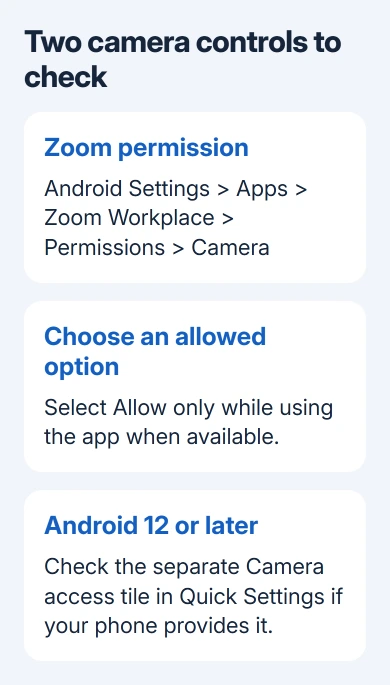
Open Settings > Apps > Zoom Workplace > Permissions > Camera on your phone. Some layouts require See all apps first. Choose the option that allows camera use while the app is open. Its wording can differ between phones.
Google's app-permission instructions cover the Android route. Samsung and other manufacturers can arrange Settings differently, but the app's own Permissions page is the place to check its camera access.
On Android 12 or later, a separate phone-wide Camera access control can block the camera even when the app has permission. Swipe down twice to inspect Quick Settings and enable Camera access if your phone provides that tile.
Return to Zoom, start video again and check for a live image. If you changed permission while the app was open and nothing changes, close and reopen the app before retrying the meeting.
For audio that also fails, use the Zoom microphone checks. Camera access and microphone access are separate permissions, so fixing one doesn't automatically repair the other.
Check whether the camera works outside Zoom
Leave the meeting and open the phone's Camera app. Select its front camera. A working selfie preview helps you tell a Zoom problem from a front camera that's failing throughout the phone.
Close the Camera app before testing Zoom again. Install any available Zoom update through Google Play, then restart your phone if video still fails. Retry with a simple meeting before changing several settings together.
If video works but the call freezes or disconnects, check the Android Wi-Fi connection as a separate problem. Seeing your own preview doesn't tell you whether other participants are getting a steady video feed.
If only Zoom fails, report your phone model, Android and app versions, and Camera app results to Zoom support. When both apps fail to use that camera, ask your phone manufacturer to check it.
The Short Version
Start video, select the front camera and find your thumbnail. Android Gallery View needs three participants. Use video preview before entry. Check app permission and Camera access when video won't start.
Checked November 9, 2026.

Isaac Smith is the founder and editor of PC Glance, a website that covers computers, laptops, and technology. He is a tech enthusiast and a computer geek who loves to share his insights and help his readers make smart choices when buying tech gadgets or laptops. He is always curious and updated about the latest tech trends.