
Your camera opens, shows you a perfectly sharp picture of the code, and then simply refuses to do anything with it.
Before you blame the camera, check one switch with me. It is called Scan QR Codes, it is the first thing to look at, and Apple does not document it on any page I could find.
One gate first. If the camera preview is black, frozen or will not focus, the codes are not your problem and a black or frozen iPhone camera is the right page. This one is for a camera that shows you the code and ignores it.
First, which scanner is actually failing
Four things read a code on an iPhone and they fail independently: the Camera app, the Code Scanner in Control Center, an app's own scanner inside banking, payments, authenticators or HomeKit, and a scanner inside a web page.
They do not share a setting.
On a Pixel or Galaxy phone, use the Android camera and scanner routes; the iPhone controls on this page do not apply there.
For paper pages rather than QR codes, use iPhone document scanning in Notes or Files. The output is a document, not a code link.
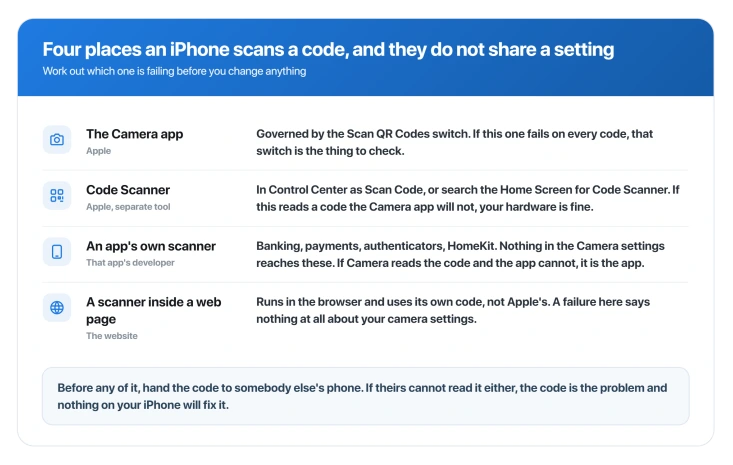
Ask it this way. Open the Camera app and point it at the code.
If the yellow link appears there but your banking app, authenticator or HomeKit still cannot read the same code, the Camera app is fine and the fault belongs to that app.
Nothing in Settings > Camera will change it.
If the code is an eSIM activation code from a carrier, that has its own set of traps and an eSIM stuck on activating covers them.
That case is real and it is stubborn. One owner described it running across two phone generations: "Ever since I got my last iPhone (14pm) I have had this issue. I thought it would be solved but it's a full year later and my new iPhone (15 pro max) still cannot scan QR codes. This is exclusively for IN APP QR code scanning."
The two-phone test, before you change anything
Ours, and it is the cheapest thing on this page. Hand the code to somebody else's phone.
If their phone cannot read it either, the code is the problem. It may be damaged, printed too small, too low in contrast, curved around a bottle, or sitting behind glare on a laminated poster.
No setting on your iPhone will fix any of that.
There is a second free test that tells you whether the switch is even worth checking. A switch is all or nothing. If some codes scan and others do not, the switch is on and you can skip the next section entirely.
Do that test first. I have put the switch further down deliberately, because reaching for it before you know which scanner failed is how people waste an evening.
The switch, and what Apple does and does not say about it
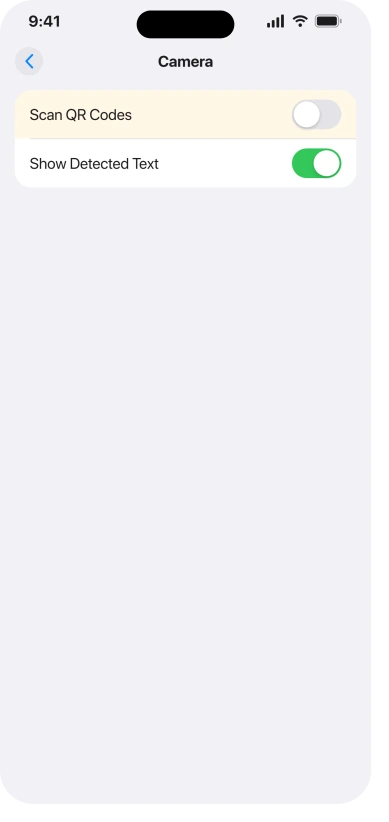
Go to Settings > Camera and look for Scan QR Codes. On iOS 18 and later Apple also gathers per-app settings under an Apps row, so Settings > Apps > Camera may be where yours lives.
If neither route looks familiar, pull down on the main Settings screen and search for Scan QR Codes. That sidesteps the question.
Now the odd bit.
We read Apple's iOS 26 page on scanning a code, its page on advanced camera settings, and its support article on the Code Scanner.
None of them mentions this switch. Apple documents the toggle sitting next to it, Show Detected Text, on its Live Text page.
On its advanced camera settings page it states the default position for four other Settings > Camera toggles. Scan QR Codes is on neither.
So we cannot tell you Apple says it is on by default. What we can say is that Apple's own instructions are open the camera, point it, tap the link, with no setup step anywhere, which only makes sense if it ships on.
Ours: if yours is off, something turned it off. A restore from an old backup, a settings reset, or a work or school profile are the realistic candidates.
What it looks like when it is off is the reason people think the camera is broken. There is no error and no message. Photos work perfectly. The yellow link simply never appears, on any code, ever.
One caveat before you pin your hopes on it
We could not find a single forum post where somebody said turning this switch on fixed it.
Not one.
People arrive at those threads with the switch already on, and the replies that do report success are about a different symptom, a black viewfinder in payment apps, cured by toggling the switch off, restarting, and back on.
Check it anyway, because it takes five seconds and it is free. Just do not expect it to be the answer, and do not let it stop you reading further.
Use the Code Scanner to split the problem in half
This is a separate tool from the Camera app, Apple documents it properly, and it is the fastest way to work out where the fault sits.
Apple, on its Code Scanner page: "Open Control Center and tap the Scan Code button." If it is not there yet, Apple's route to add it is to "Open Control Center. Touch and hold the background of the screen, then tap the Add a Control button. In the Control Center gallery, tap the Scan Code control."
Watch the naming, because it trips people in the gallery. Apple calls the app Code Scanner and calls the control Scan Code.
Ours: you can also reach it by swiping down on the Home Screen and typing Code Scanner, which Apple does not document but is quicker than editing Control Center.
If Code Scanner reads a code your Camera app will not, both the code and the hardware are fine, and the problem lives in the Camera app.
What iOS 26 actually changed here
Something did change, and it is smaller than the search results suggest.
Apple's guide page for scanning a code carries the same page identifier across versions, so the two can be read side by side.
The iOS 18 copy says "The camera automatically detects and highlights a QR code" and tells you to "Tap the notification that appears on the bottom of the screen".
The iOS 26 copy drops the detects-and-highlights sentence entirely, adds the words In Photo mode, and tells you to "Tap the link that appears at the bottom of the screen".
Ours: that is a documentation change, and it is consistent with the on-screen result being presented differently, but Apple never announced a change and we found no screenshot comparison.
One Apple Community poster two days after iOS 26 shipped said the URL preview they used to get when tapping the yellow button was gone, and that their camera still saw codes perfectly well.
That is the whole of it. One person, one lost preview, and scanning itself working.
No iOS 26 release note from 26.0 to 26.6 mentions QR codes or code scanning at all, and we found no report of this from any version after 26.0, which for an eleven-month-old release is the strongest sign there is nothing broken.
The one iOS 26 change worth knowing is in the release notes for a different reason.
Apple redesigned the mode picker in iOS 26.0 so Photo and Video are quicker to reach "with other modes still just a swipe away", which makes it that bit easier to be sitting in the wrong mode without noticing.
Apple's iOS 26 page now says Photo mode explicitly.
I would not read much into that on your own phone. If scanning works and only the preview is missing, you are seeing the same small change rather than a fault.
If the switch is not there at all
A missing toggle is a different problem from an off one.
One owner reported both Scan QR Codes and Show Detected Text gone from a fully updated iPhone 14. The two disappearing together is the clue, because the second one belongs to Live Text.
Apple says plainly that "Live Text isn't available in all regions or languages", and it puts a separate master switch at Settings > General > Language & Region, where Live Text has to be on.
Ours: Apple never connects that switch to the QR toggle, so this is our reasoning rather than a documented cause, but it is the first place we would look.
Status: current as of iOS 26.6. No iOS 26 release note has ever mentioned code scanning, and every iOS 26 report we found dates from September 2025, the 26.0 window.
What does not work
- Waiting for a point release. Two owners were already fully up to date when they posted, and no 26.x note has touched this.
- Reinstalling the app or re-granting camera permission, in the in-app case. Reported and reported as failing.
- Removing and re-adding the accessory, in the HomeKit case. One owner did all of that, could not scan inside HomeKit, could not enter the code by hand either, and said plainly that "my camera can scan QR codes in the camera app".
- Buying a third-party scanner app. A fair fallback if the Camera app is the broken part, and no help at all if the code or another app is.
- A repair. Nothing here is hardware unless ordinary photos are bad too, and then you are on the wrong page.
Why won't my iPhone scan a QR code?
Work down three questions. Can another phone read the same code, which tests the code. Does the Camera app read it while another app cannot, which tests that app. Does every single code fail, which is the only pattern that points at the Scan QR Codes switch.
Where is the QR code scanner on my iPhone?
Apple gives you two of them. The Camera app scans codes as you point it, and there is a separate Code Scanner you can add to Control Center, where the control is called Scan Code. Swiping down on the Home Screen and typing Code Scanner opens it too. The other two scanners on this page belong to apps and websites rather than to Apple.
Why won't my iPhone scan a barcode?
Because that is a different job. The Camera app is built for QR codes, and shop barcodes are not the same thing. For those you generally need an app made for it, and the Camera app ignoring one is not a fault.
Does the camera only scan in Photo mode?
Apple's iOS 26 page says "In Photo mode", so if the mode word under the shutter says anything else, switch back before you troubleshoot. Apple does not publish a list of which other modes fail, so treat any such list you meet as guesswork.
The Short Version
- Black, frozen or blurry preview is a different problem with a different page.
- Try the code on somebody else's phone first. If it fails there too, the code is at fault and nothing on your iPhone will help.
- If some codes work and others do not, the Scan QR Codes switch is not your problem.
- The switch is at Settings > Camera, possibly under Settings > Apps > Camera, and searching Settings for it is the route that cannot be wrong.
- Apple documents that switch nowhere we could find, and we found no forum post crediting it with a fix. Check it anyway, it costs five seconds.
- The Code Scanner in Control Center is a separate tool and splits the problem in half in ten seconds.
- If the Camera app reads the code but an app cannot, the fault is that app's own scanner.
- iOS 26 changed Apple's wording, not the feature. No release note from 26.0 to 26.6 mentions code scanning.
Where to Next
Skip the switch and run the two free tests instead. Another phone tells you whether the code is readable. The Code Scanner tells you whether your camera is.
Between them you will know which of your scanners let you down, and only then is Settings worth opening.
If both tests pass and it still will not scan, leave me a comment saying which app you were using at the time, because that narrows it a long way.

Isaac Smith is the founder and editor of PC Glance, a website that covers computers, laptops, and technology. He is a tech enthusiast and a computer geek who loves to share his insights and help his readers make smart choices when buying tech gadgets or laptops. He is always curious and updated about the latest tech trends.