
Scanning documents on iPhone does not require an extra scanner app. In Notes, open a note, tap the attachment control and choose Scan Documents. Frame the page, check its edges and save the scan.
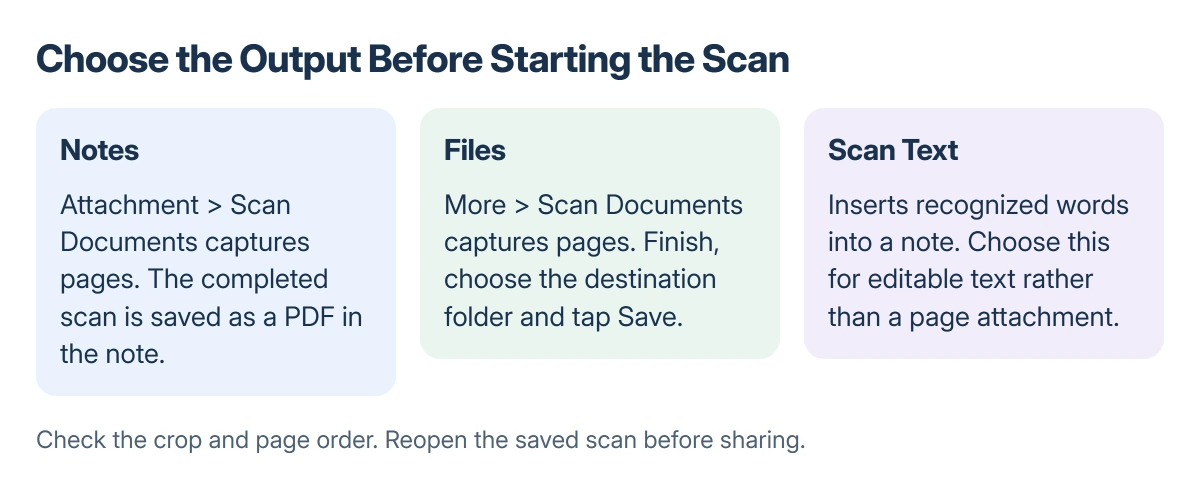
Choose Files instead when the document should go straight into a folder. Scan Documents captures a page; Scan Text inserts recognized words into a note. Pick the one that matches the result needed.
Start a document scan in Notes
Open Notes and create a note or open the one that should contain the document. Tap the attachment button, then Scan Documents.
Place the page on a flat surface with enough contrast around its edges. Hold the iPhone so the whole page is inside the preview and keep hands and shadows away from the text.
Status: Apple's Notes and Files scanning instructions checked 22 October 2026. The Notes guide confirms PDF storage. No document or camera was tested.
Apple documents the attachment route in its iPhone scanning instructions. Its current article also offers More > Scan as an alternative in Notes.
In automatic mode, hold the phone steady while it detects and captures the page. Do not move to the next sheet until the first capture has completed.
Check the crop before keeping each page
For manual capture, tap the shutter button or press a volume button. Drag the corner handles to match the paper, then choose Keep Scan.
Inspect all four corners. A crop that cuts off a signature, date or column total needs correcting before the original paper is put away.
If the page is blurred or obscured by glare, retake it. A sharper scan is more useful than trying to make unreadable text darker with a filter.
Continue scanning additional pages in the same session. Choose Done when the document is complete, rather than creating separate notes for every page unintentionally.
Apple states in its Notes camera guide that a scanned document is saved as a PDF inside the note.
Open that attachment and review the page count and reading order. Check small print at a readable zoom before sending it anywhere.
Save directly into a folder with Files
In Files, open More, then select Scan Documents. Capture the page automatically, or use the shutter or a volume button and adjust the corners manually.
Keep the scan, add any remaining pages and tap Done. Choose the destination folder and tap Save.
Apple says to select the save location in this Files procedure. Pay attention to whether the folder is on the iPhone or in a cloud service, especially when the scan must be available on another device.
Find and reopen the saved document before deleting a temporary copy or leaving the paper behind. A successful capture and a file saved in the expected folder are separate checks.
Need editable words or a QR code instead?
Scan Text is the Notes option for inserting recognized words. Use it for a short passage or address when editable words matter more than preserving the page.
For text already in an image, use Live Text to copy words on iPhone rather than photographing the screen again.
A QR code is another distinct task. Use the Camera or Code Scanner route in the iPhone QR-scanning guide when the goal is opening a code's link.
If Notes captures a page but the destination service rejects the upload, check that service's file type and size requirements. Rescanning repeatedly will not solve an account or attachment-limit message.
The Short Version
Notes: attachment control, Scan Documents, capture, inspect the corners and finish. The scan is stored as a PDF in the note.
Files: More > Scan Documents, capture the pages, tap Done, choose a folder and Save. Use Scan Text only when recognized words are the intended output.
Where to Next
Open the finished document and inspect every page before sharing it. If the camera cannot produce readable text even in good light, check ordinary photo quality and contact Apple if that fails too.

Isaac Smith is the founder and editor of PC Glance, a website that covers computers, laptops, and technology. He is a tech enthusiast and a computer geek who loves to share his insights and help his readers make smart choices when buying tech gadgets or laptops. He is always curious and updated about the latest tech trends.