
You took a screenshot of an address, a code or a message, and now the text will not select. Your old iPhone let you do this, so it feels like the new one lost the feature.
It has not. Copying text out of a picture on an iPhone runs through Live Text, and I put together Apple's steps with the fix one owner found on an iPhone 18 Pro Max.
What happened to one owner
In their words, the question was short: "Why can't I copy text from a screenshot (iPhone 18 pro max). I was able to on my previous iPhone."
A Level 6 volunteer asked the right question first: "Do you see a Live Text logo on the screenshot?" The owner's setting was fine, which made it stranger. "The live text was enabled but somehow wasn't working."
Your iPhone may be in the same state. Two quick checks cover both cases.
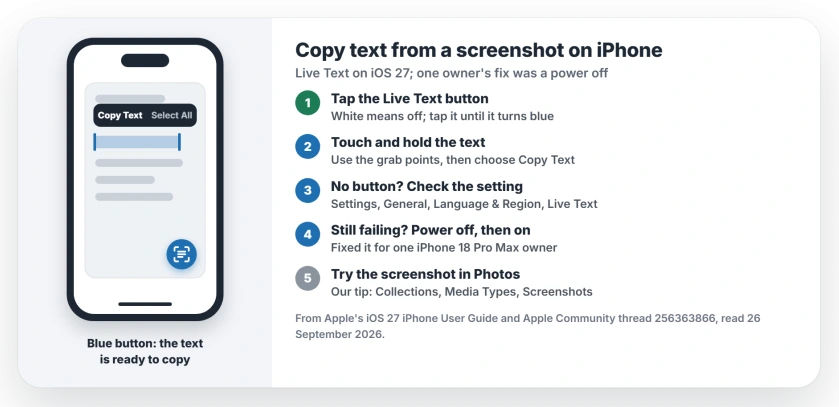
Status: iPhone on iOS 27, checked 26 September 2026. Screenshot text is copied with Live Text. Turning the iPhone off and on fixed it for one owner whose Live Text was on but not working.
1. Tap the Live Text button first
Apple's steps start with the button, not the text. Apple's guide says to "Open a photo or pause a video that contains text", tap the Live Text button, "then touch and hold the selected text".
For paper that needs to stay a complete document, scan it into Notes or Files rather than copying its words into a new note.
The volunteer described the button as "a small circle around a corner-bracketed stack of three horizontal lines". It sits on the picture itself.
The tip that matters: "If you do see one and it is white, tap it to turn it blue and activate the text for selection and copying."
Then use the grab points and choose Copy Text. Apple says you can "Copy text to paste into another app such as Notes or Messages".
2. Check that Live Text is on
No button at all? Then the Live Text setting itself may be off. Apple puts the switch in Settings, under General, then Language & Region, where the step is to "Turn on Live Text".
Apple adds a limit: Live Text is not offered in every region or language. So a missing button can have two causes.
3. Turn your iPhone off, then on
This is what fixed it for the owner. The volunteer's advice was that "you may just need to power off (not just lock) your phone and power it back on".
The owner came back with good news: "It actually worked!" They had "powered the phone off and then was working".
On a Face ID iPhone, Apple's button route is to hold the side button together with either volume key until the sliders show. Drag Power Off across.
Wait a few seconds, then hold the side button once more until the Apple logo lights up.
4. Open the screenshot in Photos
The preview that appears right after a screenshot is not the only place to try. Apple lists where Live Text runs: "You can use Live Text in Safari, Photos, Camera, Quick Look, and more."
Screenshots that show as a small thumbnail save to your library by themselves, Apple says. Full-screen ones save when you swipe up or pick an option.
So open Photos, find the screenshot, and try the button there. Apple's path to them is Collections, then Media Types, then Screenshots. That tip about Photos is ours.
Other screenshot and Photos problems
If your screenshots are not reaching Photos at all, the screenshots page covers the setting that changed. And if pictures seem to be missing from Photos, the missing photos page starts with the count.
Live Text working in Photos but not when you open the same image from the Files app? That is a separate iOS 27 fault in Quick Look, and the Files app Live Text page has the Open With workaround.
How do I copy text from a screenshot on iPhone?
Open the screenshot, tap the Live Text button so it turns blue, then touch and hold the text and choose Copy Text.
Why is there no Live Text button on my screenshot?
Live Text may be off, or not offered in your region or language. Turn it on in Settings, General, Language & Region.
Live Text is on but not working. What now?
Turn the iPhone off, then back on. One owner with Live Text already enabled found that a full power off fixed it.
Does Live Text work on screenshots in Photos?
Yes. Apple lists Photos among the places Live Text works. Save the screenshot first if it opened as a full-screen preview.
The Short Version
- Screenshot text copies through Live Text.
- Tap the Live Text button until it turns blue.
- Touch and hold the text, then Copy Text.
- Check Live Text in Settings, General, Language & Region.
- If it still fails, power off and back on.
- Try the screenshot in Photos too.
Where to Next
Take a screenshot of any text now and try the Live Text button, so you know it works before you need it.
Still stuck after a restart? Say which iPhone you have in the comments, and whether the Live Text button shows at all. I will look into what else could block it.

Isaac Smith is the founder and editor of PC Glance, a website that covers computers, laptops, and technology. He is a tech enthusiast and a computer geek who loves to share his insights and help his readers make smart choices when buying tech gadgets or laptops. He is always curious and updated about the latest tech trends.