
You press the buttons, the screen flashes, and later there is nothing in Photos to show for it. Losing a screenshot you took for a reason is a small thing that manages to be properly annoying.
What changed is the preview, so let me explain that first and then work through the rest.
What Apple changed, and why the X is now dangerous
The screenshot preview used to be a small thumbnail in the corner that you could ignore. Ignoring it saved the shot.
Apple's screen capture settings page now describes the opposite as the default: "After you take a screenshot, it appears in full screen by default. If you prefer a temporary thumbnail preview in the bottom-left corner, do the following:"
A full-screen preview is not something you can ignore. You have to dismiss it, and the button most people reach for is the X.
That X is not a close button. Apple lists it under what the preview can do: "Cancel or delete: Tap".
So the shot is discarded, and nothing tells you that is what happened. Apple never warns you at the moment you tap it, and that silence is why the symptom reads as a fault rather than as a choice you made.
Get the old behaviour back in three taps
This is the fix for most people, and it is the one worth doing before anything else.
Open Settings, and Apple gives the route: "Tap General, then tap Screen Capture." Then "Turn off Full-Screen Previews."
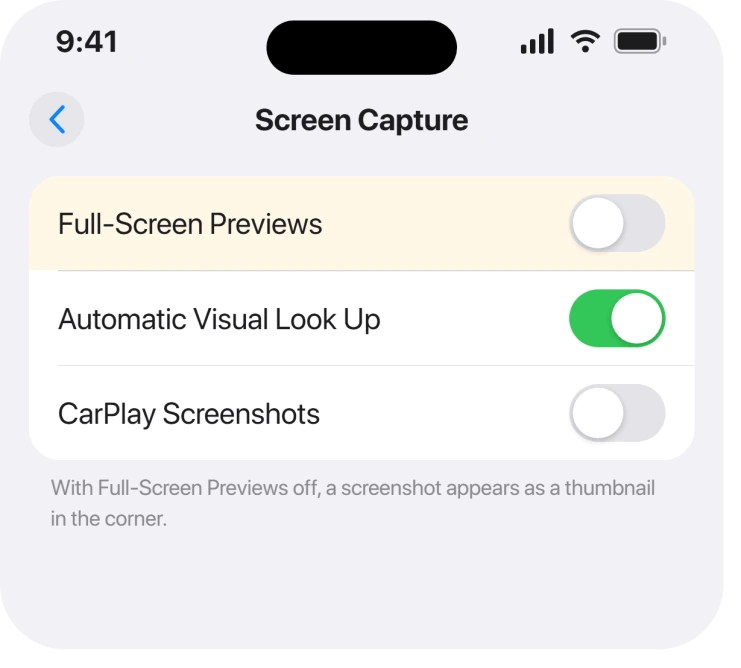
Now the preview goes back to a corner thumbnail. Leave it alone and the screenshot saves by itself.
Apple confirms that is the normal behaviour: "By default, screenshots are saved to your photo library in the Photos app."
They are saving, and Photos is hiding them
Different problem, same symptom, and almost nobody thinks of it.
Photos can be told which media types to display. If Screenshots is unticked in that view, they are in your library and simply not drawn on screen.
Owners report it. On an Apple Community thread about screenshots missing from the photo library, the top-ranked reply gave the route: "Tap the Filter/Sort Button (3 lines) on top of your Library Screen. Then choose View Options and make sure you have Screenshots selected there."
There is a second way in that does not depend on that setting at all. Apple: "To see all your screenshots, open Photos, tap Collections, scroll down to Media Types, then tap Screenshots."
Try that route first. If they are there, nothing was ever lost and the filter is your whole problem.
A full-page screenshot went to Files, not Photos
Narrower, and it catches anyone screenshotting a long webpage.
Tap Full Page on the preview and the saving options change. Apple gives two: "Save as an image: Tap" and "Save a PDF: Tap".
Only the first one puts it in Photos. The PDF route saves into Files at a location you choose, so it will never appear in your photo library however long you scroll.
If a long Safari capture is what has gone missing, open the Files app rather than Photos. And if Photos is showing you nothing at all rather than just missing screenshots, iPhone photos not showing starts by getting a count.
The phone was too full to save it
Rare, and worth ruling out because the failure is completely silent.
A second Apple Community thread has an owner describing screenshots that would not save on a nearly full phone and then never appeared in Photos at all. Nothing on screen warned them at the moment they took the shot.
Check Settings, General, then iPhone Storage. If you are down to the last few hundred megabytes, that alone explains it, and an iPhone that says storage is full while iCloud has space sorts out the confusing version of that.
Ours, and marked as ours: we would treat a full phone as the explanation only once the filter check above has come back empty, because the filter is far more common and costs nothing to test.
Back Tap fired and you never noticed
Last, and this is the opposite complaint: screenshots you did not mean to take, filling the library.
Apple lists it among the alternate methods: "Back Tap: Tap the back of iPhone two or three times."
Set up once and forgotten, it turns putting the phone down into a screenshot. A library full of pictures of your own Home Screen has exactly one explanation.
It lives in Settings, Accessibility, Touch, then Back Tap.
If you take screenshots with AssistiveTouch instead and the option vanished on iOS 27, the AssistiveTouch screenshot page shows it moved under Device.
What does not help
- Taking more screenshots to test it. If the filter is hiding them, the new ones vanish exactly the same way and you learn nothing.
- Restarting the iPhone. Nothing Apple publishes connects a restart to this, and neither community thread reports it working.
- Signing out of iCloud. The shot is written to the device first, so iCloud is not what failed.
- Recovery software. A screenshot cancelled at the preview was never written. There is nothing to recover.
Status: iOS 26.6.1, checked 19 August 2026. Full-screen previews are the documented default and the X discards the shot. Neither community thread read here ends in a confirmed fix.
Why do my screenshots disappear right after I take them?
Most likely you are dismissing the full-screen preview with the X, which Apple lists as cancel or delete rather than close. Turning off Full-Screen Previews in Settings, General, Screen Capture restores the corner thumbnail that saves on its own.
Where are screenshots saved on iPhone?
To your photo library by default. Apple's route to see only them is to open Photos, tap Collections, scroll down to Media Types, then tap Screenshots. That works even when the library filter is hiding them elsewhere.
Why is my full page screenshot not in Photos?
Because you probably saved it as a PDF. That option writes into the Files app at a location you pick, and only Save to Photos puts a full-page capture into your photo library.
Why does my iPhone take screenshots by itself?
Back Tap. Apple documents tapping the back of the iPhone two or three times as a way to take one, and once it is set up, ordinary handling can trigger it. Turn it off in Settings, Accessibility, Touch, Back Tap.
The Short Version
- The X on the preview cancels the screenshot rather than closing the preview.
- Turn off Full-Screen Previews to get the corner thumbnail back.
- Photos, Collections, Media Types, Screenshots shows them even when a filter hides them.
- The library filter has its own Screenshots tick under View Options.
- Full-page captures saved as PDF go to Files, not Photos.
- A nearly full phone can fail to save one with no warning.
- Back Tap explains screenshots you never meant to take.
Where to Next
I lead on a preview rather than a reset because the commonest version of this is not a fault. Apple changed a default, and a button that used to mean close now means throw away.
If you turned off Full-Screen Previews and screenshots still go missing, tell me what happens at the moment you take one.
Photos that will not travel between people are a separate fault again. Shared albums not syncing on iOS 26 has the settings that decide it.
If the screenshot saved but its text will not select, the Live Text page starts with the button that has to turn blue.
That detail is what separates the three causes here, and it is the thing neither community thread ever managed to pin down.

Isaac Smith is the founder and editor of PC Glance, a website that covers computers, laptops, and technology. He is a tech enthusiast and a computer geek who loves to share his insights and help his readers make smart choices when buying tech gadgets or laptops. He is always curious and updated about the latest tech trends.