
Your iCloud plan says there are gigabytes free and your iPhone still refuses to install the update. Before you go and pay Apple for a bigger plan, stop.
Both of those numbers are telling you the truth. They are measuring two completely different things that happen to share a brand name, and Apple never explains that anywhere you would look.
Buying more iCloud space will not hand a single byte back to the phone. Let me show you the one setting that genuinely does.
They are two spaces, with two separate meters
Apple keeps a page just for this question, and its opening line settles it: "iCloud storage securely stores your photos, files, notes, and other data in the cloud… Device storage is the storage on your Apple device, like your iPhone or iPad."
That is the whole confusion in two sentences. iCloud storage is space you rent on Apple's servers.
Device storage is the chip soldered into the phone you bought, and Apple's own wording for it is that your device "comes with a set amount of storage".
Nothing you buy from Apple changes the second number. A 128 GB iPhone stays a 128 GB iPhone on every iCloud plan there is.
Check which meter is actually full
Before doing anything, find out which of the two is complaining. They live in different places in Settings, which is part of why people conflate them.
- Device storage: open Settings, tap General, then iPhone Storage. Apple notes the available figure "is shown at the top of the screen".
- iCloud storage: open Settings, tap your name, then iCloud. Tap Storage or Manage Storage for the breakdown.
If the iPhone Storage bar is jammed and the iCloud figure has room, you are in the case this page is about, and the next section is the reason.
Why iCloud Photos fills the phone anyway
This case almost always involves iCloud Photos being switched on, and the reasonable assumption that follows: the pictures are "in the cloud", so they must be off the phone. By default they are in both places at once.
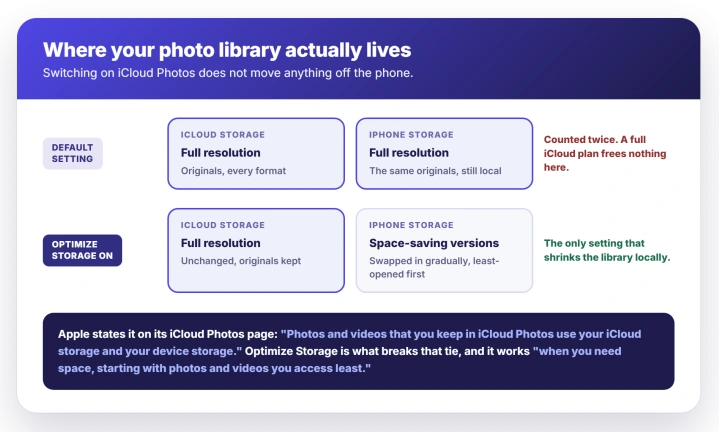
Apple states it directly on its iCloud Photos page: "Photos and videos that you keep in iCloud Photos use your iCloud storage and your device storage."
Read that as the answer to the whole question. Turning on iCloud Photos does not move anything off the phone.
It makes a synced copy in iCloud and leaves the full-resolution original exactly where it was. So a 90 GB library counts against your iCloud plan and against your 128 GB phone at the same time.
Optimize Storage, and why it looks like nothing happened
Exactly one setting changes that arrangement for your photo library.
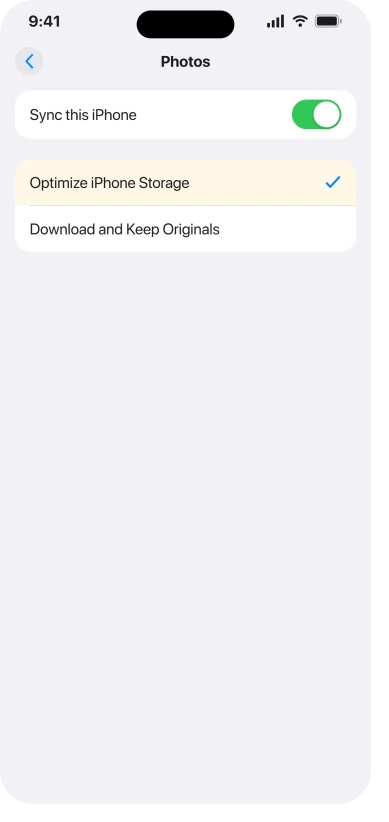
- Open Settings, tap your name, then iCloud.
- Under Saved to iCloud, tap Photos.
- Tap Optimize iPhone Storage. The other option, Download and Keep Originals, is what keeps full-size files on the phone.
Apple describes the result exactly: "iCloud Photos keeps your photos and videos in their original, high-resolution version and space-saving versions are kept on your device."
Then comes the detail that gets Optimize Storage written off as broken. Apple's next sentence: "Your library also optimizes when you need space, starting with photos and videos you access least."
It is not a button that empties your phone on the spot. iOS swaps originals for smaller versions gradually, as pressure builds, and it starts with the pictures you never open.
Switch it on, check iPhone Storage ten minutes later, and you will very likely see the same number you saw before. That is the feature working as documented, not failing.
If your photos are stuck part-way through syncing rather than optimizing, that is a separate fault covered in our guide to iCloud Photos stuck on syncing paused.
Before you delete photos to make room
The standard advice for a full iPhone is to delete photos. With iCloud Photos switched on, that advice is dangerous, and this is the one thing to understand before you tap anything.
Apple's wording could not be blunter: "When you delete photos and videos on one device, they're deleted everywhere that you use iCloud Photos."
Deleting from the phone is not moving a picture to the cloud. It removes it from the cloud, from your iPad, from your Mac, and from iCloud.com. There is a grace period and it is finite.
Apple: "If you delete something accidentally, you can recover it in the Recently Deleted folder for 30 days. After that, it's deleted permanently and you can't get it back."
If you already deleted them in iCloud and they left your iPhone too, start with the recovery steps before the 30 days run out.
So if space is the goal, turn on Optimize Storage and let iOS shrink the local copies. Deleting is for pictures you actually want gone forever, from everywhere.
Recently Deleted is why nothing changed after you deleted
There is a second reason the storage bar refuses to move. Deleted photos do not leave immediately, because the 30 day recovery window means they are still being held for you.
To clear them out properly, open Photos, scroll to Collections, tap Utilities, then Recently Deleted.
Apple locks that album by default, so unlock it with Face ID, Touch ID or your passcode. Then, in Apple's steps, "tap Select, then select the items you want to remove. Tap the More button, tap Delete, then tap Delete From This iPhone."
One exception, and it removes your safety net entirely. Apple's iCloud storage page leaves no wriggle room: "If you exceed your iCloud storage limit, your device immediately removes any photos and videos you delete and they won't be available for recovery in your Recently Deleted album."
So the 30 days is conditional. If your iCloud is over its limit rather than under it, every deletion is instant and final, with nothing to recover from. Check the iCloud figure before you start deleting, not after.
One more thing to check while you are in Utilities. Apple documents a Recovered collection sitting in there too.
Apple: "If a photo or video wasn't saved properly and couldn't be added to your library, you may find a copy of it in Recovered." If a clear-out has left you thinking photos are missing rather than merely hidden, get the photo count first before you start rebuilding anything.
What actually frees space on the phone
With that gate passed, these genuinely return device storage:
- Offload unused apps. Open Settings, tap Apps, tap App Store, then turn on Offload Unused Apps. Apple's storage guide describes the result: "When storage is low, iPhone removes the app but keeps your documents and data. The app icon stays on your Home Screen with a cloud symbol."
- Delete downloaded video. Open the TV app, tap Library, then Downloaded. Movies and episodes can be among the largest single items on a phone, and deleting a download does not cost you the purchase.
- Clear out Messages attachments. Open Settings, tap General, tap iPhone Storage, tap Messages, then Review Large Attachments, which sorts them largest first. They keep occupying the phone until you remove them, unless you have Keep Messages set to expire.
- Check System Data if the number looks impossible. A System Data figure in the tens of gigabytes is its own iOS 26 problem, and our iPhone System Data storage guide deals with that specifically.
Your photo library is not inside your iCloud backup
This one catches people who assume a recent backup means their pictures are safe.
Apple, on the same iCloud Photos page: "When you turn on iCloud Photos, your photos and videos automatically upload to iCloud. They're not duplicated in your iCloud backup, so keep backup copies of your library."
Your iCloud backup and iCloud Photos are separate services sharing one storage pot. Restoring a backup pulls your library back down from iCloud Photos, not from the backup file.
If you delete pictures out of iCloud Photos, no backup is quietly holding them for you.
If the bar still will not move
Give Optimize iPhone Storage a full charge cycle or two before judging it, since iOS only swaps originals out when it actually needs the room.
If iPhone Storage is still jammed after that, open Settings, tap General, tap iPhone Storage and read the top of that list rather than the photo count.
A single app holding tens of gigabytes, or a System Data figure that looks impossible, is a different problem from this one and nothing on this page will fix either.
What does not help
- Buying a larger iCloud plan. It adds space on Apple's servers. It cannot add space to the phone, and if your iCloud already has room it changes nothing at all.
- Turning iCloud Photos off to save phone space. Optimize Storage sits inside iCloud Photos and cannot run without it, so switching the whole thing off removes the one mechanism that was shrinking your local copies.
- Cleaner apps promising to free gigabytes. The iPhone Storage screen already lists your largest apps and Apple's own recommendations, and the settings on this page are the ones that move the number.
- Restarting the phone. It clears some temporary files, but it does not change what is occupying the storage.
Status: this is documented iCloud Photos behavior by design, and it has not changed in iOS 26.6. Apple last revised its device-versus-iCloud storage page on 11 February 2026.
Will buying more iCloud storage free up space on my iPhone?
No. They are separate spaces. iCloud storage is rented on Apple's servers and device storage is fixed in the hardware. A larger plan lets you keep more in iCloud, and it earns its place if backups or uploads are failing, but it does not give the phone any more room.
Does iCloud Photos remove photos from my iPhone?
Not on its own. Apple states that photos in iCloud Photos use your iCloud storage and your device storage at the same time. Only Optimize Storage replaces the local originals with smaller versions, and it does so gradually rather than immediately.
If I delete photos from my iPhone, are they still in iCloud?
No, and this is the most expensive misunderstanding on this topic. Deleting on one device deletes everywhere you use iCloud Photos. You usually have 30 days in Recently Deleted to change your mind. If your iCloud is over its limit you get no window at all, and the deletion is instant.
Why does my iPhone say storage full right after I freed space?
Recently Deleted still holds your photos for up to 30 days, so they keep occupying device storage until that album is emptied or the window expires. If your iCloud is over its limit there is no window and they go straight away.
The Short Version
- iCloud storage and device storage are two separate meters. Check Settings > General > iPhone Storage against Settings > your name > iCloud.
- iCloud Photos uses both by default, so switching it on never moved your library off the phone.
- Optimize iPhone Storage is the setting that changes device usage for your photo library, and it works gradually, starting with photos you rarely open. Seeing no immediate change is normal.
- Deleting photos deletes them everywhere, with up to 30 days in Recently Deleted to undo it, and no window at all if your iCloud is over its limit. Optimize first, delete only what you want gone for good.
- Offload unused apps, clear downloaded video and Messages attachments for real device savings.
- Your photo library is not inside your iCloud backup. Keep separate copies.
Hoping duplicates are the problem: Merging them recovers less than people expect, and our guide to the Duplicates album sitting empty explains why the collection is often shorter than the library looks.
If the phone restarts rather than filling up: Our guide to an iPhone that keeps restarting covers the panic entries that tell you whether it is software or hardware.
Where to Next
Two meters, two completely different things, and no amount of iCloud storage moves the needle on the one that is full.
Optimize iPhone Storage is the setting that genuinely converts one into the other, and it works gradually rather than tonight.
If a red badge says an iCloud storage upgrade is ready when you bought nothing, that is a known Apple glitch, and one sign-out clears it.
If you turn it on and your phone storage has not budged in a week, come back and tell me how big your photo library is, because that changes how long it takes.

Isaac Smith is the founder and editor of PC Glance, a website that covers computers, laptops, and technology. He is a tech enthusiast and a computer geek who loves to share his insights and help his readers make smart choices when buying tech gadgets or laptops. He is always curious and updated about the latest tech trends.