
A red badge appeared on your Settings app. The message says an iCloud storage upgrade is ready to be used with your Apple Account. You never bought an upgrade.
So you are wondering whether you are about to be charged, or whether it is a scam. I would wonder the same. It is not a charge, and the badge itself is no scam.
It is a glitch that started on 21 September 2026. Owners found a sign-out that clears it. I will show you that first, then how to tell it apart from the real scams that look similar.
What the message is
It is a notification bug on Apple's side, and it showed up for people on iOS 26 and iOS 27, including one using just 1.2GB of iCloud.
One owner contacted Apple Support the same evening and was told "Apple is aware of it, and their engineering team is investigating and working on removing the notification."
Apple Support also called it "a cosmetic issue that doesn't affect iCloud storage functionality." Your storage, plan and backups are untouched.
Apple's forum thread on it reached 142 Me too clicks within days. So this was never about something on your phone.
The fix owners confirmed: sign out of Media & Purchases
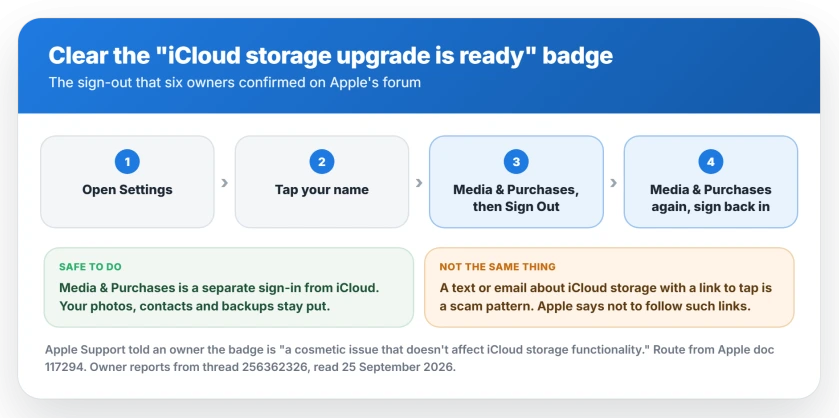
This step cleared the badge. Six owners confirmed it on the thread. The owner who found it wrote: "go to Media & Purchases, log out, then log back in. That fixes the red badge".
Apple documents the route on its purchases migration page. In Settings, tap your name, then "tap Media & Purchases, then tap Sign Out".
Then tap Media & Purchases again and sign back in with your usual Apple Account. The badge should be gone.
The replies were quick and clear, and one owner wrote "this fixed the problem for me right away". Another said: "That did it for me."
Will signing out lose anything?
No, and it helps to know this before you tap. Apple treats Media & Purchases as its own sign-in, separate from the account you use for iCloud.
Apple's page describes the two roles plainly: the account "signed in for use with iCloud and most features" and the one "signed in just for use with Media & Purchases".
So signing out of Media & Purchases leaves your iCloud photos, contacts and backups alone. It only covers the App Store and media side. You sign straight back in.
While you are there, check that Media & Purchases shows the same Apple Account as your iCloud. Two different accounts can hold Content and Privacy Restrictions on.
Or just wait
Some owners saw the badge disappear without doing anything. One wrote on 23 September: "The notification has disappeared for me today", adding that "it just vanished all on its own".
Not everyone was so lucky. On 22 September another owner wrote: "No it hasn't. I still have the issue, and I restarted my phone".
So if the badge is still there, use the sign-out step rather than waiting, since it takes under a minute.
Is it a scam?
The badge in Settings is not. It comes from your iPhone itself, and it does not send you to a website.
Texts and emails are a different matter: messages claiming your iCloud storage needs upgrading, with a link to click, are a common kind of phishing. That judgment is ours. Apple's advice for any of them is blunt.
Apple says on its scam page: "Don't follow links or open or save attachments in suspicious or unsolicited messages." For a suspicious text, take a screenshot and email it to reportphishing@apple.com.
Do not buy storage to clear it
This is ours, and it matters. The badge is not telling you that you are running out of space, so paying for a bigger plan does nothing about it.
Want to see what you actually use? Go to Settings, tap your name, then iCloud. Your storage appears there, and Apple's iCloud+ page lists Manage Plan under iCloud+ Features on iOS 27.
If your phone itself says it is out of space while iCloud has plenty, that is a separate problem. Your iPhone storage and your iCloud storage are two different things.
Report it if the badge returns
The thread's Level 10 member pointed people to Apple's iCloud feedback page. Use it if the badge returns after you sign back in.
Mention your iOS version and that you never bought an upgrade. That is the detail that separates this bug from a real storage prompt.
Status: iOS 26 and iOS 27, checked 25 September 2026. Apple Support told an owner the badge is a known, cosmetic issue that does not affect iCloud storage, and that engineers are working on removing it. Six owners cleared it by signing out of Media & Purchases and back in. For some it vanished on its own, while one still had it after a restart.
What does "an iCloud storage upgrade is ready" mean?
On 21 September 2026 this message began appearing as a red badge in Settings for people who had bought nothing. Apple Support told one owner it is a cosmetic issue that does not affect iCloud storage, and that Apple is working on removing it.
How do I clear the iCloud storage upgrade badge?
Open Settings, tap your name, tap Media & Purchases, then tap Sign Out. Tap Media & Purchases again and sign back in with your usual Apple Account. Six owners on Apple's forum confirmed this cleared the badge.
Will I be charged for the iCloud storage upgrade?
Nothing in the reports suggests a charge. Apple Support described the badge as cosmetic, and it appeared for people using very little storage. Check your plan under Settings, your name, iCloud if you want to be sure.
Is the iCloud storage upgrade message a scam?
The red badge inside Settings is not a scam, because it comes from your iPhone. A text or email about iCloud storage with a link to tap is different. Apple says not to follow links in suspicious or unsolicited messages.
The Short Version
- The badge is a known Apple glitch that began on 21 September 2026.
- Apple Support called it cosmetic, with no effect on iCloud storage.
- Sign out of Media & Purchases and back in. Six owners confirmed it clears the badge.
- Media & Purchases is separate from your iCloud sign-in, so nothing is lost.
- For some owners it vanished on its own, but not for everyone.
- Do not buy more storage to make it go away.
- A text or email with a storage link is a different thing, and Apple says not to tap it.
Where to Next
Do the Media & Purchases sign-out now, because it is quick and nothing is lost. Then check Settings again and the badge should be gone.
Still seeing it after signing back in, or did it return later? Post your iOS version in the comments. I will keep this page current.

Isaac Smith is the founder and editor of PC Glance, a website that covers computers, laptops, and technology. He is a tech enthusiast and a computer geek who loves to share his insights and help his readers make smart choices when buying tech gadgets or laptops. He is always curious and updated about the latest tech trends.