
You used to press Command-Space on your Mac and just say what you wanted. Since macOS 27, the same keys open a box to type into, and you have to click the microphone first.
Nothing is broken on your Mac. Apple moved Siri into Spotlight with Siri AI, and I checked its macOS 27 guide for the ways to talk to Siri again.
What one long-time user noticed
The forum thread came from a Level 6 member with years of habit. In their words: "I used to hold Cmd and hit the space bar, and I could tell macOS what apps to open, etc. But now it just brings up the text typing Siri".
The extra step is the annoyance: "I have to go the extra step to click the microphone before I can speak commands". Later: "Cmd+Space brings up Siri to type into, not simply ready for a voice command, like it used to".
A Level 10 volunteer pointed out that this was "not the default" and that "Cmd-space opens Spotlight". The owner's old setup had used a Siri shortcut, and their reading is blunt: "But it has been removed in macOS 27".
What Apple changed
Apple's macOS 27 Spotlight guide explains it. "To open Spotlight, press Command-Space bar and start typing".
With Siri AI turned on, Apple says "Spotlight becomes the place where you start a conversation with Siri". Its Siri page puts it in one line: "Press Command-Space bar on your keyboard to ask Siri a question in Spotlight".
So Command-Space now means typing, and speaking needs one of the other routes in Apple's own guide.
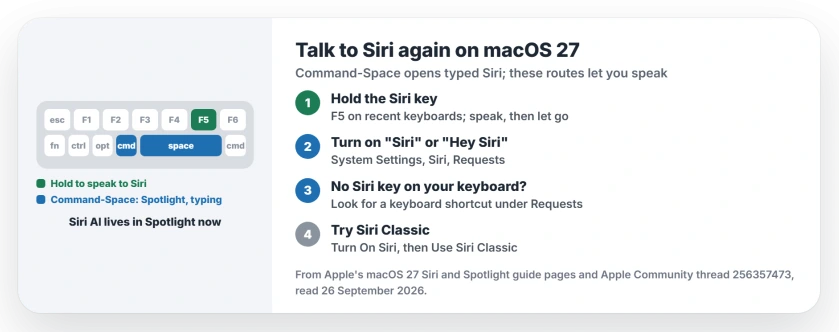
Status: macOS 27 with Siri AI, checked 26 September 2026. Command-Space opens Spotlight, where Siri takes typed questions. Apple's guide lists other ways to speak to Siri.
1. Press and hold the Siri key
Apple's first route is a key in the top row. Its guide says to "Press and hold" the Siri key "in the row of function keys on your keyboard".
A Level 9 volunteer named it: "Pressing and holding F5 opens Siri directly". They also confirmed the old trick is gone: "It used to be that pressing and holding Command-space would open Siri, but this does not seem to work anymore".
Hold the key, speak, then let go. Siri should open ready to listen, with no microphone to click.
2. Turn on "Siri" or "Hey Siri"
You can skip the keyboard entirely. In System Settings, click Siri, then Requests.
Apple says Requests lets you "choose how you want to activate Siri". You can then speak to it by saying "Hey Siri" or "Siri", once you pick the phrase and finish the short setup.
Apple notes it may not be available in every language or region. Where it is, it comes nearest to the old habit.
3. No Siri key? Look for the shortcut under Requests
The owner had a full-size keyboard: "I don't have a Fn key, I'm on a full sized keyboard". For that case, Apple's guide says "If this key isn't available, use the keyboard shortcut specified in Siri settings".
Apple's Siri settings page places it under Requests, where you can "turn off listening and click the Siri icon or use a keyboard shortcut instead". The owner could not find their old shortcut, so check what your version offers.
Apple adds that "The options you see depend on which version of Siri you're using". That line is the reason two Macs can show different choices.
4. Or switch back to Siri Classic
Apple keeps the previous Siri available. In Siri settings, Apple's steps say to "click Turn On Siri, then select Use Siri Classic".
Our untested idea: if the Siri AI version hides the shortcut you relied on, Siri Classic may show it again. That idea is ours. No one has reported trying it.
5. Put Siri in the menu bar
For a one-click route, add the Siri icon to your menu bar. Apple's steps: in System Settings, click Menu Bar, then select Siri under Menu Bar Controls.
It is not hands-free, but it saves the extra click on the microphone every time you want to speak.
Other Siri problems on macOS 27
If Siri AI itself will not answer, the Siri AI page covers the common failures. And if Writing Tools stopped working after you turned on Siri AI, the Writing Tools page explains the link.
And when Translate sticks to a language you never chose, one Terminal reset fixes it on macOS 27.
Why does Command-Space open typed Siri on macOS 27?
With Siri AI on, Apple made Spotlight the place where you start a conversation with Siri. Command-Space opens Spotlight, so Siri waits for typing there.
How do I talk to Siri on a Mac with macOS 27?
Press and hold the Siri key in the function row, or turn on "Siri" or "Hey Siri" in Siri settings under Requests. Both skip the typing box.
Can I set a keyboard shortcut for Siri on macOS 27?
Apple's guide says to use the keyboard shortcut specified in Siri settings if your keyboard has no Siri key. One owner could not find their old one, so check Requests on your Mac.
Is the old Siri still available?
Yes. Apple's guide says you can click Turn On Siri, then select Use Siri Classic, if you have Siri AI.
The Short Version
- Command-Space now opens Spotlight for typing.
- Press and hold the Siri key to speak.
- Or turn on "Siri" or "Hey Siri" under Requests.
- No Siri key? Check for a shortcut under Requests.
- Siri Classic is still one setting away.
- A menu bar icon saves a click.
Where to Next
Try holding the Siri key once today and speak a simple request, so you know the new route works on your Mac.
Did one of these bring back your old habit? Say which in the comments. I will list the working routes here.

Isaac Smith is the founder and editor of PC Glance, a website that covers computers, laptops, and technology. He is a tech enthusiast and a computer geek who loves to share his insights and help his readers make smart choices when buying tech gadgets or laptops. He is always curious and updated about the latest tech trends.