
You plugged your HDMI monitors into the DisplayPort outputs on your Thunderbolt dock, and your Mac shows nothing. The dock charges the laptop and the mouse works, so the dock itself seems fine.
The cable in the middle is the likely problem. Two owners on Apple's forum fixed exactly this, and I checked Dell's and Plugable's pages on why it happens.
What one owner ran into
The setup was a 2021 MacBook Pro, a Corsair TBT100 dock with DisplayPort outputs, and two Samsung monitors with only HDMI and VGA inputs. A DisplayPort to HDMI cable joined them.
In their words: "However it is not recognizing the monitors." The monitors were fine: "When I plug the monitor into the HDMI port on the laptop it works fine".
They bought an active DisplayPort to HDMI adapter and tested one screen. "It worked!!" Weeks later a second owner confirmed it: "I found this thread and purchased two Active DisplayPort to HDMI adapters and they worked for me as well."
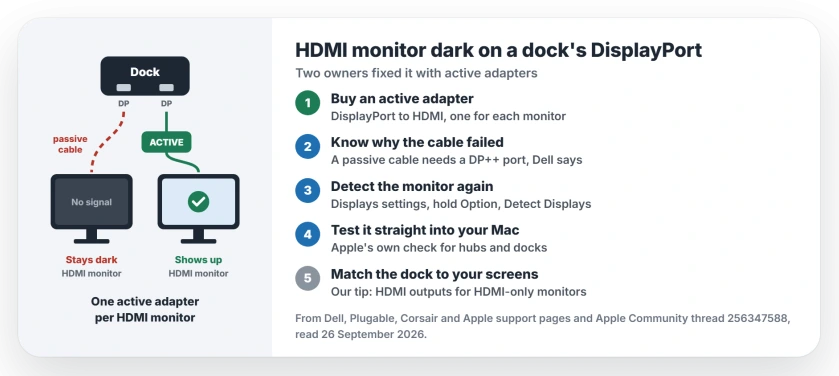
Status: Thunderbolt docks with DisplayPort outputs, checked 26 September 2026. Two owners got HDMI monitors working with active DisplayPort to HDMI adapters after a plain cable failed.
1. Check which video outputs your dock has
Look at the ports on the back of your dock first. Some docks come in two versions with different video outputs.
Corsair sells the TBT100 with "2 DisplayPort outputs" and also as an HDMI version. For the HDMI one, Corsair's guide says "you will need two displays that connect via HDMI 2.0".
So if you have not bought the dock yet, match its outputs to your monitors. That tip is ours.
2. Know why a plain cable fails
A plain DisplayPort to HDMI cable is passive. Dell explains that passive adapters "work by relying on your graphics card to do the signal conversion".
That only happens when the port supports Dual-Mode DisplayPort, written DP++. Plugable says passive adapters "only work with DP++ ports".
A dock's DisplayPort outputs may not offer DP++, and then your Mac sees no monitor at all. That reading of the owner's case is ours.
Old FireWire drives hit a harsher version of the same trap, where no plain cable can work at all. The FireWire drive page covers the adapters that do.
3. Buy an active DisplayPort to HDMI adapter
An active adapter converts the signal itself. Dell's guide lists it as "Required for multiple monitor setups or if DP++ not supported".
Dell's advice for a passive adapter that fails is direct: "Try an active adapter instead, which will work regardless of DP++ support." That matches what the owners found.
You need one per monitor. The owner bought a second adapter for the other screen: "I now have a working dual monitor set up."
4. Make your Mac look for the monitor again
After you swap the cable, give macOS a nudge. Apple suggests unplugging the display and plugging it back in, or sleeping your Mac and waking it.
In System Settings, open Displays and hold the Option key. Apple says a Detect Displays button then appears for you to click.
Why a fresh look helps, from a Level 10 volunteer: "you need the Mac to query the display, and the display to answer with its name and capabilities".
5. Test the monitor straight into your Mac
Apple's own advice for docks is to test without one: "If your display is connected to a hub or dock, connect your display to a port directly on your Mac."
If the monitor works that way, as it did for the owner, the monitor is fine. So the fault lies in the dock path.
Two lit monitors showing identical content need a different check: MST and Mac display support decide whether those outputs can extend separately.
Other monitor problems
If monitors stay dark through a dock on a Windows laptop, the dock monitor page walks the route. If a monitor stopped showing after macOS Tahoe, the Tahoe monitor page has those fixes.
Why won't my HDMI monitor work through my dock's DisplayPort?
A plain DisplayPort to HDMI cable is passive and needs a DP++ port. An active adapter converts the signal itself, which is how two owners solved it.
Do I need an active or passive DisplayPort to HDMI adapter?
Dell says active is required for multiple monitor setups or when DP++ is not supported. If a passive one fails, buy active.
Why does my monitor work on the Mac's HDMI port but not the dock?
The Mac's own HDMI port sends an HDMI signal directly. Through the dock's DisplayPort output, something has to convert it, and a passive cable cannot do that on every port.
Should I buy the HDMI version of the dock instead?
If your monitors only have HDMI, a dock with HDMI outputs avoids adapters. The owner kept the DisplayPort version and added two active adapters.
The Short Version
- A plain DisplayPort to HDMI cable is passive.
- Passive only works on DP++ ports.
- An active adapter converts the signal itself.
- Buy one active adapter per monitor.
- Then hold Option in Displays to detect.
- Test the monitor straight into your Mac.
Where to Next
Check the label on your cable or adapter before you buy anything else. No mention of active? Replace that part first.
Did an active adapter fix your dock? Tell me the dock and the monitor in the comments. I will list the pairs that work on this page.

Isaac Smith is the founder and editor of PC Glance, a website that covers computers, laptops, and technology. He is a tech enthusiast and a computer geek who loves to share his insights and help his readers make smart choices when buying tech gadgets or laptops. He is always curious and updated about the latest tech trends.