
You know the file sits on your external SSD, but Spotlight will not find it. Finder shows the file, and a search for its name comes back empty.
The index for that drive is the likely problem, not the drive itself. I followed a Mac mini owner's thread through three volunteers, alongside Apple's own reindex steps.
What the Mac mini owner saw
The owner had a Mac mini M4 on macOS Tahoe 26.7 and two Samsung external SSDs. The search results were thin: "I was able to find only 1 file of many I tried with a search."
A call to Apple did not help much. "The adviser's only suggestion for getting the indexing to work was to reinstall the OS." So they asked the forum a plain question: "Can you reindex external SSD's? If so, how?"
Your drive can be reindexed without touching macOS. The steps come in the order the thread tried them.
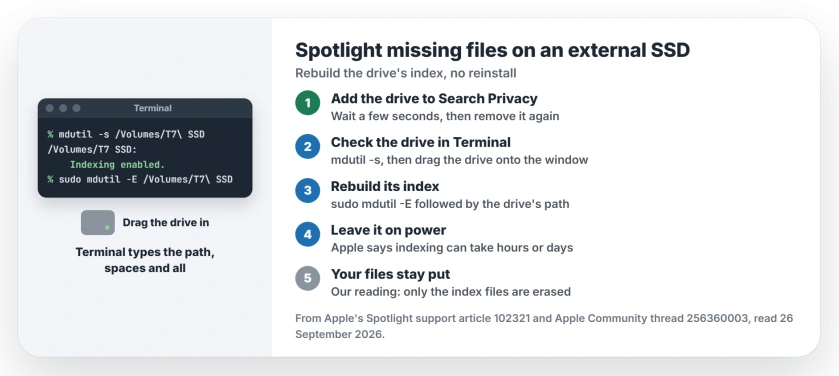
Status: macOS Tahoe 26.7 with external SSDs, checked 26 September 2026. Apple's Search Privacy trick reindexes a whole drive. One owner saw indexing switch on after a Terminal rebuild.
1. Rebuild the drive's index from Search Privacy
Apple has a no-Terminal route. Apple's Spotlight article says rebuilding part of the index "can help resolve stubborn search issues affecting certain files within a disk or folder".
Open System Settings, click Spotlight, then click Search Privacy at the bottom. A Level 3 volunteer put the next step simply: "Drag your external drive's icon from your desktop or Finder window and drop it into the privacy list".
Wait a few seconds, select the drive in that list, and click the minus button. Apple says Spotlight "now reindexes the contents of the disk or folder".
2. Check that indexing is on for the drive
If search still misses files, look at the drive's own setting in Terminal. A Level 7 volunteer gave two commands: "mdutil -s <path to the drive>" to check it, and "mdutil -i on <path to the drive>" to switch indexing on.
The first one reports the drive's indexing state. Your goal is a line saying indexing is enabled.
3. Drag the drive into Terminal for the path
This step tripped the owner up more than once. Earlier attempts came back with an invalid path error, and the volunteers traced it to spacing in the typed path.
The fix from a Level 9 volunteer: "Then use the Finder to drag & drop the volume onto the open Terminal window." Terminal then types the full path for you, spaces and all.
Type the command first with a space after it, then drop the drive. As one volunteer warned: "The command line is very unforgiving. ;-)"
4. Erase the drive's index and let it rebuild
The stronger fix is sudo mdutil -E followed by your drive's path. Terminal then asks for your Mac password and shows nothing as you type it.
Of that command, the Level 7 volunteer wrote: "This should remove all its hidden database files and start rewriting them." After running it, the owner saw indexing reported as enabled for the first time.
Only the index files go. Your own files on the drive stay where they are, in our reading of what the command does.
5. Give the index time, on power
A rebuilt index is not instant. Apple says "Depending on the amount of data on your device, Spotlight indexing can take hours or even days."
Apple also says indexing finishes sooner when your Mac is not in use and is connected to power. Leave the drive plugged in overnight before you judge the result.
What did not help
The owner's drive already had the Ignore ownership box ticked in Get Info, so that was not it. Disk First Aid found nothing to repair. A second user account missed the same file.
Apple notes that a permissions error during the Search Privacy step can mean your account does not own some items on the drive.
Other Spotlight and drive problems
If Spotlight fails for your whole Mac, the Tahoe Spotlight page covers the startup disk. And if the SSD will not mount at all, the external drive page starts there.
If a Corsair EX400U only appears through a hub or adapter, the EX400U page explains the serial number fault behind it.
If copies to the drive stop with Finder error -51, the error -51 page points to Google's Android File Transfer Agent.
If Spotlight finds a song but opens only the Music window, the Spotlight and Apple Music page has the fix a volunteer found on macOS 27.
If a hard drive hums all day instead of resting, the drive sleep page starts with a full shut down and the disksleep value.
If your Mac will not eject the drive because something is still using it, Spotlight can be the holder, and the Mac eject page finds the process first.
Why is Spotlight not finding files on my external drive?
The drive's own Spotlight index may be damaged or switched off. Rebuild it from Search Privacy, or check it in Terminal with mdutil.
How do I reindex an external drive on a Mac?
Add the drive to Spotlight's Search Privacy list, wait a few seconds, then remove it. Apple says Spotlight then reindexes its contents.
How long does Spotlight take to reindex a drive?
Apple says indexing can take hours or even days, depending on the amount of data. It goes faster while your Mac is idle and plugged in.
Do I need to reinstall macOS to fix Spotlight search?
Not for an external drive. Its index can be rebuilt on its own, which is what the owner did instead of the reinstall they were offered.
The Short Version
- The drive's index is the likely fault.
- Add the drive to Search Privacy, then remove it.
- Check it with mdutil -s in Terminal.
- Drag the drive into Terminal for the path.
- sudo mdutil -E rebuilds its index.
- Leave it on power to finish.
Where to Next
Try the Search Privacy route first tonight, and leave the drive connected while you sleep. Search for your file again in the morning.
Did Spotlight find your files after a rebuild? Tell me your drive and macOS version in the comments. I will note which steps worked.

Isaac Smith is the founder and editor of PC Glance, a website that covers computers, laptops, and technology. He is a tech enthusiast and a computer geek who loves to share his insights and help his readers make smart choices when buying tech gadgets or laptops. He is always curious and updated about the latest tech trends.