
You click Eject on your external drive and your Mac refuses: "The volume can't be ejected because it's currently in use". You closed every window on it.
I would find the program before forcing anything. Some process still holds a file there, and a force unmounts the disk without ever telling you which one it was.
The Ask Different question with that message dates from October 2013 and has 204,549 views. Its Terminal cousin, "Resource busy", has 118,214 more on Super User.
What is holding the disk
Apple's page for a disk an app is using says: "In some cases, a warning message may identify the app that is using the disk". Often yours names nothing.
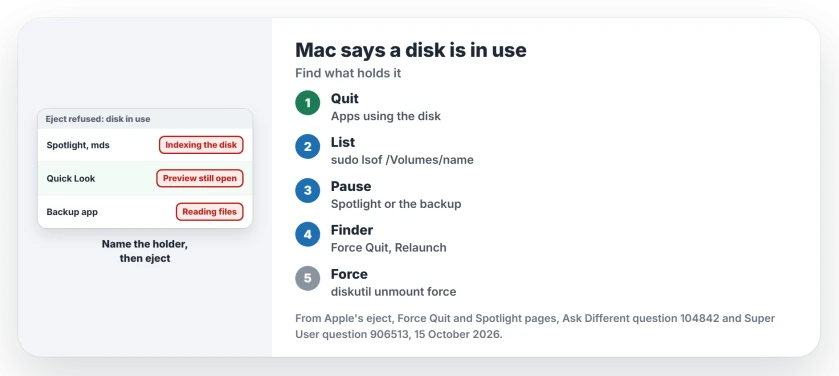
Owners have found the usual holders. Spotlight indexing the drive, Quick Look keeping a preview open, the Finder itself and backup software all turn up in their replies.
Ours: this page was written without a Mac to test on. Every step comes from Apple's pages or from owners who said what worked for them.
Status: Apple's eject, Force Quit and Spotlight pages for macOS 27, plus owner fixes from 2013 to macOS 26, all checked 15 October 2026. No Mac was used.
1. Quit the apps that use it
Start where Apple starts: "Quit the apps that are using the disk, then try to eject it again". Press and hold Command, then press Tab to see what you have open.
An app you cannot quit can still let go of the disk. Apple says to close the documents that are on the disk, then eject again.
2. Ask Terminal what has it open
Nothing obvious open? The accepted answer uses lsof. Its owner called it "your best bet", and you need sudo:
sudo lsof /Volumes/YourDrivePut the name in quotes if it has spaces, and you get each process listed with its PID. In the answer's own example, "it's the QuickLook application that has a file open".
Quit that app normally, or end it with kill and the PID from that list. Empty list? The answer suggests the slower +D switch, which scans your whole disk folder by folder.
3. Spotlight or a backup? Pause it
Spotlight is a frequent holder. One owner's lsof run showed "it was due to Spotlight trying to index the disk". Stopping Spotlight on that disk freed it.
Your Spotlight settings have a Search Privacy list for this. Apple's wording is "Exclude files in a folder or disk from Spotlight searches". A Time Machine disk keeps being indexed anyway, Apple notes.
Backup software can hold it too. In their words, another owner "solved the problem by pausing the backup". The Spotlight external drive page shows how to bring your drive back into the index later.
4. Relaunch the Finder
Sometimes the hold clears only when the Finder restarts, even with no Finder window open. Apple's Force Quit page covers it: pick Finder in that window and choose Relaunch.
You lose nothing by trying. An owner whose disk was held by Quick Look and Spotlight together wrote: "A relaunch of the finder cleared it up".
5. Still stuck? Force the unmount
Keep this for last. A 2014 answer gives the command, and an owner confirmed it worked once they put sudo in front:
sudo diskutil unmount force "/Volumes/YourDrive"Terminal tools such as dd or a disk formatter can say Resource busy even with nothing open. Owners fixed that by unmounting your whole disk by its device name. Run diskutil list to find it:
diskutil unmountDisk force /dev/disk4One owner kept seeing the error "even though lsof showed nothing", and this cleared it. Another wrote "Worked for me on macOS 26". Swap disk4 for your own disk number.
Can you just pull the cable?
I would not. Apple's fallback is gentler. Log out and back in, and if that fails, shut down, then "Disconnect the disk from your computer, then start up your computer again".
On a Windows PC the same refusal has a different cure. The Windows eject page finds the program from the event log instead.
The Short Version
- A process still holds a file on the disk, often Spotlight, Quick Look or a backup.
- Quit apps first, then run sudo lsof on the volume to name the holder.
- Pause Spotlight or the backup app, or relaunch the Finder from Force Quit.
- Force it with diskutil unmount force only as a last step.
- For Resource busy in Terminal, unmount the whole disk with diskutil unmountDisk force.
Where to Next
What was holding your disk when lsof named it? Leave the process name in a comment, because I am counting which ones come up most.

Isaac Smith is the founder and editor of PC Glance, a website that covers computers, laptops, and technology. He is a tech enthusiast and a computer geek who loves to share his insights and help his readers make smart choices when buying tech gadgets or laptops. He is always curious and updated about the latest tech trends.