
You connect to your laptop with Remote Desktop, glimpse its lock screen for a second, and the session freezes. At the laptop itself, the Wi-Fi is off. It only returns when you sign in at the keyboard.
I would look at who owns the Wi-Fi sign-in before blaming the adapter. On networks that ask for a user name and password, that sign-in can belong to one account only.
Super User's version of this fault, asked in March 2017, has 28,960 views, and one of its fixes was confirmed on Windows 11 in 2022.
Why your sign-in takes the Wi-Fi with it
The 2017 asker described it exactly. In their words, the Wi-Fi dropped "as soon as the remote desktop logs in, resulting in the termination of the remote session".
Their network used WPA2-Enterprise. That kind of Wi-Fi checks a user name and password, and Windows can keep them for one user or for the whole PC.
Windows' own Wi-Fi settings explain the second choice: "Saving your credentials allows your computer to connect to the network when you're not logged on (for example, to download updates)".
The profile itself can be shared or private too, since Microsoft's netsh wlan reference lets a profile apply to all users or to the current one.
Microsoft says the shared kind is normal: "By default, the profile is applied to all users". Yours may still be the private kind if it was added for one account.
Ours: all 10 saved Wi-Fi profiles on this laptop are All User profiles. It runs Windows 11 Home, which cannot accept a Remote Desktop connection. The drop could not be reproduced here.
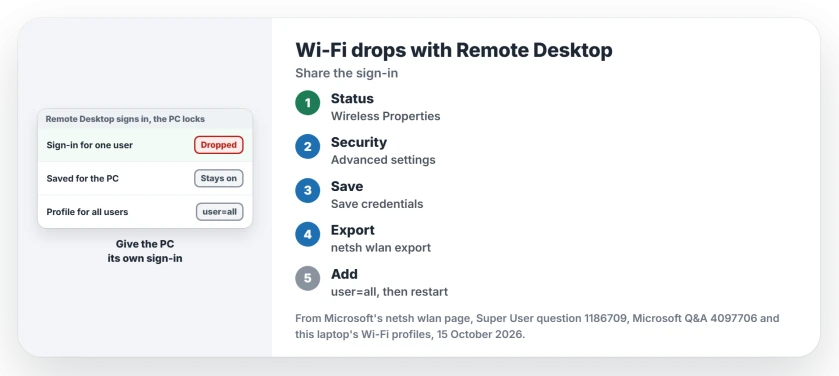
Status: owner fixes from 2017 to 2023 and Microsoft's netsh page, checked 15 October 2026; ours is limited to listing this Home laptop's Wi-Fi profiles.
1. Save the credentials for the whole PC
This is the route an owner confirmed on Windows 11 in 2022. Open Settings, then Network and internet, then Advanced network settings. Choose More network adapter options.
Right-click your Wi-Fi and choose Status. Open Wireless Properties, then the Security tab, then Advanced settings.
Under the authentication mode, choose Save credentials. Type the network's user name and password. Your sign-in now belongs to the PC, not to you.
A reader who followed those steps summed it up: "Wow… what a colossal pain. But it worked!" The lock screen should now keep the network.
One caution from the same thread. Another owner found that "after rebooting I have to go through this process again", so test it after a restart before you rely on it.
2. Make the profile available to all users
If the profile was saved for your account only, export it. Then add it back for all users. From an administrator prompt:
netsh wlan show profiles
netsh wlan export profile name="YourNetwork" folder="C:\WiFi" key=clear
netsh wlan add profile filename="C:\WiFi\Wi-Fi-YourNetwork.xml" user=all
The export prints the file name it wrote. Use that name in the third line.
A reader who tried it "Didn't know netsh was a thing until now". Two more replies add notes. Make the folder first, and delete the old profile if the add will not take.
Microsoft's netsh page warns what key=clear does: "To display the security key in plain text". Delete the exported file when you are done.
3. Connect from the lock screen once
This is a stopgap that needs you at the laptop. An owner found that signing in to Wi-Fi from the lock screen made the next Remote Desktop session work.
Their steps: disconnect the Wi-Fi, lock the PC, then connect from the network icon on the lock screen. If the lock screen refuses to join, the network join page reads the reason Windows logged.
Is it the adapter's power saving?
Not for this pattern. Before posting, the 2017 owner had switched off the setting that lets Windows turn the adapter off. The drop stayed.
A Microsoft Q&A volunteer suggested the same box to a university user in 2023. No result came back. If your Wi-Fi stays up and only the picture freezes, the freezing page is the better match.
University or work Wi-Fi with a sign-in app?
That user's university network used a separate sign-in app with two-step approval, and the lock screen answered with a message to contact support staff.
An adviser suspected the app ends the session when the screen locks. Ask your IT team whether the network can stay signed in while the PC is locked. Only they can change that.
The Short Version
- On WPA2-Enterprise Wi-Fi, the sign-in may belong to your account, not the PC.
- Save the network credentials for the PC under Wireless Properties, Security, Advanced settings.
- Or export the profile with netsh and add it back for all users with user=all.
- Connecting from the lock screen once is a stopgap that needs you at the laptop.
- Adapter power saving is not the cause of this pattern.
Where to Next
Work, school or home network: which fix held after a restart for you? Tell me in a comment, since I am tracking whether the saved credentials last.

Isaac Smith is the founder and editor of PC Glance, a website that covers computers, laptops, and technology. He is a tech enthusiast and a computer geek who loves to share his insights and help his readers make smart choices when buying tech gadgets or laptops. He is always curious and updated about the latest tech trends.