
You pick your Wi-Fi in Windows, type the password, and get "Can't connect to this network". Your phone joins the same network without trouble, and restarting the laptop changes nothing.
I would answer one question before any fix. Does your PC refuse this network only, or every network? The two point at different ends of the problem.
Super User's November 2015 version of it has been opened 492,130 times. Two Microsoft Q&A copies of the same message carry 100+ under Same question each.
One network or every network
Try a second network from the same PC, such as your phone's hotspot. Microsoft's Wi-Fi troubleshooting page also suggests the other band: "Many consumer Wi-Fi routers broadcast at two different network frequency bands: 2.4 GHz and 5 GHz".
If the hotspot works and your router does not, look at the saved profile and the router, and if nothing connects, look at your adapter and its driver.
Windows writes down why each attempt failed. Open Event Viewer, then Applications and Services Logs, Microsoft, Windows, WLAN-AutoConfig, Operational, and look for Event ID 8002.
Ours: this laptop's log holds 35 of those events. Each has a Failure Reason line, such as "Failed to connect because no connectable Access Point was visible" or "The driver disconnected while associating".
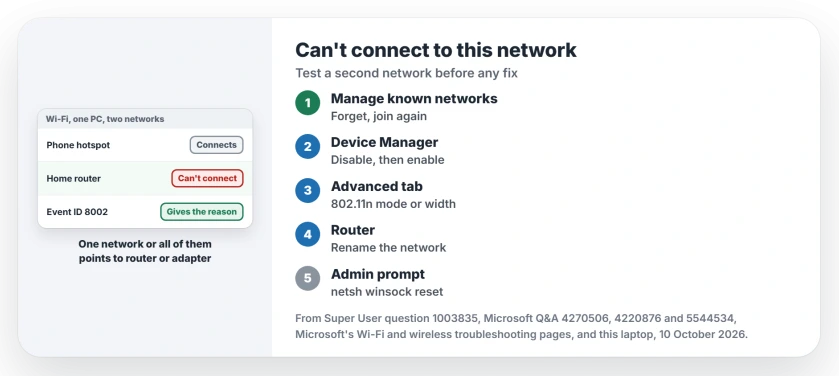
Status: This laptop's 35 failed Wi-Fi joins, Microsoft's two Wi-Fi pages and fixes owners posted on Super User and Q&A, compared 10 October 2026. Several fixes worked for different owners.
1. Forget the network and join it fresh
A saved profile can hold an old password or security type. Go to Settings, Network and internet, Wi-Fi, Manage known networks, select the network and choose Forget.
Then pick it again from the list and type the password the router uses now. One Q&A reply told an asker to forget every saved profile, which matters after a router swap.
That asker had a new router and still saw the message. So this step clears only the simple cases.
2. Turn the adapter off and on
Open Device Manager, expand Network adapters, right-click your Wi-Fi adapter and choose Disable device. Wait a few seconds, then choose Enable device.
One owner wrote "Wireless connected back up immediately after doing so", and a second, who had tried every other answer, found this was the one that worked.
A third owner with an Intel card saw no change, so move on if yours stays stuck.
3. Change the wireless mode or channel width
This fix suits a PC that refuses one router while other devices connect. In Device Manager, open your Wi-Fi adapter's Properties and choose the Advanced tab.
The highest-voted answer turned off 802.11n mode there. An owner on a WPA2 enterprise network wrote "This solved it for me". Another got an HP EliteBook with an Intel 7265 card onto a TP-Link Archer C80 the same way.
A different owner changed 802.11n Channel Width for band 2 from 20 MHz Only to Auto, and the home network came back.
The names differ by maker. Ours: this laptop's MediaTek MT7921 calls them 802.11ax/ac/n and 2.4GHz channel bandwidth, set to 802.11ax and Auto. I would write down the old value before changing one.
4. Rename the network on the router
This sounds too simple, but owners report it again and again. Sign in to your router, change the Wi-Fi name, save, and join the new name from Windows.
The owner who posted it had fixed several laptops that way. In their words, it should have no bearing on connectivity, "but it does". One reply called it the only fix that worked after two Windows 10 PCs failed on the same day.
Our guide to changing your Wi-Fi name and password shows where that setting sits. Other owners only restarted the router, or switched its Wi-Fi off and on.
5. Reset Winsock, then reset the network
In Command Prompt, started as administrator, type this line.
netsh winsock resetThen restart the PC. An owner stuck in a hotel, with no access to the router, said "This command absolutely worked".
Microsoft says network reset comes last, after everything else has failed. It also warns that your saved networks may come back set to public. Our network reset page covers what else it removes.
Two less common causes
Newer phones can run their hotspot on WPA3. One Q&A asker had a Ralink adapter with a 2015 driver, and a reply there pointed to WPA3 support.
Run netsh wlan show drivers and look for WPA3-Personal in the list. Ours: this laptop's MT7921 lists it.
A 2026 owner traced years of failures to Npcap, the capture driver Wireshark installs, and stopping it and setting it to start on demand fixed their connection. If you have Wireshark, I would check that first.
The Short Version
- Try a second network first.
- Read Event ID 8002 for the reason.
- Forget the saved network and join it fresh.
- Disable and enable the adapter in Device Manager.
- Change 802.11n mode or channel width.
- Rename the network on the router.
- Reset Winsock last.
Where to Next
Which one got you connected, the mode change or the new network name? Leave a comment with your adapter and router model, and I will fold it into this page.

Isaac Smith is the founder and editor of PC Glance, a website that covers computers, laptops, and technology. He is a tech enthusiast and a computer geek who loves to share his insights and help his readers make smart choices when buying tech gadgets or laptops. He is always curious and updated about the latest tech trends.