
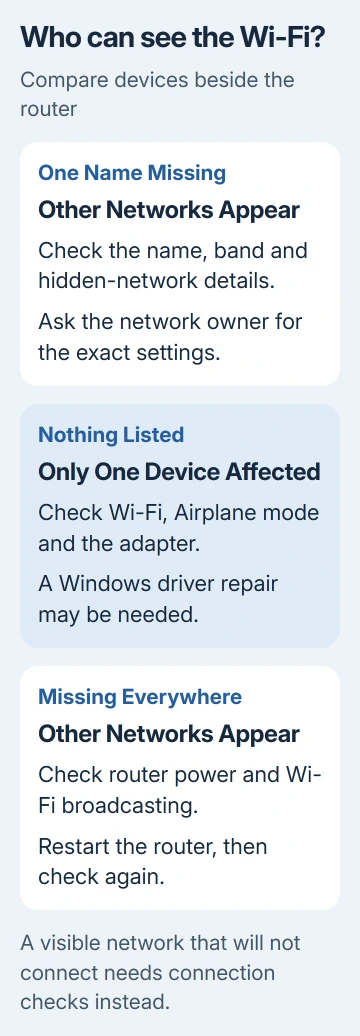
A Wi-Fi network missing from every nearby device usually needs attention at the router. If another phone can see it, check the affected device's Wi-Fi switch, supported frequency and wireless driver instead.
An empty network list is different from one missing network name. Check which case you're seeing while close to the router; that tells you which settings to change.
1. Turn Wi-Fi on and reopen the network list
On Windows 11, open Settings > Network & internet > Wi-Fi and turn it on. On Windows 10, open Settings > Network & Internet > Wi-Fi. Turn Airplane mode off too.
Check a laptop's physical wireless switch or wireless function key if it has one. Wi-Fi switched off this way can leave the list empty even when your router is working and other devices are connected.
For iPhone, use Settings > Wi-Fi. For a Pixel, use Settings > Network & internet > Internet. On a current Mac, open System Settings > Wi-Fi and look in the available networks.
Turn Wi-Fi off and on once, then reopen the list while close to the router. If the list fills with nearby networks but omits yours, check its name and frequency next.
If the name appears but connecting fails, use the Windows connection-error repairs. A visible network that rejects a connection needs different checks from one the device can't detect.
2. Compare another device beside the router
Put a second phone or laptop in the same room and open its network list. Check for the exact network name, not just a similar name from a neighbor or an extender.
If neither device can see your network but both can see others, check that the router is powered on and broadcasting Wi-Fi. An internet outage alone doesn't explain a wireless name disappearing from the list.
Restart the router by disconnecting its power, waiting at least 30 seconds, then reconnecting it. Allow a few minutes for startup before checking the list again. Don't press its factory-reset button.
I'd make this comparison before replacing drivers. If another device sees the network immediately, focus on the first device.
If the network recently changed its name, look for the new name. The Wi-Fi name and password guide explains why a saved connection can still refer to the old one.
3. Check whether the device supports the router's band
A router can broadcast on 2.4 GHz, 5 GHz or 6 GHz. An older device may support only some of those bands. A 2.4 GHz-only adapter won't discover a network broadcasting only on 5 GHz.
Microsoft lists frequency mismatch among its missing-network checks. Check the router and device specifications, or ask the router's administrator to confirm which bands are enabled.
If the router offers separate names, look for its 2.4 GHz name. If the bands share one name, the name alone won't reveal which frequencies are enabled. Ask the router's administrator to enable a band your device supports.
On Windows, open Device Manager > Network adapters, right-click the wireless adapter, and choose Properties > Advanced. Look for Wireless Mode or Band and check that it permits the router's supported frequency.
Those options vary by adapter and driver; some adapters don't show them. If the hardware lacks a band, a driver setting won't add it. The router needs to broadcast on a band your device supports.
4. Check whether the network is intentionally hidden
Ask the network owner whether broadcasting the network name is disabled. A hidden network won't appear like an ordinary named network. You'll need its exact name, security type and password to add it.
On Windows 11, open Settings > Network & internet > Wi-Fi > Manage known networks > Add network. On Windows 10, the button on that page is called Add a new network.
Enter the name, security type and password, then select Save. Use the hidden-network connection option if required by that network.
On iPhone, open Settings > Wi-Fi > Other and supply its name, password and security type. On Pixel, open Settings > Network & internet > Internet > Add network; check Advanced options > Hidden network if needed.
On a current Mac, open the Wi-Fi menu in the menu bar, then Other Networks > Other. Enter the network details. Don't copy a nearby network's security setting: ask its owner which type to select.
If a manually added connection still fails, have the owner check the details and whether the router allows your device to connect. Repeatedly adding the same hidden name won't fix a router that is off or using an unsupported band.
A corporate network that becomes visible but rejects the endpoint may need its administrator to inspect Cisco ISE failure details.
5. Repair the Windows wireless adapter when lists stay empty
Open Device Manager > Network adapters and find the wireless adapter. If its menu offers Enable device, select that. If it shows a warning, open Properties and note the device-status error.
Install the wireless driver supplied for your exact laptop or adapter model. For trouble that started with a new wireless driver, check Properties > Driver > Roll Back Driver when that button is available.
Before uninstalling the adapter driver, save its replacement installer locally or on USB storage. Otherwise, removing the only working connection can leave you unable to download its replacement.
For a reinstall, right-click the wireless adapter, choose Uninstall device, and restart. Windows attempts to reinstall the adapter. If it doesn't, run the saved driver installer and check the network list again.
If the list stays empty, ask the laptop maker for help and send your adapter name and error code. If every device misses the network after a router restart, ask the router maker or provider to check its Wi-Fi broadcast and bands.
The Short Version
Compare another device close to the router. Fix broadcasting when neither can see it; check the affected device when only one can't. Confirm compatible bands and hidden-network details before repairing a Windows wireless driver.
Checked November 7, 2026.

Isaac Smith is the founder and editor of PC Glance, a website that covers computers, laptops, and technology. He is a tech enthusiast and a computer geek who loves to share his insights and help his readers make smart choices when buying tech gadgets or laptops. He is always curious and updated about the latest tech trends.