

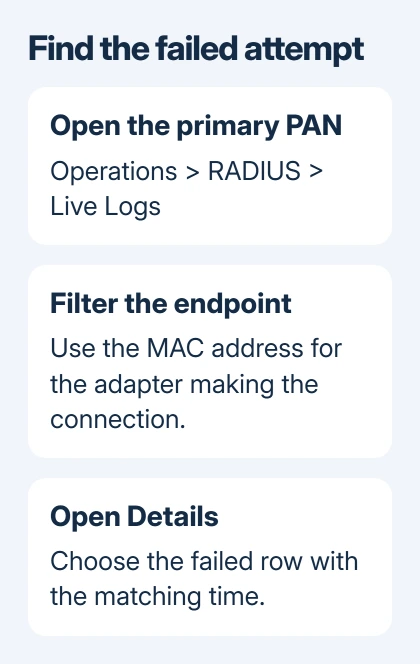
Failed authentications for a MAC address appear in Cisco ISE under Operations > RADIUS > Live Logs. Filter for the endpoint's MAC address and failed status, then open that attempt's Details to read Failure Reason, Root Cause and Resolution.
A MAC address identifies the connecting adapter, rather than an Apple Mac computer. Its presence in a log doesn't mean the attempt used MAC Authentication Bypass. Check the method before changing a policy.
1. Open RADIUS Live Logs on the primary node
Sign in to the primary Administration node, often called the primary PAN. In ISE 3.4, open the menu and choose Operations > RADIUS > Live Logs. A secondary administration node isn't the place to view these live logs.
The table shows recent authentication attempts. Status marks passed attempts green and failed attempts red; Time shows when the monitoring system received the event.
Cisco's RADIUS logging instructions describe the fields and filtering controls. The same Operations route appears in its ISE 3.2 troubleshooting example.
Use Live Logs, rather than Live Sessions, for the failed attempt. Live Sessions shows current endpoint sessions. A device rejected during authentication may never appear there.
If the page or controls aren't available to your administrator account, ask the ISE administrator for access to RADIUS monitoring. Don't change the deployment role just to make the menu appear.
2. Filter using the address of the actual connection
Copy the MAC address for the adapter the endpoint is using. A laptop's Ethernet adapter, wireless adapter and USB Ethernet dock can have different addresses. Searching the laptop's Wi-Fi MAC won't locate an attempt sent through its dock.
For a wireless Windows endpoint, check whether random hardware addresses are enabled. The network can see that address instead of the adapter's original one.
For an iPhone endpoint, check its per-network Wi-Fi address. Compare the address used on that network with the one being searched in ISE, rather than assuming the hardware address is the match.
Use a quick or custom filter in the MAC-address field, then filter for failed authentications. The ISE 3.2 example calls the status filter Auth status: Failed. Column names and filter layout can vary by release.
If that returns nothing, remove the failed-status filter first. A passed attempt or a differently formatted address can explain an empty result. Search by the username or network access device as another way to locate the same connection.
3. Read the failed attempt's Details
Choose the row matching the endpoint and time, then click its Details icon. In the detailed report, find Authentication Details and read Failure Reason, Root Cause and Resolution together.
Those fields tell you what ISE rejected and what to do about that error. The Steps section shows how far the RADIUS conversation got before it stopped, so you can tell an identity-check failure from a later policy decision.
Record the username, authentication method, policy set, network device, interface and Policy Service Node. The Policy Service Node, or PSN, is the ISE server that processed the request.
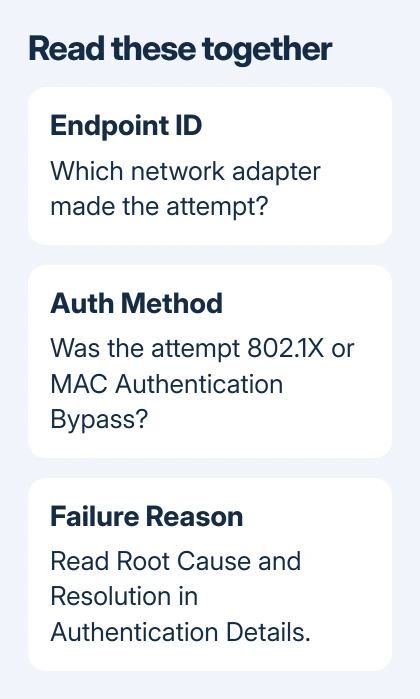
Don't treat every failure containing a MAC address as a missing MAC registration. With 802.1X, the computer may be authenticating a user or certificate. With MAB, short for MAC Authentication Bypass, the address is used for authentication.
For example, the wired troubleshooting page shows a mistyped username causing a failure. An absent user or a failed lookup in the identity store can produce the same error, so read the surrounding details before deciding what caused it.
4. Use authentication history for an older attempt
For an event outside the recent live view, open Operations > Reports and locate RADIUS Authentications. Set a time range covering the failed connection and apply the endpoint or username filter.
That report contains authentication successes and failures. Search for the time the endpoint tried to connect, which may differ from when someone reported the problem. Check the ISE time zone when matching a user's local timestamp.
If details aren't available, ask the administrator about retention. The 3.4 guide notes that live-log details aren't available for endpoints active for more than seven days. Purged records also can't be reopened there.
Export the matching results as CSV or PDF when passing the case to another administrator. Keep the endpoint address, timestamp and failure text together so they can locate the exact attempt.
5. Trace a missing event from the network device
An empty table isn't a rejected login. Have the network administrator confirm which switch or wireless controller handled the connection, which ISE server it sent RADIUS traffic to, and whether a fresh attempt reaches that server.
Use the endpoint's local IP address only as supporting information. An IP address and a MAC address aren't interchangeable filters, and a rejected endpoint might not yet have an IP address.
Give the ISE administrator or Cisco TAC the release, timestamp, endpoint MAC, network device, PSN and failure report. Ask them to check the failing step and logging, rather than allowing the endpoint blindly.
The Short Version
Filter the adapter MAC in RADIUS Live Logs on the primary PAN. Read the failed row's method and failure reason together. Use RADIUS Authentications for history, or trace the switch's request when no event arrives.
Checked November 7, 2026.

Isaac Smith is the founder and editor of PC Glance, a website that covers computers, laptops, and technology. He is a tech enthusiast and a computer geek who loves to share his insights and help his readers make smart choices when buying tech gadgets or laptops. He is always curious and updated about the latest tech trends.