

The keyboard light on an ASUS laptop turns on with its marked backlight key, often Fn + F7. Some models use Fn + F4 or Fn + Up instead, so check the symbol before pressing a shortcut.
A sun symbol for the display changes screen brightness, not the keys. The laptop also needs a backlit keyboard fitted; a shortcut can't add lighting to a model without it.
Find the keyboard-light symbol first
Look across the top row and the directional keys for a small keyboard with rays of light. Match that symbol to the key, rather than assuming every ASUS uses F7. Keyboard layouts vary even within the same laptop family.
Keep the laptop awake while you try the control. Watch the letters and gaps around the keys, rather than the display's brightness indicator. A dim room makes the lowest lighting level easier to see.
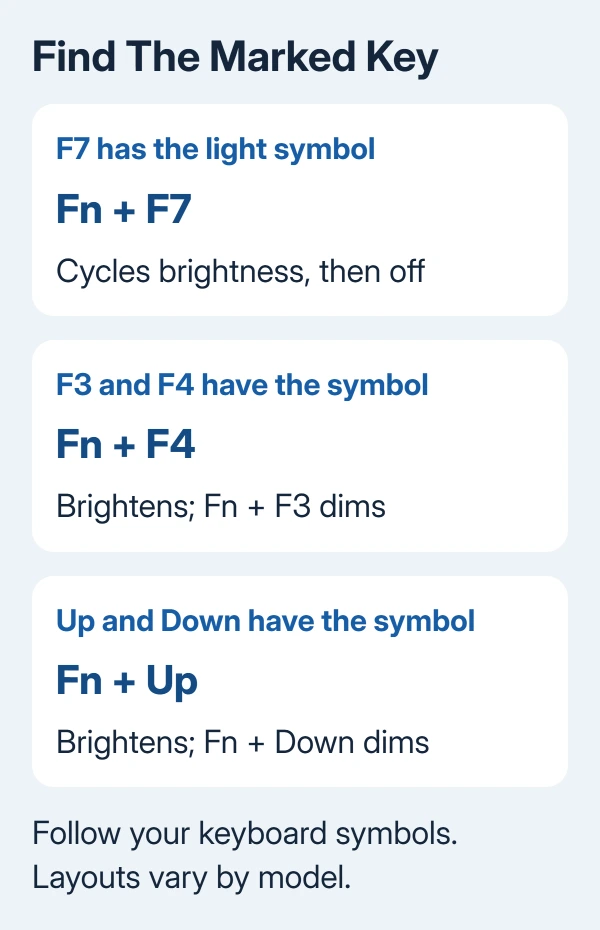
ASUS's backlit keyboard instructions list three common layouts. They also tell you to check the Hotkeys chapter of your model's manual when the markings differ.
The FA617 gaming laptop, for example, uses different brightness keys from the general F7 layout. If yours is that model and the light has stopped working, use the FA617NS lighting checks.
Use the shortcut that matches your keys
Press the marked shortcut a few times, pausing between presses to see the result. These are brightness controls, so the first press may only bring the light to its lowest level.
- F7 has the keyboard-light symbol: hold Fn and tap F7. Further presses increase brightness, then cycle back to off. Stop at the level you want.
- F3 and F4 have keyboard-light symbols: hold Fn and tap F4 to brighten the keys. Fn + F3 lowers brightness and eventually turns the light off.
- Up and Down have the lighting symbols: hold Fn and tap Up to brighten the keyboard. Use Fn + Down to dim it or switch it off.
Some gaming notebooks use the Up and Down layout, but other ROG and TUF models have different markings. Use the keys marked on yours.
If F7 only changes something unrelated, stop using that example and check your layout. On some older ASUS keyboards, that key controls the display rather than the keyboard light.
Try the marked key without Fn when needed
The same top-row key can have two jobs: its normal F-number function and the hardware action printed on it. Your function-key setting decides which job needs Fn.
If Fn + the marked key does nothing, press the marked key by itself. If the light comes on, your keyboard uses the hardware action by default. Use the key alone from then on.
On supported models, Fn + Esc changes the function-key behavior. If Fn + Esc doesn't work, your model may keep this setting in its ASUS software instead.
I'd use the working shortcut before changing that setting. Switching it also changes how you reach the other top-row actions, including volume or screen brightness. The Fn lock instructions explain that choice.
Confirm that your exact configuration has a backlight
Without a keyboard-light symbol, check the manual instead of trying more combinations. Read the keyboard or Hotkeys section for your full model number, including the letters after the main product name.
A product-family name alone isn't enough. A listing for another configuration can show a backlit keyboard even when yours has different hardware. Compare the specifications from your purchase with your laptop's manual.
If neither the keys nor the manual identifies a backlight, the laptop may not support it. Windows brightness settings won't add one.
When a fitted keyboard light stays dark
If the light used to work, check what has changed rather than trying more shortcuts. Note whether it flashes during startup, responds to the brightness control, or fails only after Windows loads.
The keyboard backlight repair procedure covers the ASUS control driver and lighting apps. If that procedure calls for reinstalling a driver, match the download to your laptop model and Windows version.
If those model-specific checks fail, ask ASUS support to check the keyboard backlight and its connection. Give them the model number, working shortcut or key symbol, and whether the light appears during startup.
The Short Version
Find the keyboard-light symbol, then use its shortcut: often Fn + F7, Fn + F4, or Fn + Up. Try the marked key alone if the function-key mode requires it. Check the exact configuration when the backlight symbol is absent.
Checked November 7, 2026.

Isaac Smith is the founder and editor of PC Glance, a website that covers computers, laptops, and technology. He is a tech enthusiast and a computer geek who loves to share his insights and help his readers make smart choices when buying tech gadgets or laptops. He is always curious and updated about the latest tech trends.