
The FA617NS keyboard light can be turned down to zero even while every key still types normally. Hold Fn and tap F3 to raise it; on this ASUS TUF A16, the screen-brightness keys control something else.
If that doesn't bring the light back, check Armoury Crate before repairing the ASUS control driver. If the keyboard lights during startup but goes dark in Windows, start by checking the software.
1. Raise the keyboard light with the correct key
Look for the small keyboard-light symbols on F2 and F3. The FA617 series manual shows F2 for dimming and F3 for brightening, both used with Fn. Hold Fn and tap the brighter key several times.
ASUS says hotkeys differ between notebook models. Its general advice about F7 or the directional keys shouldn't replace the key layout in the manual supplied for your FA617NS.
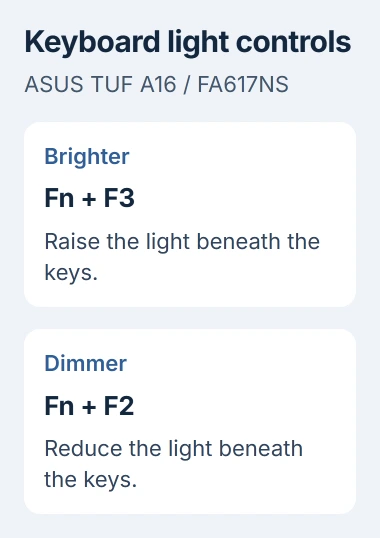
Status: checked November 3, 2026. The FA617 manual identifies the light keys. ASUS provides driver, app and controller-reset steps for a backlight that stays off.
Try this with your laptop awake and its adapter connected. Watch the keys, rather than the display. If a brightness indicator appears but the keys stay dark, the shortcut is responding even though the light isn't.
Open a text editor and type a short sentence. If letters don't appear either, tell ASUS that typing is affected too. A light on an external keyboard doesn't tell you whether the built-in keyboard's light works.
If the light returns and stays on, stop here. For color and effect choices after that, the keyboard lighting controls explain why Windows and the laptop maker may offer different options.
2. Check the laptop's lighting in Armoury Crate
Open Armoury Crate from Start. In version 6, open System Settings on its Home page, then find Lighting. Choose a steady effect and raise the available brightness control so you can see whether the keys light up.
Select your laptop in the app, rather than a separate mouse, headset or external keyboard. Available effects vary by device, so a missing effect doesn't mean your keyboard is broken.
ASUS documents separate lighting settings for sleep and shutdown. If your keys light up during normal use but go dark in either of those states, check the matching switches before assuming the backlight has failed.
These switches control when the lights can run. They don't make a powered-off laptop usable, and changing the sleep setting won't fix lights that stay off while you're typing.
Close Armoury Crate and restart Windows after changing a setting that asks for a restart. Check the keys again after signing in. If the app can't see the laptop or its controls do nothing, move to the control driver.
3. Repair ASUS System Control Interface
This driver lets Windows and ASUS software communicate with the laptop's hardware controls. ASUS includes reinstalling it in its backlight troubleshooting procedure.
Download the matching package before removing anything. On ASUS Support, select FA617NS, choose your installed Windows version, and find ASUS System Control Interface in the software and utility downloads.
Use the FA617NS package, even if another TUF model's name looks similar. Save the installer somewhere easy to find, such as Downloads.
- Open Device Manager from Start's right-click menu.
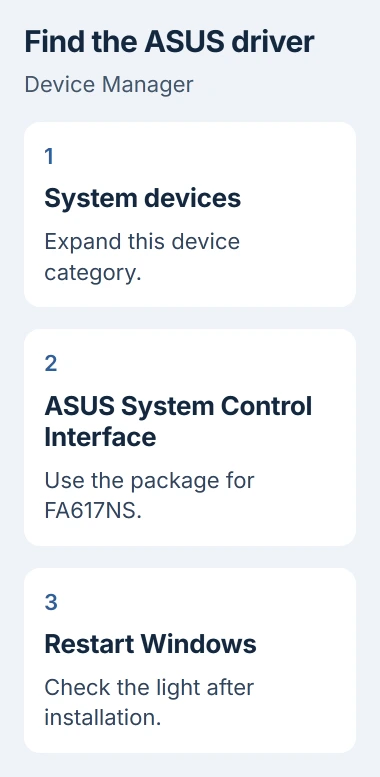
- Expand System devices and find ASUS System Control Interface.
- Right-click that entry and choose Uninstall device. Select Attempt to remove the driver for this device when that option appears, then confirm.
- Run the matching ASUS installer, finish its prompts, and restart the laptop.
If the entry was missing, install the matching download directly instead of removing an unrelated device. After restarting, check that the interface appears in Device Manager and try the lighting controls again.
I'd repair this driver before paying for a replacement keyboard. It handles ASUS hardware controls, and ASUS recommends it for this problem. If the driver is installed but the keys stay dark, try the app repair next.
4. Reinstall the app when its controls are broken
ASUS adds that MyASUS or Armoury Crate may need reinstalling when adjusting the backlight through those apps fails. Follow the uninstall and install instructions linked from ASUS Support for the app you're using.
MyASUS and Armoury Crate are apps, while System Control Interface is a driver. Reinstalling one app doesn't necessarily replace that driver, which is why the previous check matters.
Use the official installer and let it finish updating the app's components before testing. If installation fails, write down the error for ASUS support rather than running the same installer repeatedly.
If the keyboard went dark just after a software change, note which update or app came first. The Windows restore-point guide explains the recovery option when a suitable earlier restore point exists.
5. Reset the laptop's hardware controller
The laptop's embedded controller is a small chip that handles power and some hardware functions. ASUS recommends resetting it for keyboard and power problems, including a backlight that won't respond.
Save your work and shut down. Unplug USB accessories, external drives and other connected devices, then plug in the laptop's power adapter. Leave that adapter connected during the ASUS reset.
Hold the power button for 40 seconds, then release it. On the shorter-reset design ASUS describes, the power light flashes rapidly after roughly 15 seconds. Let go once it stops flashing.
Watch the power light; don't assume every ASUS model uses the shorter reset. Turn the laptop on afterward and check the keyboard lighting when Windows is ready.
This resets the chip that controls the hardware; it doesn't erase your files like a Windows reset can. If the light only returns briefly, tell support when it goes dark again, such as after sleep or the next startup.
When the backlight still needs repair
Send ASUS the exact model, the Windows version, and whether the keys type normally. Include whether lighting appears before sign-in, whether Armoury Crate detects the laptop, and the results of the driver and controller steps.
ASUS also lists BIOS recovery, which repairs the laptop's startup software, and system recovery. I'd have support check your model and its installed firmware before trying those steps just to fix the light.
If the light never comes on, the keyboard may need a physical repair. Have ASUS or a qualified repairer inspect it rather than opening the laptop just to try reconnecting an internal cable.
The Short Version
Try the FA617's keyboard-light keys first, then its Armoury Crate controls. Repair the ASUS control driver and app before resetting the hardware controller. If the keys stay dark, ask ASUS to check your model for repair.

Isaac Smith is the founder and editor of PC Glance, a website that covers computers, laptops, and technology. He is a tech enthusiast and a computer geek who loves to share his insights and help his readers make smart choices when buying tech gadgets or laptops. He is always curious and updated about the latest tech trends.