
Android's screen recording icon usually sits in Quick Settings, the panel you open with a downward swipe from the top edge. Expand it, look for Screen record, and add it through Edit if it's among the unused controls.
On a Pixel, this records a video of your display without installing another app. The Camera and Recorder apps do different jobs, so opening either of those won't show the screen recording control you're looking for.
1. Open the full panel and find Screen record
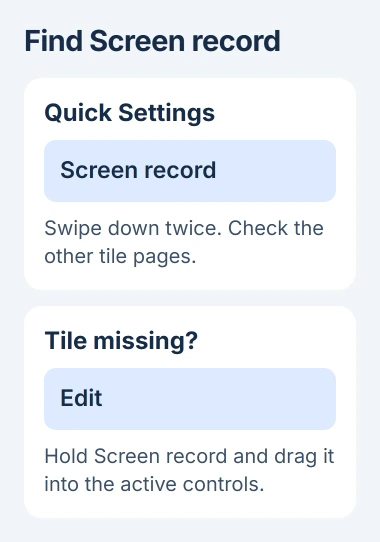
Swipe downward from the top edge twice to expand Quick Settings. Look through the available pages of controls. Google says you may need to swipe right before the Screen record tile appears.
Look for the tile's name, since rearranging the controls can move it away from Wi-Fi or Bluetooth. Another Android maker may use a different name or symbol.
Status: reviewed November 3, 2026. Google's Pixel and Android instructions cover adding the Screen record tile. Recording controls and availability vary on other phones.
If you see the tile, tap it to choose what to record. If it's missing, open Edit, usually shown as a pencil, to see the controls you can add to the panel.
Google's Android screen capture instructions explain the built-in recorder. On Pixel, you'll need Android 11 or later for some steps; older phones may offer different recording features.
For a Galaxy, use the Samsung screen recording steps. Its Quick panel, supported-model list, and Gallery location differ from the Pixel controls described here.
2. Add the tile when it's in the unused controls
On the editing screen, touch and hold Screen record, then drag it into the active Quick Settings area. Return to the regular panel and check that you can see the tile.
Move it to an early position if you'll use it often. This saves searching through multiple pages when you want to capture a problem that only appears briefly.
A tile in the unused list means the recorder was already on your phone, but its control was hidden from your panel. Adding it lets you open the recorder without installing another app.
If Screen record is missing from the editing screen too, check Settings, About phone, then Android version. Note your model and version so the phone's maker can confirm whether it has a built-in recorder.
An Android update won't give every phone the same recording features. Some have their own recorder; others don't offer these controls. Check your model's instructions before buying a recording app.
3. Choose one app or the whole display
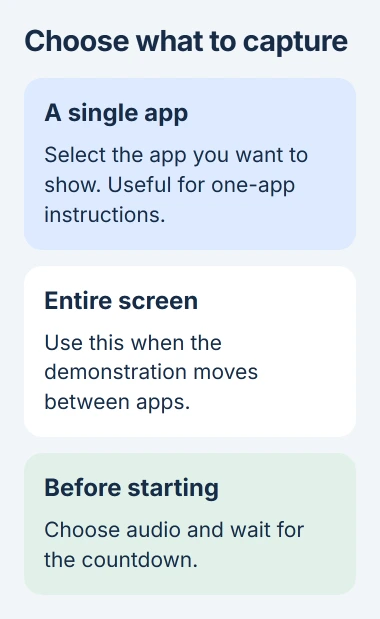
Tap Screen record to open the recording options. On supported Pixel software, choose A single app when you only need to demonstrate one app. Choose the entire-screen option when the steps move between apps.
Use single-app recording to show how to change a setting inside one app. To show someone how to copy something from a browser into a message, you'll need to record the whole display.
Google states that Pixel lets you record one app or the whole display. With A single app, choose Start recording, then pick the app. Have the app you want to show ready before you start.
Before recording the whole display, close anything private that might appear. I'd record a single app for a support clip if it shows everything the other person needs to see.
Wait for the countdown to finish before starting your steps. If you tap while it's still counting down, that action can be missing from the clip, leaving the viewer without the first step.
4. Set the sound before the demonstration
Check the sound choices before recording. Microphone audio records your voice; device audio records sounds from your phone when the content allows it. Turn on only the sound you want in the clip.
Google's current Pixel recording guide calls these controls Record device audio and Record microphone. On older versions, the choices may be laid out differently.
For a silent settings demonstration, leave audio recording off. For spoken instructions, enable the microphone and record a brief sample while talking at your normal distance from the phone.
If your phone offers an option to show touches, it can help someone follow your taps. Turn it on for a tutorial if the buttons are small or the action would otherwise be hard to spot.
If all you need is a spoken memo, use the Android audio recorder instead. You'll get a recording of your voice without a video of the screen.
5. Stop recording and find the saved video
When you've finished, swipe down to open the notification shade and tap Screen recorder to stop. If your version has a recording toolbar, use its Stop control.
Google adds that you'll find Pixel recordings in Photos, under Collections, On this device, then Movies. Open that folder and play your newest recording; the Camera app's capture screen isn't where it's saved.
Check the beginning, the important action, and the end. Listen too if you chose microphone or device audio. A successful recording should show the steps clearly and contain the sound you intended.
If the video is too large to send through your sharing app, Google's Pixel guide suggests a Photos link. Review the link's access settings before sharing a clip with account or device information.
A missing recording control and a failed recording are different problems. If you can start and stop a clip but one app looks black or has no sound, check whether that app allows recording.
Try a short recording of an ordinary Settings screen. If that saves correctly but one app doesn't, ask that app's developer about capture restrictions. If Settings won't record either, tell the maker your model, version, and exact error.
The Short Version
Expand Quick Settings and look for Screen record. Add it through Edit when available, select the capture area and audio, then stop from the recording control. On Pixel, check Photos' Movies folder for the finished video.

Isaac Smith is the founder and editor of PC Glance, a website that covers computers, laptops, and technology. He is a tech enthusiast and a computer geek who loves to share his insights and help his readers make smart choices when buying tech gadgets or laptops. He is always curious and updated about the latest tech trends.