
To record a voice note on Android, open the phone's recorder app and tap Record. Finish the session, then play it from the recording list to check that your speech was saved.
Pixel calls its app Recorder, while Samsung Galaxy uses Voice Recorder. Their stop, save and share controls differ, so use the steps for your phone before recording something important.
Record a voice note on a Pixel
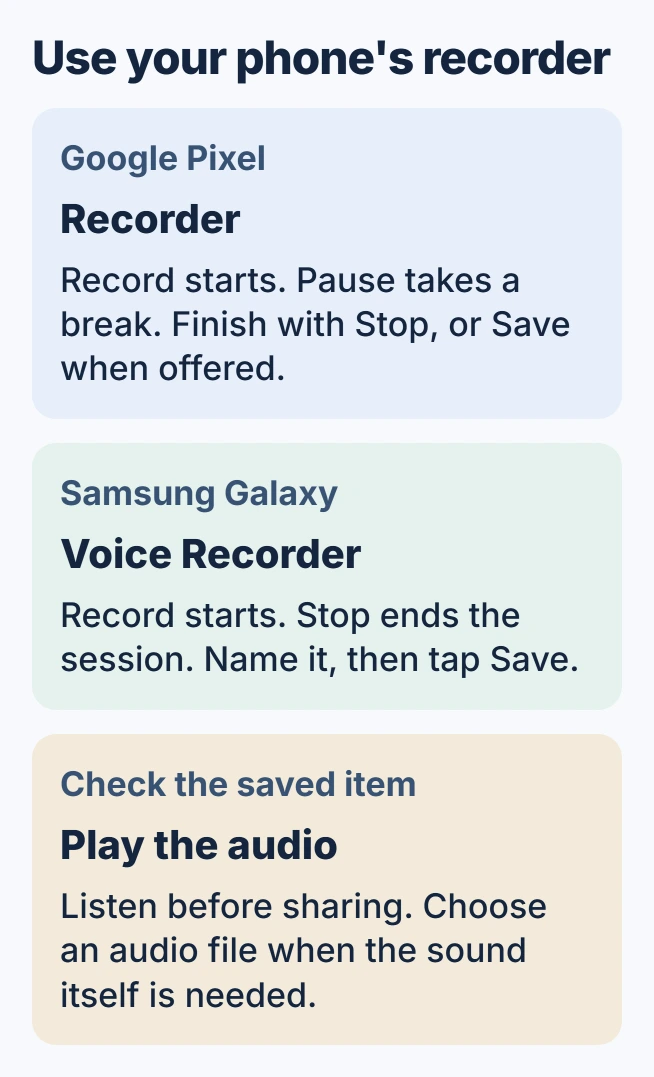
Open Recorder and allow microphone access when requested. Tap Record and speak. Pause takes a break; Resume adds more audio to the same session. Tap Stop to finish, or Save if that is offered after pausing.
Google documents recording and title editing in its Pixel Recorder instructions. Name the finished item, return to the recording list and play it. Recorder supports Pixel 3 and later.
Status: Google Recorder and Samsung Voice Recorder guidance checked October 30, 2026. This covers microphone recordings, with separate controls for each app. No phone audio was captured.
Google says Pixel Recorder continues while the display sleeps. A screen turning dark does not itself mean the session has ended. Check the recording state in the app before starting another voice note.
On a Galaxy, finish with Stop and Save
Launch Voice Recorder, select Record and begin speaking. Pause suspends the session; tap Record again to continue. When the audio is complete, tap Stop, enter a name, then choose Save.
Samsung says to finish and save the session in its Voice Recorder guide. Open Menu > All recordings to find the saved item. Play it to confirm the intended speech is present.
For recordings that end when a Galaxy locks, Samsung specifically recommends Settings > Apps > Voice Recorder > Battery > Unrestricted. Apply that app-specific change when the session stops early, then check another recording.
For another Android brand, find its supplied recorder and manufacturer instructions. Pixel menus do not apply to every Android app. Transcription and summary features can differ even when basic recording works.
Send audio instead of only its transcript
On Pixel, hold the saved recording, choose Share File, then select Audio and the receiving app. Google's sharing instructions distinguish this from exporting a text transcript.
A transcript contains recognized words; it cannot replace the original sound. Check the exported audio at its destination before removing the phone's retained recording.
For Pixel backup, open the account icon, then Recorder settings > Back up & sync. Confirm the selected Google Account. Backed-up recordings can be checked at recorder.google.com using that account.
Google states that recordings belong to the account selected when they are created. The general Android backup screen does not replace checking Recorder's own backup and recording library.
Fix a silent recording before continuing
Open Settings > Apps, select the recording app, then check Permissions > Microphone. Allow access for recording. Google's app-permission guide also identifies the device-wide microphone access control.
Uncover the microphone and try recording near the speaker. If the saved sample is still silent, tell the maker which recorder version is affected and whether other microphone apps work. Retain existing recordings during these checks.
Audio from a phone call needs the Android call-recording procedure. A voice memo is for sound reaching the microphone, and does not establish that both sides of a call will be captured.
The Short Version
Use the recorder supplied for the phone, finish the session with its own controls, and play the saved item. Choose Audio when exporting sound, and verify Recorder backup separately on Pixel.

Isaac Smith is the founder and editor of PC Glance, a website that covers computers, laptops, and technology. He is a tech enthusiast and a computer geek who loves to share his insights and help his readers make smart choices when buying tech gadgets or laptops. He is always curious and updated about the latest tech trends.