

Outlook's message store has reached its maximum size error means its mail data file can't accept more data. Remove unneeded mail and compact the affected file; deleting a few messages alone may leave its size unchanged.
Read the sentence after Cannot display the folder first. Not enough free memory is a different fault from maximum size, and shrinking a file won't fix missing permission for a shared folder.
1. Find the affected data file in classic Outlook
Open File > Account Settings > Account Settings > Data Files. Select the file for the mailbox or archive that fails, then choose Open File Location to see it in File Explorer.
Check the file's name, its .pst or .ost ending, and its size. A PST can hold your only copy of mail, especially for a POP account or a local archive. An OST normally holds an offline copy of a server mailbox.
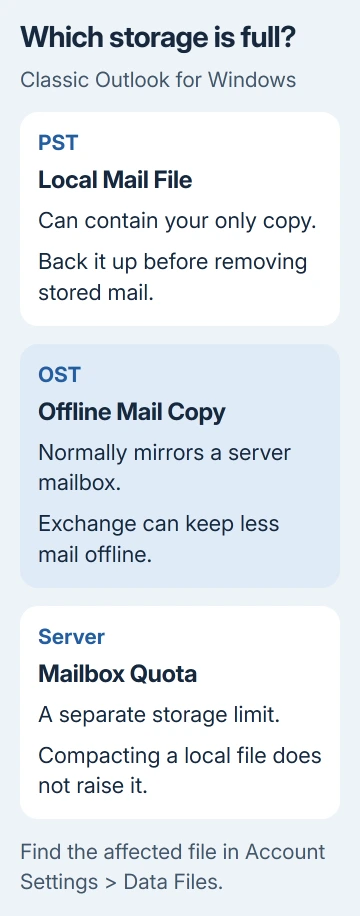
Close Outlook and back up a local PST before deleting stored mail. If you're unsure whether its contents exist anywhere else, ask your mail administrator before removing messages or the file.
These controls are in classic Outlook on Windows. If your app has no File tab, don't look for the same dialog in new Outlook. Confirm which app holds the failing file before making changes.
I'd check the file ending before any cleanup. A local archive may hold years of mail that isn't saved on the server.
2. Remove large mail from the store that is full
Return to classic Outlook and open File > Tools > Mailbox Cleanup. Use View Mailbox Size to check folders, then Find items larger than to locate large messages.
Save attachments you need before deleting their messages. Focus on mail in the file that's full; clearing an unrelated mailbox or a different archive won't free space in this data file.
Review and empty its Deleted Items folder. Moving mail there keeps it inside the same store until you empty that folder. Check the Sent Items folder too, where messages with large attachments can accumulate.
If ordinary deletion fails because the store is already full, select only mail you can discard and use Shift + Delete to remove it permanently. Confirm the selection carefully because this skips Deleted Items.
The data-file limit guidance explains why copying or moving items within a full file can fail. Permanently deleting mail frees space without adding another copy inside that file.
If no folder opens far enough to select mail, stop deleting files in Explorer. Give the administrator the file path and full error so they can arrange a supported cleanup or recovery.
3. Compact the file after deleting mail
Removing messages leaves reusable space inside the file. Compacting shrinks the file by removing that unused space. Microsoft recommends the manual Compact Now control in its data-file cleanup procedure.
Open File > Account Settings > Account Settings > Data Files. Select the affected file and choose Settings. For a PST, select Compact Now, then OK when it finishes.
For an Exchange or Outlook.com account, the route adds Advanced > Outlook Data File Settings before Compact Now. Use the controls for your account; don't select a different file just to get the button.
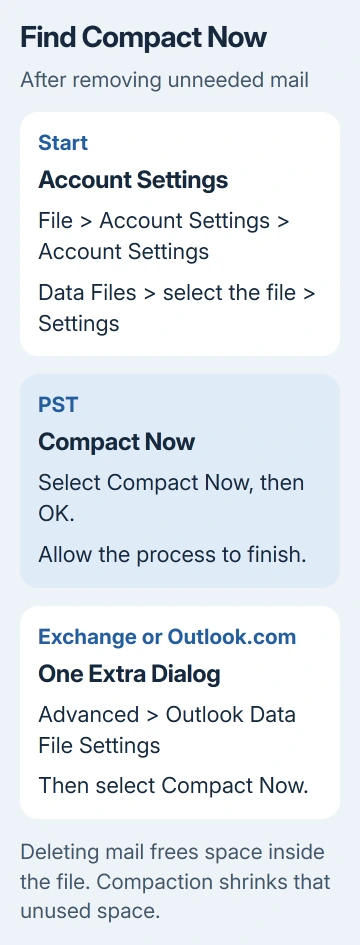
Allow several minutes for the process. Then try opening the folder again and check the file's size. If the file is smaller and the folder opens, the cleanup worked.
Compacting won't remove messages that are still stored in the mailbox. If the file barely changes, check that you removed mail from the affected file and emptied its Deleted Items folder.
4. Reduce an Exchange cache when the server holds the mail
For a large Exchange or Microsoft 365 OST, reducing the amount of mail kept offline can reduce the local cache. That changes how much mail is stored on your PC, rather than deleting it from the server.
In classic Outlook, open File > Account Settings > Account Settings > Email. Select the Exchange account and choose Change. Where offered, move Mail to keep offline to a shorter period and complete the prompts.
Restart Outlook if prompted and allow it to update the cache. Older mail will need a server connection to retrieve. Ask IT before changing a managed account if the control is missing or fixed by policy.
This option needs Cached Exchange Mode, which keeps a local copy of your Exchange mail. It isn't a way to trim a POP account's only PST copy, and it doesn't increase the storage quota on your organization's mail server.
5. Use another repair for memory or access errors
For not enough free memory, close unneeded PST archives from Outlook's folder list and reduce enabled add-ins. The folder-memory guidance links this error to folder and add-in memory use.
Right-click an unused archive's top-level entry and choose Close for that archive. If add-ins are involved, use File > Options > Add-ins, choose COM Add-ins > Go, and clear an unneeded add-in, then try opening the folder again.
If a shared entry fails while your own Inbox works, follow the folder-access checks. If Outlook itself won't launch, use the startup repairs instead of guessing at storage files.
If the size error remains, ask IT to check the local file limit and server quota separately. Send the file path, size, full message and cleanup results. Don't start by raising a registry limit.
The Short Version
Confirm the error says maximum size, find the affected PST or OST, remove unneeded mail and empty Deleted Items, then compact it. Reduce an Exchange cache where appropriate. Memory and shared-folder access errors need their own repairs.
Checked November 7, 2026.

Isaac Smith is the founder and editor of PC Glance, a website that covers computers, laptops, and technology. He is a tech enthusiast and a computer geek who loves to share his insights and help his readers make smart choices when buying tech gadgets or laptops. He is always curious and updated about the latest tech trends.