
An Outlook folder that won't expand can have an access problem even when your own Inbox works. Check whether the failed entry is a shared mailbox, somebody's shared subfolder, or Public Folders before rebuilding your mail profile.
Each type uses different permissions and connection settings. Reopen Outlook after any recent access change, then use the section that matches your folder. Deleting a mail file won't grant missing access.
1. Identify the entry that refuses to open
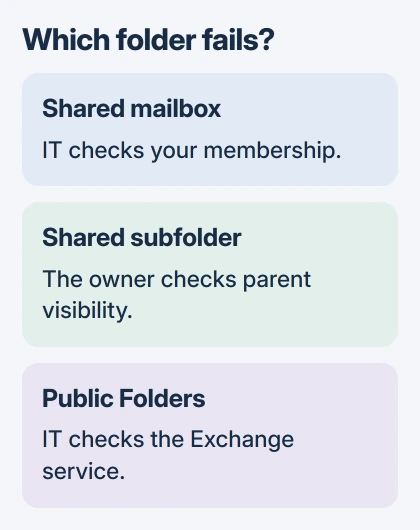
Write down the full error and where the folder appears on the left. A team address with its own Inbox is a shared mailbox. A folder someone shared belongs to their mailbox. Public Folders is a separate service in your organization.
Try opening your own Inbox and another folder you normally use. If both work, focus on the shared folder that won't open. If the whole account is offline, fix its connection or sign-in problem first.
Use the missing-folder display checks if a folder doesn't appear at all. This article covers a visible entry that won't open, usually with an error when you select it.
I'd write down the exact error beside the folder name. A file-in-use message needs different checks from a failure to connect to Exchange, the organization's mail service.
2. Confirm shared-mailbox membership, then restart
For a team mailbox, ask your Microsoft 365 administrator to check that your own work account has access. The mailbox can appear in Outlook's folder list before an access change takes effect.
Close Outlook, allow a few minutes after a recent membership change, and reopen it. Microsoft's shared-mailbox instructions include this wait and restart before manual addition.
Sign in with your own work account to open the shared address. A shared mailbox isn't meant for several people to sign directly into one account. Ask IT to fix your access rather than asking a coworker for its password.
If membership is correct but the mailbox never appears, use the version-specific mailbox addition steps. If it already appears and still refuses access, report that result instead of adding more copies.
When your organization offers Outlook on the web, try that same shared mailbox there. If it fails in both places, ask IT to check the account or service. If it works on the web, tell IT that only the Windows app fails.
3. Give a shared subfolder a visible route
To open a folder inside someone else's Inbox, you need permission for that folder and a route through its parent folders, the folders that contain it. Permission for the final subfolder alone may not let Outlook reach it.
Ask the owner to check the shared folder's permissions and each parent folder. Folder visible lets you reach a folder through its parent without giving you access to the parent's messages.
The folder-sharing controls explain the difference. When sharing a subfolder, new Outlook can make its parent folders visible. Existing permissions may still need checking.
Give the owner the complete route, such as their mailbox, Inbox, then the project folder. That lets them check each parent folder without confusing it with another folder that has the same name.
After the owner changes access, reopen Outlook and try that same route. If it opens, check an expected message. If the error remains, send the folder path and your work address to the mail administrator.
4. Treat Public Folders as an Exchange problem
Public Folders can fail for reasons an Office repair on your PC won't fix. Microsoft describes an incorrect public-folder permission that can keep a folder closed even when you have access to its contents.
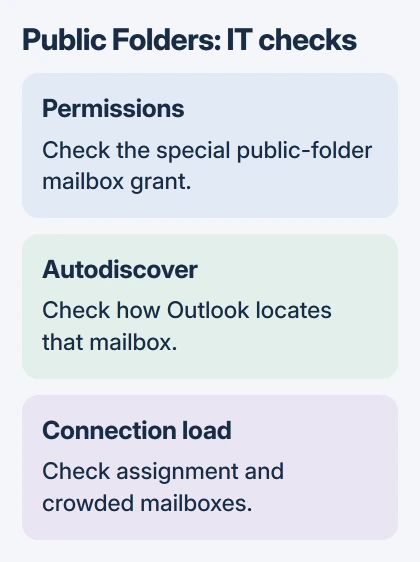
For this specific error, IT checks your assigned public-folder mailbox and removes the direct Full Access permission granted by mistake. That permission is separate from the access you need for an ordinary shared mailbox.
Send IT that article if the error mentions a failed attempt to connect to Exchange. IT needs to check that your error has this cause before changing permissions; those server commands won't repair every folder problem.
Older Exchange Server installations can have another problem. Autodiscover, the service Outlook uses to find mailbox connection details, can fail to find the public-folder mailbox's email domain.
The Exchange Server 2013 and 2016 repair fixes the domain's discovery records or the mailbox address. The error can say an OST file is in use even when the server's discovery settings need fixing.
An OST is Outlook's offline mailbox copy. Don't erase it solely because its name appears in that message. Give IT the whole error so they can check the server condition before rebuilding local data.
5. Check the Outlook edition and the service load
New Outlook has limited Public Folders support. If your work depends on creating, changing or deleting public folders, use classic Outlook as described in the current app limitations.
Switching apps helps when the action isn't supported; it won't fix a server permission failure. Tell IT which edition works and which one fails, including whether the trouble started after switching apps.
For a heavily used public folder, a network-problem message can mean too many connections to one public-folder mailbox. The public-folder load guidance helps IT check for overloaded mailboxes and connections spread unevenly across them.
If several coworkers lose the same folder at once, report their email addresses and when it happened. Reinstalling Outlook on each computer won't spread the server's public-folder connections more evenly.
If you still can't open the folder, contact your mail administrator. Include the exact error, folder type, Outlook edition, whether your own Inbox works and what happened on the web. Those details help IT choose the next repair.
The Short Version
Identify the folder type first. Confirm team-mailbox membership, check parent visibility for a shared subfolder, and send Public Folders errors to the Exchange administrator. Keep existing mail files while the access problem is checked.
Checked November 5, 2026.

Isaac Smith is the founder and editor of PC Glance, a website that covers computers, laptops, and technology. He is a tech enthusiast and a computer geek who loves to share his insights and help his readers make smart choices when buying tech gadgets or laptops. He is always curious and updated about the latest tech trends.