
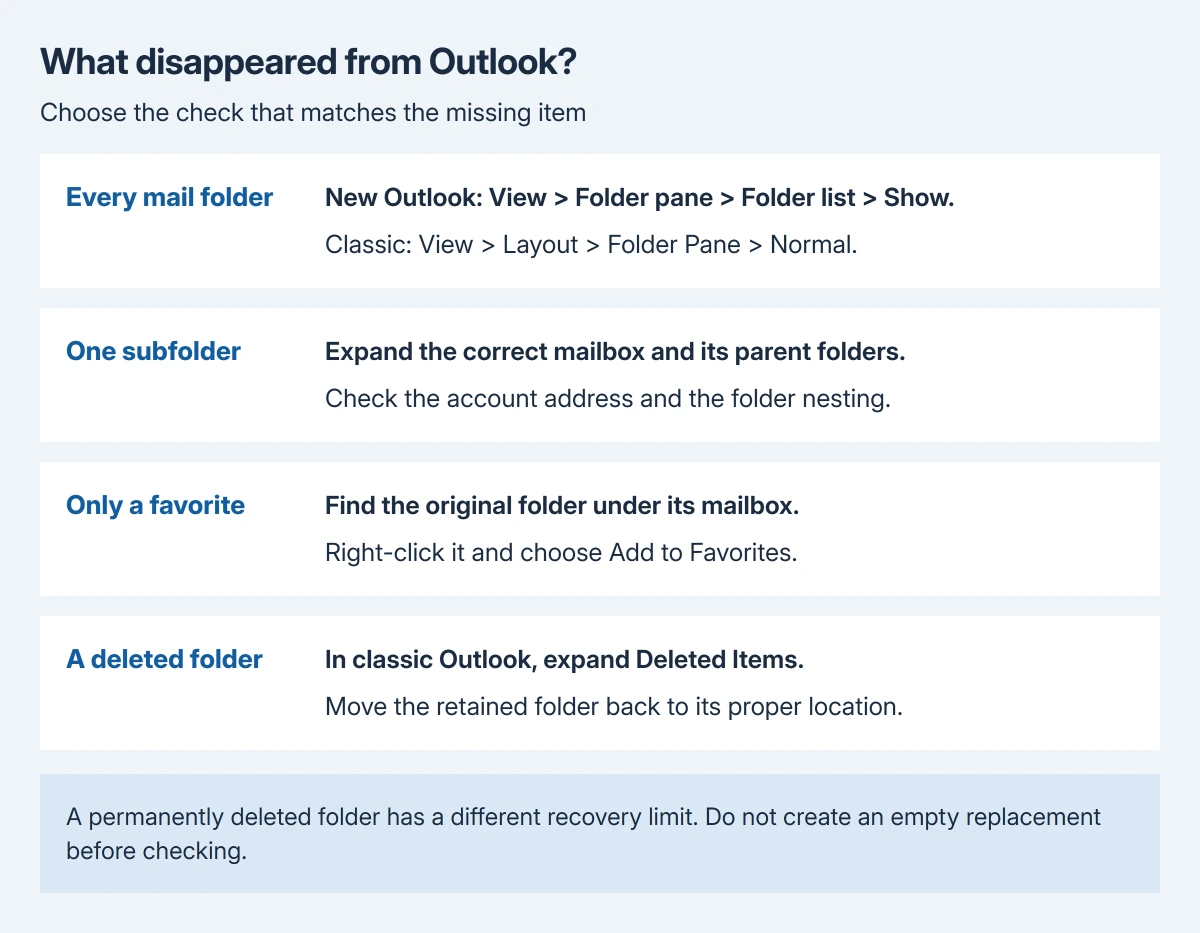
Missing Outlook folders can be hidden by a collapsed folder pane or mailbox, without any messages being deleted. In new Outlook, open View > Folder pane > Folder list > Show. In classic Outlook, choose View > Layout > Folder Pane > Normal.
If only one folder is absent, expand the correct account and its parent folders before changing anything. A missing favorite, a collapsed subfolder and a deleted folder have different remedies.
Bring the folder list back into view
Select Mail first. Outlook's left pane changes with the selected module, so a Calendar view will not display the same mail folders. Maximize the window to give the list enough room.
Microsoft documents both Windows app routes in its show-all-folders instructions. New Outlook uses Folder list > Show; classic Outlook uses Normal, rather than Minimized or Off.
Status: new Outlook, classic Outlook and Outlook.com folder visibility checked October 29, 2026 from Microsoft guides. Recovery limits depend on deletion and account type. No mailbox was changed.
Classic Outlook also offers an expansion arrow at the side of the window. If the folders return through that control, confirm that the desired account and Inbox are visible before trying a repair or recreating folders.
In Outlook.com, use the three-line control on the left to show the folders. Microsoft's web instructions also recommend maximizing a narrow browser window or scrolling left when its layout hides the list.
Expand the mailbox and the missing folder's parent
Find the account's full email address in the left pane. Expand its arrow, then expand the arrows beside folders that can contain other folders. Scroll through that account's complete list.
Microsoft says subfolders remain hidden until their parent is expanded. A folder nested under Projects will not appear beside Inbox simply because its contents have unread messages.
With several accounts, inspect the intended mailbox rather than another account's identically named folders. The Outlook folder-level guide explains how account folders and nested subfolders are arranged.
Avoid creating a replacement merely because the original is out of sight. A new folder is empty and does not reconnect old messages or undo an accidental move.
If the absent folder belongs to a shared mailbox, check that the mailbox itself is still listed and that access remains authorized. Ask its owner or administrator about a missing shared mailbox rather than moving personal folders around.
Restore a shortcut when only Favorites changed
Look for the actual folder under its account. Favorites contains shortcuts, so removal from that section does not establish that the original folder was deleted.
Right-click the original and select Add to Favorites to restore the shortcut. Microsoft's Favorites instructions distinguish removing a favorite from deleting a folder.
If the entire Favorites section is hidden, new Outlook offers View > Folder pane > Show favorites. Classic Outlook has View > Folder Pane > Favorites as a toggle.
Use Remove from Favorites when only a shortcut should go. In classic Outlook, deleting the folder through Favorites can delete its contents too. Inspect the command before confirming it.
Check Deleted Items for a folder removed accidentally
In classic Outlook, expand Deleted Items and look for the missing folder inside it. If present, drag that folder back to the appropriate place in the mailbox's folder list.
Microsoft's deleted-item recovery guide says this can restore the folder with its messages while it remains in Deleted Items.
That procedure cannot restore a permanently deleted folder. Message recovery depends on the account and retention settings. Contact a work mailbox administrator promptly if the folder has already been emptied.
Gmail's All Mail absent while other Gmail folders remain is a separate case. Use the Gmail label and Outlook subscription checks; the classic IMAP menu is not available in new Outlook.
Compare the same account on the web if it is still absent
Sign into the same mailbox through its provider's web interface and inspect the full folder tree. This comparison is ours: it separates an app's display from what that account currently presents online.
A folder visible online but absent in Outlook needs the app version, account type and missing folder path reported to support. A folder absent online too needs the provider's recovery or account-access checks.
For a whole pane still missing specifically in Outlook.com, Microsoft recommends signing out, clearing the browser cache, closing its tabs and windows, then signing in again. Save unfinished drafts before ending that browser session.
Give Microsoft Support the Outlook edition and whether the loss affects the whole pane, Favorites or one nested folder. Keep existing mailbox files and account settings intact while the cause is checked.
The Short Version
Show the pane and expand the intended mailbox and parents. Restore a missing favorite from its original folder. Inspect Deleted Items for an accidental deletion, then compare the account online before rebuilding anything.

Isaac Smith is the founder and editor of PC Glance, a website that covers computers, laptops, and technology. He is a tech enthusiast and a computer geek who loves to share his insights and help his readers make smart choices when buying tech gadgets or laptops. He is always curious and updated about the latest tech trends.