

Outlook's missing Back and Forward buttons can sometimes be restored by importing toolbar settings from another classic Outlook installation that still has them. Press Alt + Left to return to a previous view, or Alt + Right to go forward.
These shortcuts take you through the Outlook views you recently visited. They aren't the Forward command that sends someone an email, or the Previous Item and Next Item buttons inside an opened message.
In this guide
1. Use the navigation shortcuts while the buttons are gone
Click a mail folder in classic Outlook's main window, then open a different folder. Press Alt + Left. The previous view should return. Press Alt + Right to retrace that move in the other direction.
Microsoft lists these in its Outlook keyboard shortcuts. They let you keep moving through a deep folder structure without first repairing the toolbar.
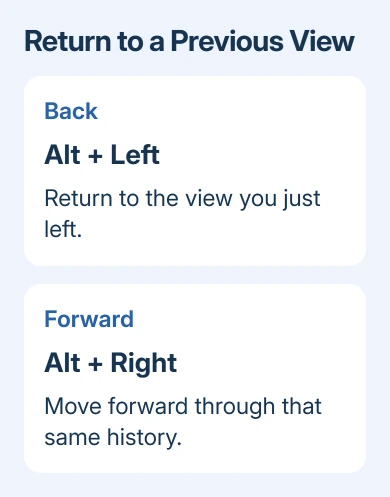
Try this after moving between two views. Back has nowhere to take you in a newly opened window until you've visited another view. Keep the focus in the main Outlook window rather than a separate email editor.
If the shortcut works, Outlook can still return to earlier views even though the button is missing. Continue with the toolbar checks to restore a clickable control. Don't replace it with the ordinary Forward email command.
If the whole strip of tabs and commands has disappeared, restore the Outlook ribbon first. A hidden ribbon and a command missing from its customization list need different fixes.
2. Check the main window's All Commands list
In classic Outlook for Windows, open File > Options > Quick Access Toolbar from the main mail window. Change Choose commands from to All Commands, then look for the navigation commands.
The shorter list of popular commands doesn't show every available action. A button missing from that list may still be available in All Commands. Select the appropriate command, choose Add, and then OK if you find it.
Check what the restored button does by visiting another folder and returning. Check that the button returns to the Outlook view you just left. A new message addressed to someone else means you added email forwarding instead of navigation.
I'd check that list before resetting anything. A reset can remove your carefully arranged shortcuts, and it won't necessarily restore a command that isn't offered by the installed Outlook version.
The original Outlook 2016 report described buttons missing even from All Commands. That is the case for which importing settings helped. If both navigation commands are absent there, move to the import method.
The File > Options customization window exists in the classic Windows app. New Outlook and web Outlook use different controls, so changing their ribbon layouts won't make this import method available.
3. Export a working Outlook toolbar
Find another classic Outlook installation where the navigation buttons still work. A colleague's PC or your other PC can supply the settings. Confirm the buttons navigate between views before exporting them.
On that PC, open File > Options > Quick Access Toolbar. Select Import/Export > Export all customizations, choose a recognizable file name, and save the file where it can be transferred to the affected PC.
Use an export from Outlook. The original discussion showed similar controls in Word, but a Word toolbar isn't the working Outlook setup this workaround calls for. Make the export in Outlook, from the window where the buttons work.
An owner confirmed that exporting from another PC and importing the settings restored the commands. Another owner tried an import without success, so check that the buttons work on the other PC first. Even then, the import may not help.
Without a PC that still has the buttons, there is nothing useful to export. The old discussion's private-message attachments aren't a dependable source of a customization file now. Use the shortcuts while arranging help instead.
The file includes the other PC's ribbon and toolbar layout, not just these two buttons. Ask the person supplying it whether their layout has other changes you'll notice, especially if your office uses a standard arrangement.
4. Back up your layout, then import the working file
On the affected PC, open File > Options > Quick Access Toolbar. First use Import/Export > Export all customizations to save your own current layout under a different name.
Importing replaces existing ribbon and Quick Access Toolbar customizations. Keep your own export to recover your layout if the replacement doesn't help or removes shortcuts you need.
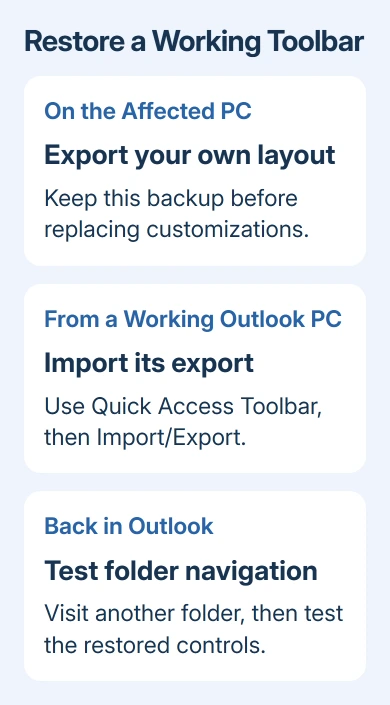
Now select Import/Export > Import customization file. Choose the export from the working Outlook installation and confirm the replacement. Close the options window, then inspect the toolbar in the main Outlook window.
Visit two mail folders and try the imported controls. If they return to the previous view and move forward again, the workaround has done its job. Check your other frequently used commands before settling on the imported layout.
If nothing changes, restore your saved layout through the same import control. Repeating an unsuccessful import won't help. Note the Outlook versions on both PCs, including the one where the buttons still don't appear.
For missing mail folders themselves, use the Outlook folder pane checks. Navigation history can't return to a folder that your account doesn't currently display or let you open.
5. Update Outlook when the import doesn't restore navigation
For a Microsoft 365 installation, open File > Office Account > Update Options > Update Now. After updating, reopen Outlook and inspect All Commands once more.
The 2017 discussion mentioned version 1706, build 8229.2086. That's historical guidance, not a build to install today. Install an update offered for your supported Office edition instead of looking for that obsolete release.
When IT controls updates or the menu is missing, have them check your Office edition and its update channel. Include a picture of the All Commands list and explain that you need view navigation, not email forwarding.
When the buttons remain absent
Ask Microsoft 365 support why the view-navigation commands are missing from All Commands. Supply the Outlook build from File > Office Account, the import result, and whether the keyboard navigation still works.
The Short Version
Alt + Left and Alt + Right let you navigate immediately. Look in All Commands, then try a working toolbar export after saving your own layout. Update Office if necessary and report which navigation controls remain missing.
Checked November 16, 2026.






