

A missing Outlook ribbon is often collapsed or set to hide between clicks. Open a tab such as Home, then keep the ribbon expanded through its display controls.
If a thin row of commands is still there, Outlook may be using the Simplified Ribbon instead of the full layout.
The right control depends on whether you're using classic Outlook, new Outlook, or Outlook in a browser. Check the visible layout before repairing Office or resetting anything.
In this guide
1. Expand a ribbon that still shows tab names
Start with the tabs in classic Outlook for Windows. Names include File, Home, and Send/Receive. If those names remain but their buttons disappear after every click, the ribbon is collapsed rather than removed.
Double-click a tab to expand its commands. Alternatively, right-click a tab and clear Collapse the Ribbon. Ctrl + F1 also switches the ribbon between its expanded and collapsed states in classic Office.
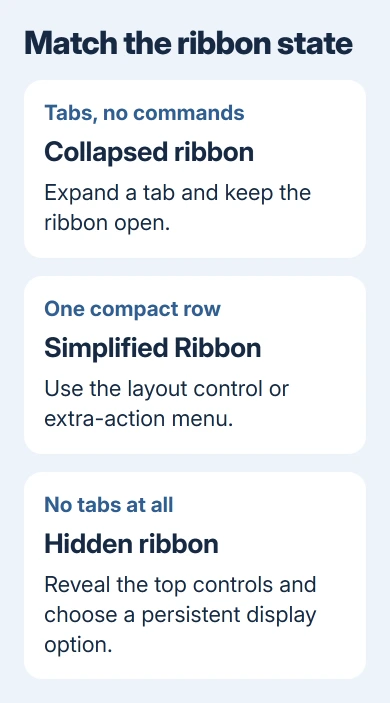
Click back into your message list. The commands should remain visible. If they appear only while the tab is selected, use the ribbon's pin or display control to keep it open.
Microsoft explains the difference between tabs alone and tabs with commands in its ribbon display instructions. That distinction explains why clicking Home can bring buttons back only until the next click.
Select Mail before deciding a mail command is missing. Calendar and the window where you write a message show different commands. A button available while writing a message won't necessarily be visible while reading the Inbox.
When sorting alone is missing, restore access to Outlook's Arrange By controls through the message-list menu or a classic Outlook toolbar shortcut.
If no tab names appear at all, the next check is the display mode. Make sure these controls match your Outlook app before pressing Ctrl + F1 again.
2. Restore classic Outlook's hidden ribbon
Point at the upper edge of classic Outlook. Look for Ribbon Display Options near the upper-right corner. Some Office layouts also show a three-dot control when the ribbon is fully hidden.
In that display menu, select the view that keeps tabs and commands visible. Depending on the Office layout, this is Show Tabs and Commands or Always show Ribbon. Show Tabs keeps only the names visible.
Auto-hide or full-screen mode makes more room for your mail, then hides the commands when you click back into your message. Select the always-visible ribbon setting; opening it once won't change that setting.
Maximize the window if its top controls are crowded. If you're viewing a message in its own window, close that message window and check the main Outlook window too. The two windows can show different tabs and have different tabs selected.
Once the ribbon stays open, try a familiar command such as New Email. If the ribbon is back but one particular command is absent, go to section 5 to check that tab or command before resetting the whole layout.
I'd restore the display setting before using an Office repair. It's a small change, and it addresses a ribbon that hides even though Outlook otherwise opens and reads mail normally.
3. Switch a compact ribbon to the fuller layout
A single row containing commands is a working ribbon. The Simplified Ribbon uses less space and places some commands in menus. It can look as though half of Outlook's buttons have vanished after a layout change.
In supported classic Outlook versions, use the ribbon's layout control at its right edge to switch back to the classic, expanded layout. If a specific command is all you need, open the three-dot menu at the end of the compact row first.
For example, some additional actions are grouped under New Email rather than displayed as separate large buttons. Widening the window also gives the compact layout more room. Check those menus before assuming an action has been removed.
In new Outlook for Windows, the ribbon has its own layout dropdown on the right. Choose the classic layout for a larger ribbon or the simplified layout for the smaller one. These are layouts inside new Outlook.
Choosing a classic ribbon doesn't switch the app back to classic Outlook. That matters when looking for an older add-in or command: changing the amount of space doesn't add a feature the app doesn't support.
If the missing item is a saved reply, the Outlook template checks separate template features and account availability. Restoring a full ribbon alone won't resolve every missing template option.
4. Check the browser or Mac version separately
For Outlook on the web, widen the browser window and inspect the ribbon layout control beside the command area on its right. A compact toolbar can move actions into the three-dot menu when there isn't room to display them together.
Select a message to see actions that apply to it, or choose New mail to see composition controls. The Inbox toolbar handles mail; formatting controls change the message you're writing. Check the window where the missing action belongs.
Avoid using the browser's page menu as though it were Outlook's ribbon menu. One controls the browser; the other controls the mail page. An account page that needs sign-in also won't display the same controls as the signed-in Inbox.
In Legacy Outlook for Mac, select View > Ribbon from the Mac menu bar. If the menu bar is hidden in full-screen mode, point at the upper edge of the display or leave full-screen mode with the window's green control.
Those Mac steps apply to the Legacy version. Current Mac layouts can differ, so don't follow a Windows File-menu repair path on a Mac. Use Help in the installed Outlook app to find guidance for its version when the control doesn't match.
If the thing missing is the folder list on the left, use the folder pane controls. The ribbon sits across the top, and restoring one doesn't restore the other.
5. Restore one missing tab before resetting customizations
In classic Outlook for Windows, open File > Options > Customize Ribbon. Look through the list of main tabs for the one that's absent. Select its checkbox if it has been turned off, then choose OK.
For missing Back and Forward view controls, restore Outlook navigation buttons with a working toolbar export rather than a ribbon reset.
Some tabs appear only for a selected item or task. Open the relevant message, meeting or other item to see the commands that appear only for that item. A missing tab in the Inbox isn't automatically a damaged installation.
If personal ribbon changes caused the problem, the Reset menu in Customize Ribbon can restore a selected tab or all customizations. Export customizations first if you want a way to recover your existing arrangement.
When the whole app is failing, get help with the app itself rather than changing ribbon settings again. Open Help > Contact Support where available, or ask your work IT team for help with the installed Office version.
Give them the app name, version, whether tab names remain, and whether the issue affects the main window or only an opened message. For a missing work add-in, identify the add-in and say which Outlook apps still show it.
The Short Version
Expand visible tabs, then choose the display option that keeps the commands open. A single compact row needs the ribbon layout control or its extra-action menus. Match the display setting to the app before resetting your customizations.
Checked November 15, 2026.






