
You add your Gmail account to Outlook on Windows, and Inbox, Sent and Trash all turn up. All Mail, the folder that holds every message you kept, never does.
I would fix this from Gmail's side first. Outlook can only list the labels Gmail offers it, and one checkbox decides that.
The Super User question about the missing folder has 46,887 views since April 2013, and owners were still confirming its last fix seven years later.
Why Outlook leaves All Mail out
Gmail has labels, not folders. Over IMAP, each label turns up in Outlook as a folder, but only when Gmail is set to share it.
On its Gmail connection page, Microsoft says "Outlook needs access to your folders in Gmail" and asks you to set them to show in IMAP.
Classic Outlook adds a filter of its own. It can hide any folder you have not subscribed to, so a shared label can still stay out of sight.
If the whole account tree is absent, restore the Outlook folder list before working on one Gmail label.
Ours: classic Outlook 16.0.20430 on this laptop still carries that filter. Its MAPIR.DLL holds the IMAP Folders item and the line "When displaying hierarchy in Outlook, show only subscribed folders".
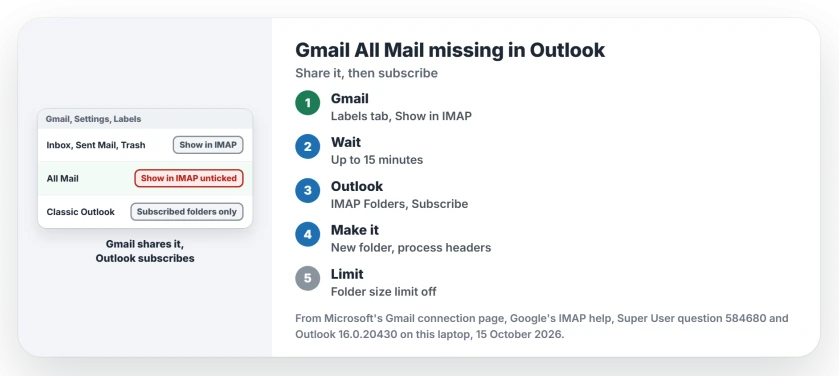
Status: the Labels tab steps match Microsoft's and Google's Gmail pages as of 15 October 2026; classic Outlook 16.0.20430 ran on Windows 11 25H2. No mail account was changed.
1. Tick Show in IMAP for All Mail in Gmail
Open Gmail in a browser. Select the gear, then See all settings, then the Labels tab, and tick Show in IMAP beside All Mail under System labels.
Microsoft lists All Mail with Inbox, Sent Mail and Trash as the four Outlook needs. Untick labels you never read. Fewer folders means a faster sync.
Then give it time, since Microsoft allows up to a quarter of an hour for the folders to refresh.
If Outlook refuses to connect at all and shows 0x800CCC0E, the Gmail sign-in error page comes first.
2. Subscribe to it under IMAP Folders
In classic Outlook, right-click the top of your Gmail account in the folder pane. Choose IMAP Folders.
Select Query, pick All Mail from the results, then Subscribe and OK. Outlook's own message names this route: the root of the account, then IMAP Folders.
In that dialog, a ticked box limiting the list to subscribed folders keeps any label you skip hidden.
Press F9 to send and receive. The 2013 asker did all of this and still had no folder, which is why step 3 exists.
3. Still missing? Create the folder yourself
The asker's own answer, accepted and voted to 76, was to "manually create one" when subscribing fails. Name it All Mail.
Put it inside the Gmail folder of your account, beside Spam and Trash. A commenter stressed that placement, next to the Bin, Important and Spam folders.
Then right-click the new folder and choose Process Marked Headers. The asker said the folder fills from there.
Owners kept confirming it. An owner wrote "This worked in Outlook 2016 also", and another found it "Still applicable as of Apr 2020, with the latest Office 365 desktop version".
I would use this for All Mail only. One commenter found that custom labels made this way land in Gmail under INBOX, as a new label rather than your old one.
4. Only part of All Mail arrives? Check the size limit
Google lets you cap how many messages any IMAP folder holds, under Folder size limits on the Forwarding and POP/IMAP tab.
If a limit is chosen, All Mail stops at that count. Google suggests the cap for mail apps that crash, at "10,000 emails or fewer".
Pick the option with no limit if you want the whole archive. Expect a long first sync.
Skip any advice to switch IMAP on. Google states that "IMAP access is always turned on in Gmail" for personal accounts since January 2025, though Microsoft's page still lists that step.
Using the new Outlook for Windows?
The new app has no IMAP Folders item, so steps 2 and 3 do not apply there. A Microsoft Q&A volunteer said so to an owner whose labels only half synced in October 2025.
Step 1 still counts. That volunteer found labels holding at least one message did sync, and suggested a full sync with F9 on the account's Inbox.
If deleted mail keeps coming back in the new app, the new Outlook delete sync page covers that separate fault.
The Short Version
- All Mail only reaches Outlook if Gmail shares it over IMAP.
- In Gmail's Labels tab, tick Show in IMAP for All Mail, then wait up to 15 minutes.
- In classic Outlook, subscribe to All Mail under IMAP Folders.
- Still missing? Create an All Mail folder under the Gmail folder and run Process Marked Headers on it.
- Only part of it? Lift the folder size limit on Gmail's POP/IMAP tab.
Where to Next
Which one brought All Mail back for you: the checkbox, the subscription or the hand-made folder? I am tracking which Outlook builds still need the folder trick, so add yours in the comments.

Isaac Smith is the founder and editor of PC Glance, a website that covers computers, laptops, and technology. He is a tech enthusiast and a computer geek who loves to share his insights and help his readers make smart choices when buying tech gadgets or laptops. He is always curious and updated about the latest tech trends.