
You start your PC and a System Properties box greets you. Windows created a temporary paging file, it says. Close it and restart, and it is back the next time, every time.
Start with where your page file lives, because in most owner reports I found, it had been moved off drive C:. One BitLocker setting explains why some cannot move it at all.
Asked in April 2022, the Super User question about this box at every startup has 20,567 views, and at Microsoft Q&A the same message carries 7 on Same question.
Why Windows made a stand-in page file
The full line comes from Windows' own message file: "Windows created a temporary paging file on your computer because of a problem that occurred with your paging file configuration when you started your computer".
Put simply, your page file failed at startup. Windows made a stand-in. It adds: "The total paging file size for all disk drives may be somewhat larger than the size you specified".
Ours: that text sits in sysdm.cpl.mui here. This laptop keeps a system managed page file on C:, 27,101 MB, which Windows reports as not temporary.
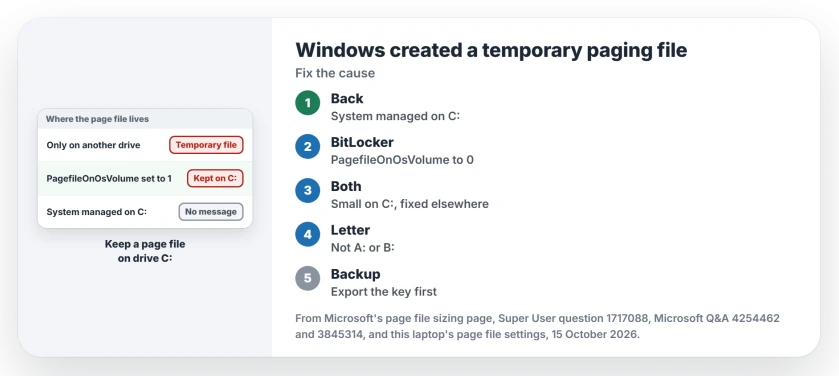
Status: Microsoft's page file sizing page and the message text in Windows 11 25H2, both checked on 15 October 2026. The page file settings here were checked, not changed.
1. Moved it off C:? Put one back
A Microsoft Q&A owner moved their page file to another drive to save space on C:. Right after, the box began, and when they set it back on C:, it stopped.
Another owner on Windows 11 had theirs on D:, and it went bad after an app install. They deleted it and made one on C:, and the box was gone.
To get there, press Windows+R, type sysdm.cpl and press Enter. On the Advanced tab, select Settings under Performance. Open that window's own Advanced tab, then select Change.
Tick the box at the top, the one that lets Windows size the page file for every drive. Select OK and restart.
Microsoft's page file sizing page is clear on the default. Microsoft says "By default, page files are system-managed". This step brings your PC back to it.
2. Want it off C:? Check PagefileOnOsVolume
The Super User asker turned page files off on both drives, and the box still came. The answer that explains it points at BitLocker. Turning it on sets a registry value that keeps a page file on the Windows drive.
That value is PagefileOnOsVolume. The answer warns: "Even if you disable bitlocker and decrypt the drives this registry key stays set as enabled bypassing any attempts to move the page file to another partition / drive".
Owners confirmed it, one of them while moving a 60 GB page file off a BitLocker drive. After setting the value from 1 to 0 and restarting, they wrote that "This did the trick".
Another owner added: "I suspect that with Windows 11 24H2 enabling Bitlocker by default, a lot more people are going to run into this issue".
The value lives in this key. Export the key from Registry Editor first, for a way back:
HKEY_LOCAL_MACHINE\SYSTEM\CurrentControlSet\Control\Session Manager\Memory ManagementSet PagefileOnOsVolume to 0 and restart. Then move your page file where you want it.
Ours: this laptop has no PagefileOnOsVolume value at all, so Windows on this laptop follows its page file settings.
A page file parked on a second hard drive can also stop that drive from ever resting, which the drive spin-up page traces with Process Monitor.
3. Or keep a small one on C: as well
One owner found a middle way. Keep a small page file on C:, and your real one on the other drive at a fixed size. In their words: "The secondary page file must have a fixed size, otherwise windows won't use it".
They started at 16 to 32 MB on C:. Someone whose PC refused that size went to 1,000 to 2,000 MB, and it worked for them.
4. Is it on drive A: or B:?
An owner put the page file on a new NVMe drive they had lettered A:. The box came at every boot. Then they changed the letter: "After changing it to drive letter N:/ the error went away".
A and B were floppy drive letters for decades, so I would give your page file drive any other letter.
Do not delete everything in Memory Management
One guide copied into a Microsoft Q&A question says to open that registry key and "DELETE EVERYTHING IN THE RIGHT PANEL" first.
I would not. That key holds more than page file settings. Step 2 changes one value, with a backup.
Can I just run with no page file?
You can, but crash reports need one. Microsoft says a page file or a dedicated dump file "must exist and be large enough to back up the system crash dump setting". Without it, no memory dump gets written.
Low memory warnings with plenty of RAM free come back to the page file too. Moved yours to free space on C:? The volume shrink page shows when that move is the right call.
The Short Version
- The box means your page file failed at startup, so Windows made a temporary one.
- Moved it off C:? Let Windows manage it on C: again, then restart.
- BitLocker on, or once on? PagefileOnOsVolume set to 1 keeps a page file on C:; owners set it to 0.
- Or keep a small page file on C: and a fixed-size one elsewhere.
- Never use drive A: or B:, and never wipe the whole Memory Management key.
Where to Next
Where does your page file live now that the box is gone? A comment with your setup helps me see which fix wins most often.

Isaac Smith is the founder and editor of PC Glance, a website that covers computers, laptops, and technology. He is a tech enthusiast and a computer geek who loves to share his insights and help his readers make smart choices when buying tech gadgets or laptops. He is always curious and updated about the latest tech trends.