

You have 130 GB free on drive C, but Disk Management offers to shrink it by only 13 GB. Defragmenting changes nothing. The free space is real. It just sits in the wrong place.
I go straight to the file that blocks it, because Windows writes its name down for you. Its Super User thread has passed 121,381 views, and new Microsoft Q&A copies keep arriving, one in September 2026.
Why your free space does not count
Shrink only cuts from the drive's end. Windows moves ordinary files out of the way, but some system files stay where they are for as long as Windows runs.
Microsoft says so on its Shrink a basic volume page: "you can't decrease the allocated space beyond the point where the unmovable files are located".
Its examples are the paging file and the shadow copy storage area, which System Restore uses for your restore points.
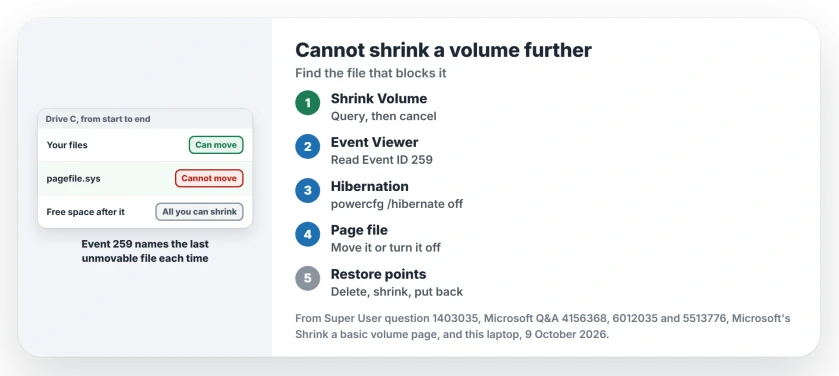
Status: Microsoft documents the unmovable file limit and Event 259. Moving the page file got owners their space back. Drive C on our laptop measured 9 October 2026.
An adviser on a 2023 Q&A thread drew it as a picture. Free space first, then the page file sitting in the middle, then 10 GB more free space at the very end.
In that layout "only the end 10 GB will be shrunk, no matter how well your disk defragmenter has optimized the disk".
Ours: this laptop's C drive is 453 GB with 69 GB free. The page file alone takes 24.3 GB of that drive and the hibernation file another 6.1 GB. Both sit on C.
1. Read Event 259 first
Every shrink query you start logs the last file that blocked it, in the Windows Application log. Microsoft's instruction is short: "Check the application log for an event with ID 259."
Open Disk Management, right-click C and choose Shrink Volume, then cancel. Now open Event Viewer, then Windows Logs, Application, and filter the log on Event ID 259. The newest entry names your file and the drive it sits on.
Order matters here. Our laptop had no Event 259 at all, because no shrink query had run on it yet.
The name tells you which step comes next. Pagefile.sys means step 3 and hiberfil.sys means step 2, while a file inside System Volume Information means restore points, step 4.
2. Turn hibernation off for now
The hibernation file sits on C and cannot move while Windows is using it. Right-click Start, open Terminal (Admin), and enter:
powercfg /hibernate offThat deletes the file and switches off fast startup along with it. Run the same line again with on in place of off when you finish.
3. Move the page file out of the way
The Super User asker turned the page file off first and reported that it worked, and a later reader added "Pagefile was the culprit."
Search for advanced system settings and open it. On the Advanced tab, under Performance, select Settings, then Advanced again, and under Virtual memory select Change.
Untick the box that manages paging file size automatically, select C, choose No paging file and select Set. Restart your PC and try the shrink again. Check the new number.
Have a second drive? Give it a page file first, so Windows is never left without one. Set C back to system managed afterwards. I would not leave a PC running without a page file.
A startup box about a temporary paging file after this step means Windows wanted one on C:, and the temporary paging file page covers why.
4. Clear old restore points
Shadow copies are the other file type Microsoft names on that page, and System Restore keeps them on C. In Start, search for restore point to open System Protection, then select C, Configure and Delete.
That removes every restore point stored on drive C, not only the old ones. Make a fresh one once the shrink is done, so you still have a way back.
Still stuck at the same number
The page file is only the first suspect. A Super User reader wrote "Pagefile deactivation didn't help." A Q&A asker in December 2025 tried all of it, page file, restore points, hibernation and defrag, "but it still yet won't budge".
That is when your Event 259 entry earns its place again. Each fix moves the block along to the next unmovable file on the drive. Run your shrink query once more and read the new entry in the Application log.
When yours names $MFT or another NTFS system file, the advisers on those threads say Windows will not move it. They suggest a third-party partition tool at that point. Back up first.
You only need a few GB more
Shrink in two rounds. Take what Windows offers now, then check Event 259 again and clear whichever file blocks the next part.
Planning a second partition? The Disk Management guide covers which partitions are safe to touch. Need free space inside C instead? Freeing up disk space is the gentler route.
The Short Version
- Shrink cuts from the end of the drive. Unmovable files block it.
- Event 259 in the Application log names the blocking file.
- Hibernation off, page file moved or off, restore points cleared.
- Restart between steps and read Event 259 again each time.
- Put the page file and hibernation back when you finish.
Where to Next
Got a file name from Event 259 that is not covered here? Paste it under this article, and I'll tell you which step clears it.

Isaac Smith is the founder and editor of PC Glance, a website that covers computers, laptops, and technology. He is a tech enthusiast and a computer geek who loves to share his insights and help his readers make smart choices when buying tech gadgets or laptops. He is always curious and updated about the latest tech trends.