

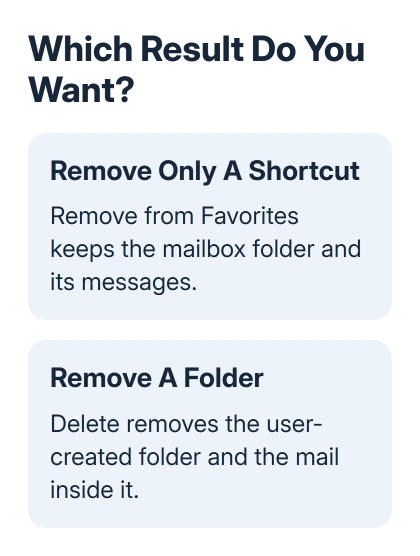
Deleting a folder in Outlook also deletes its mail. Right-click a folder you created and choose Delete in new Outlook, or Delete Folder in classic Outlook. To hide only a shortcut, choose Remove from Favorites instead.
Built-in folders such as Inbox and Sent Items can't be deleted. Check the account and folder contents before confirming, especially when several mailboxes use the same folder names.
In this guide
Check the folder and move any mail you want to keep
Open the folder and check its messages before removing it. Expand it to look for subfolders too. Move mail you need into another folder in the same account, or back it up before deleting the original.
A folder named Projects under one mailbox is separate from Projects under another. Read the account name in the folder list and confirm which copy you want to remove. Favorites can make that distinction less obvious.
Microsoft says folder deletion applies to folders you created. Inbox, Outbox, and Sent Items can't be deleted this way.
If Outlook has hidden its entire folder list, restore the Outlook folder pane first. Deleting a folder isn't necessary to fix a hidden navigation pane or a collapsed mailbox.
Decide whether you want to clear clutter in Favorites or delete a folder holding mail. Removing a shortcut keeps the folder and its messages in the mailbox. To delete the folder itself, follow the steps for your Outlook version.
New Outlook: remove the selected folder
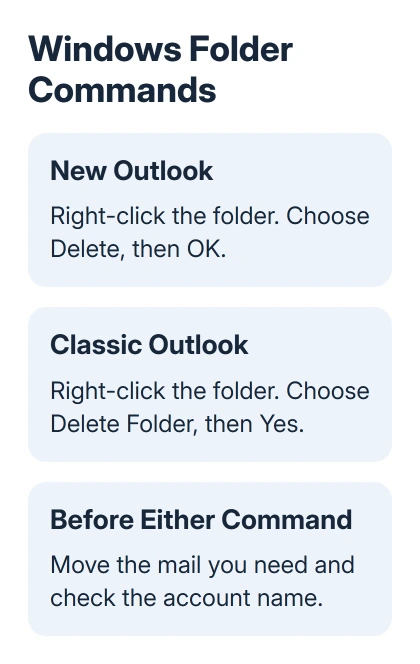
Open Mail and find the folder under the correct account in the folder pane. Expand the account and its parent folders as needed. Right-click the folder you created, then select Delete.
Read the confirmation and select OK if it names the folder you intended to remove. The folder and its contents move into Deleted Items. Check the mailbox list afterward to confirm it has left its previous position.
This removes the folder, rather than just clearing the messages shown in the message list. To keep that folder, stop and select the messages inside it instead.
An account connected to several Outlook devices can show the deletion on the other devices once the mailbox syncs. Keep any mail you want before confirming rather than expecting another device to be a separate backup.
Leave Deleted Items alone while checking the result. Emptying that folder is an additional deletion step, and goes further than moving an unwanted folder there.
Choose Delete Folder in the classic app
Find the folder you want to remove in the classic Windows app's Folder Pane. Right-click its name and select Delete Folder. Choose Yes in the confirmation to move it and its contents into Deleted Items.
Classic Outlook has a File tab and the traditional ribbon. If the menu instead offers the new app's Delete command, follow that version's confirmation rather than looking for an identically named classic command.
Take extra care with mail held in a local Outlook data file. A folder in an archive isn't necessarily another copy of mail already stored on the server. Check where its messages live before assuming they can be downloaded again.
If you need a different place to keep those messages, create an Outlook folder first. Move the mail there, check it, and then remove the old folder.
I'd check one moved message before deleting a busy folder. Open its new location and check the message and attachment there. An empty original folder alone doesn't tell you the destination was correct.
Remove a folder in Outlook on the web
Open the mailbox you want to change in your browser. Expand its folder list. In layouts showing More under Folders, select that to reveal the full list before looking for the folder.
Right-click the folder or subfolder you want to remove, select Delete, and choose OK in the confirmation. Check the correct mailbox branch if more than one account or shared mailbox is open.
The web interface also has Favorites shortcuts. Right-clicking a shortcut and choosing Remove from Favorites takes away that shortcut while keeping the actual folder under the mailbox.
Use that choice when you want a shorter navigation list. A folder you rarely open can keep its mail without occupying a Favorites shortcut.
If the folder is shared, its owner or administrator may control whether you can remove it. Ask them to review your folder permissions if the command is missing or rejected. Don't remove the whole account to hide one folder.
Follow the Mac or phone app's own controls
On Outlook for Mac, select the unwanted folder and click Delete on the ribbon. Alternatively, right-click it and choose Delete Folder. Read any confirmation before deleting it.
Check the mailbox name on a Mac just as you would on Windows. A local folder, a server folder, and a Favorites entry can appear near each other even though they're stored or removed differently.
On Outlook for iPhone or Android, start in your inbox and open the left navigation pane. Tap the Edit icon, tap the folder you want to remove, then tap Delete.
Those phone steps are for the Outlook app. Apple Mail, Gmail, and a mailbox opened in a mobile browser have different menus. Check the app name before trying to follow a control that isn't on your screen.
If the phone doesn't show the expected folder or command, check the same account in desktop Outlook or its webmail. Use the version whose folder list you can inspect clearly, or ask the mailbox administrator about permissions.
Recover a mistake before emptying Deleted Items
Open Deleted Items and look for the folder you just removed. Expand the list if necessary. Restore or move the folder back to a suitable place in the mailbox using the controls available in that Outlook version.
The missing-folders guide linked earlier covers that recovery branch. Do it promptly and confirm that both the folder and the messages you need have returned, rather than making a new namesake folder that contains no messages.
Emptying Deleted Items also permanently deletes folders inside it. A work mailbox may have separate retention or recovery policies, but those aren't a reason to treat Deleted Items as a long-term archive.
If you can't recover the folder, give support the account type, folder name, deletion time, and whether Deleted Items was emptied. For a work mailbox, ask the administrator which recovery options that organization provides.
The Short Version
Move any mail you need, then delete the user-created folder through your Outlook version's folder menu. Remove a Favorites shortcut instead when the mailbox folder should remain. Check Deleted Items quickly after an accidental deletion.
Checked November 12, 2026.






