
Create an Outlook folder under the correct mailbox. In new Outlook, right-click the account's email address and choose Create new folder. To nest it under an existing folder, right-click that folder and choose Create new subfolder.
A folder starts as an empty location for organizing messages. Creating it does not automatically move existing mail or establish a rule for future messages.
Choose the mailbox and folder level first
Expand the intended account in the folder pane. Decide whether the folder belongs directly under that mailbox or inside another folder. Check the email address when several accounts have similar display names.
Microsoft documents the account-level and subfolder routes in its folder creation guide. A folder under the wrong mailbox can make later searches or message moves confusing.
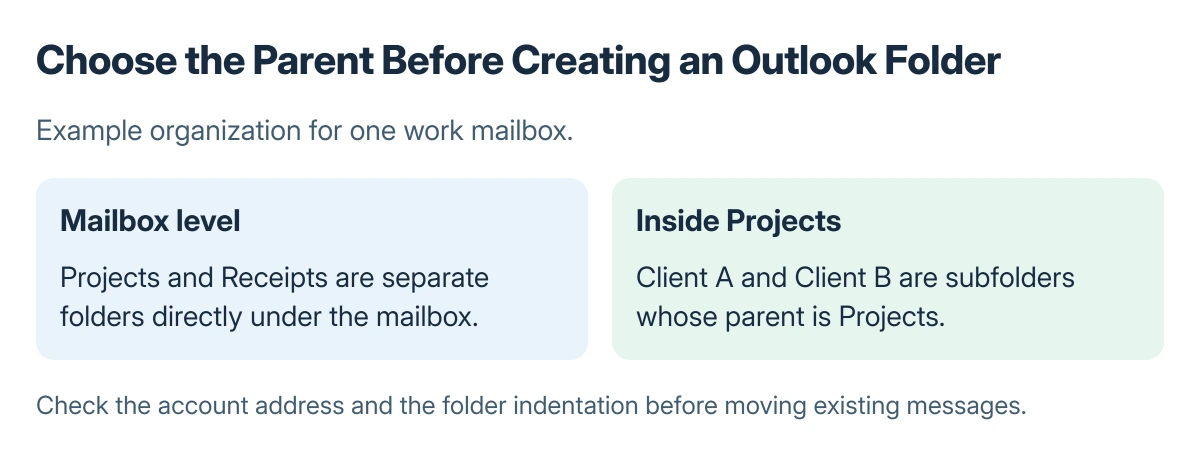
Status: Outlook folder creation and organization documented by Microsoft, checked 23 October 2026. The mailbox tree is an example; no messages were moved.
For a shared address that is not available yet, add the shared mailbox with the required access before trying to organize its contents. Displaying a name does not grant permission to create folders in it.
Create the folder in new or classic Outlook
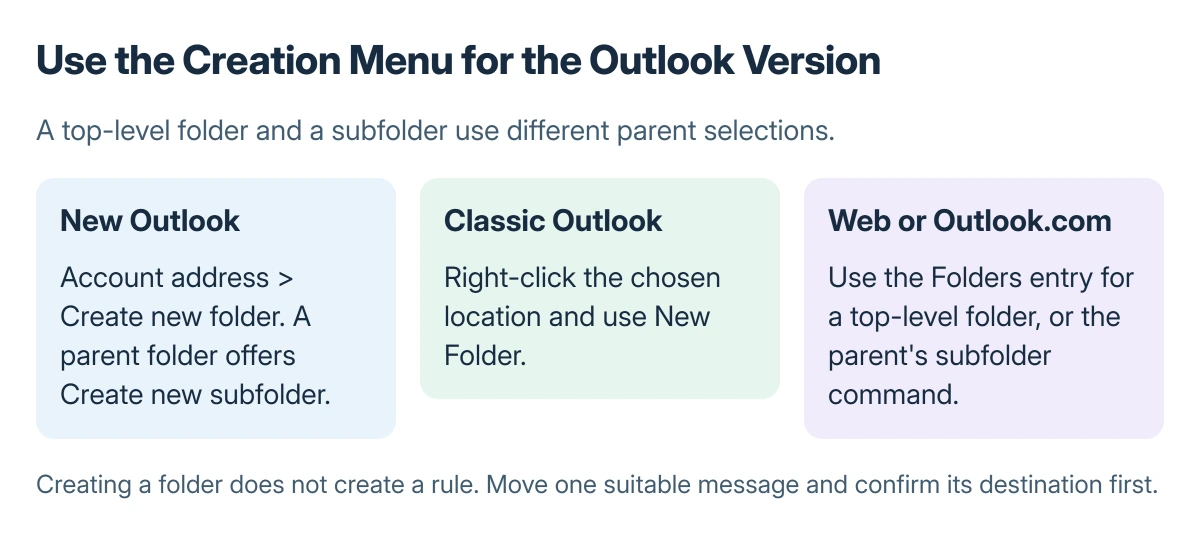
In new Outlook, right-click the account email address, or open its More options menu, and select Create new folder. Type the folder name and press Enter.
For a subfolder, open the parent folder's menu and choose Create new subfolder. Check the indentation after creation to confirm the new entry is under the intended parent.
In classic Outlook, right-click the place in the folder pane where the new folder belongs and choose New Folder. Enter its name and confirm. Microsoft says the command in Calendar is New Calendar, so use the Mail context for a mail folder.
Use the browser's Folders entry when working on the web
For a top-level folder, right-click Folders in Outlook.com or the business Outlook on the web app. For a nested folder, right-click the parent and choose Create new subfolder.
The business web app and personal Outlook.com can have slightly different menu placement. Microsoft's current creation page provides separate tabs for those editions rather than treating the Windows app as their exact interface.
Move one message and check the result
Select a message that belongs in the new folder and use the app's Move or Move to command to select the destination. Open the folder and confirm the expected message is there before moving a large collection.
Microsoft states that folders can be combined with rules to move future messages automatically. Its message folder guide separates the folder itself from the conditions and actions of a rule.
Adding a folder to Favorites creates a convenient link; it does not relocate the folder. Removing that favorite is different from deleting the folder and its contents.
If a moved message is difficult to find in a shared mailbox, inspect the search location and the shared-mailbox search checks. Recreating duplicate folders will not fix a search scoped to another mailbox.
The Short Version
Choose the correct mailbox and level, create the folder through that version's menu, then move one message to check the result. Set up rules separately if future messages should be organized automatically.
Where to Next
A missing folder-creation command needs an account and permission check. Record the parent folder and Outlook edition. Ask the shared mailbox owner or administrator to verify permissions before changing the folder arrangement.

Isaac Smith is the founder and editor of PC Glance, a website that covers computers, laptops, and technology. He is a tech enthusiast and a computer geek who loves to share his insights and help his readers make smart choices when buying tech gadgets or laptops. He is always curious and updated about the latest tech trends.