
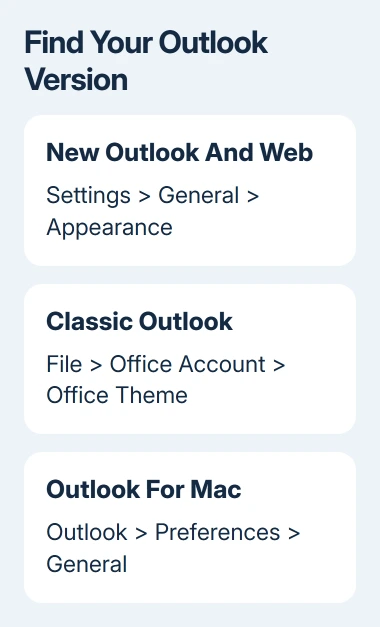
Outlook's color settings depend on which version is open: new Outlook and the web app use Appearance, while classic Outlook uses Office Theme. Change that setting first if the whole window is too dark or you want a different accent color.
An email's background and its text color have separate controls. Changing the app theme won't recolor the messages you send, so choose the section that matches what you're trying to change.
Find the appearance menu your Outlook uses
On Windows, look for File at the upper left. Classic Outlook has that tab and an Office Account page. New Outlook uses a Settings gear and has its appearance controls inside the settings window.
For Outlook.com or a work mailbox in a browser, follow the web instructions. A Mac has its own Outlook menu in the screen's menu bar; its appearance choices aren't in the Windows Office Account page.
I'd choose the version before changing Windows colors. That saves changing other apps when only Outlook needs attention. Keep an email open while adjusting the theme so you can judge both the inbox and the reading area.
Theme settings change the area around your messages. If the problem is small text or a font you don't like when composing, use the Outlook default-font settings instead.
Set new Outlook and browser mailbox colors
Open Settings > General > Appearance. Choose an available theme for the mailbox, then select Save if the settings page offers it. Look at the header and other app controls to see the result.
The choices on that page can differ between accounts and versions. Choose a theme from your list rather than searching for a color shown in an older tutorial. A theme and dark mode are separate choices on this page.
For a dark reading experience, find Dark mode, select Dark, then select Save. Choose Light to keep Outlook bright, or Use system settings to follow your computer's current light or dark appearance.
Microsoft says the dark-mode controls can change the message background separately from the window theme. That distinction matters when the inbox changes but an open message still looks different.
When dark mode makes a message hard to read, select Turn on the lights at the top of the reading pane. This brightens that message's reading area without requiring a different mailbox theme.
Check another message afterward. If only one email has unusual colors, the sender's formatting can be involved. Changing your mailbox's accent color isn't a way to edit the contents of an incoming email.
Sign in to your mailbox to reach its appearance controls. Changing the theme in a browser doesn't require installing another Outlook app, but check that you're adjusting the right mailbox if several accounts are open.
Set Office Theme in classic Outlook for Windows
Select File > Office Account, then open Office Theme. Choose the appearance you want from the available list and return to your inbox. The surrounding window should change without creating a new message or restarting your PC.
White gives a bright interface. Colorful adds the app's main accent color to the ribbon. Dark Gray uses softer dark tones, while Black gives the darkest appearance and supports the dark message background.
Use system setting follows Windows light or dark mode. If Outlook keeps changing when Windows changes appearance, choose a fixed theme instead. The wording and available choices can vary with the installed Office version.
An Office Theme change applies to the other Microsoft 365 desktop apps too. Open Word or Excel afterward if you use them, especially when you're setting up a shared computer and someone else prefers a different contrast level.
To keep a white message background with the Black theme, open File > Options > General. In Personalize your copy of Microsoft Office, select Never change the message background color, then select OK.
That option is useful when the dark window feels comfortable but long emails are easier to follow against white. For a temporary change while reading, the sun and moon controls switch the message background when dark mode is available.

Use Outlook's own appearance setting on Mac
In Outlook for Mac, open Outlook > Preferences > General. Under Appearance, choose Light, Dark, or System. Some releases label the app's preferences menu Settings.
Light and Dark keep Outlook in the selected mode. System matches the Mac's current appearance. To change that system appearance on a current Mac, open System Settings > Appearance; older releases use System Preferences > General.
Leave the Mac's system setting alone if other apps already look right. Outlook's own Light or Dark choice lets you control your mail window without making a system-wide change just for email.
Return to the message list and open a message to check the result. If the Mac instructions aren't present, confirm that Outlook is the active app in the menu bar, rather than the browser displaying Outlook on the web.
Set colors inside an outgoing message
In classic Outlook, a new message has Options > Colors for its document theme colors. Those choices affect the message being composed. They don't replace the Office Theme that controls the main Outlook window.
For ordinary email text, use the composing font controls. Keep decorative colors restrained when sending work messages: a pale font that looks clear against your dark editor can be difficult for someone reading on a white background.
To mark or organize messages, use the mailbox's organization tools rather than changing its theme. The Outlook folders guide covers putting mail in separate places without changing its text.
If Appearance or Office Theme is missing, note whether you're using new Outlook, classic Outlook, a Mac, or a browser. Give your organization's Microsoft 365 help desk that version and a description of the missing control.
For a personal account, use Outlook's Help options to request support with that same information. Include whether the setting is absent or whether a chosen color changes back; those are different problems to troubleshoot.
The Short Version
Use General > Appearance for new Outlook or a browser mailbox, Office Theme in classic Outlook, or General > Appearance on Mac. Adjust the message background separately if only the reading area needs to change.
Checked November 9, 2026.

Isaac Smith is the founder and editor of PC Glance, a website that covers computers, laptops, and technology. He is a tech enthusiast and a computer geek who loves to share his insights and help his readers make smart choices when buying tech gadgets or laptops. He is always curious and updated about the latest tech trends.