

A MacBook Pro M1 Max A2485 can charge an accessory while refusing its data connection, especially when the accessory hasn't been approved. Unlock the Mac, reconnect the device and accept the connection prompt.
If a dock lost several devices at once, connect one directly before blaming every port.
HDMI, the SD card slot and the headphone jack need their own checks. A black monitor, a missing memory card and a USB power warning don't all point to the same broken part.
1. Identify which connection has actually stopped
Open Apple menu > About This Mac and confirm the model and chip. These steps target the 16-inch MacBook Pro introduced in 2021, including its M1 Max configuration. A2485 alone doesn't distinguish every chip configuration.
The model has three Thunderbolt 4 USB-C ports, HDMI, an SDXC card slot, MagSafe 3 and a 3.5 mm headphone jack. Write down which connections fail and whether your devices connect directly or through one dock.
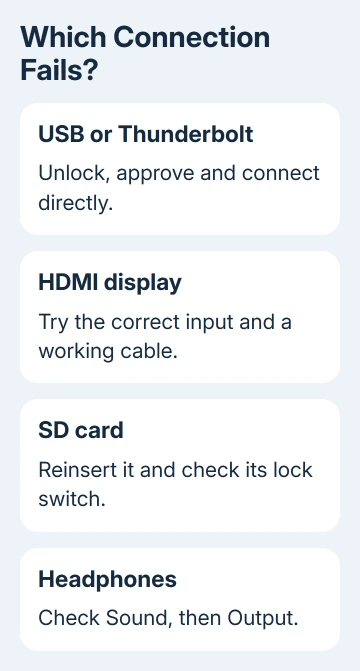
If a dock's monitor, card reader and keyboard all disappeared together, they share the dock's connection. If the built-in HDMI and SD slots also fail with separate accessories, keep a note of that pattern for the service check later.
I'd start with one accessory you know works on another computer. That keeps a defective cable or device from making every Mac port look broken. Use the same accessory while moving between compatible ports so the comparison stays useful.
2. Unlock and approve USB, Thunderbolt or SD access
On Apple silicon Mac laptops, a new USB device, Thunderbolt accessory or SD card can trigger an approval prompt. Unlock the Mac before reconnecting it. Select Allow when the prompt describes the accessory you connected.
Choosing Don't Allow stops the Mac recognizing the accessory or accessing its data, but the accessory can still charge. Charging over USB-C can work even when the Mac doesn't have permission to read the device's data.
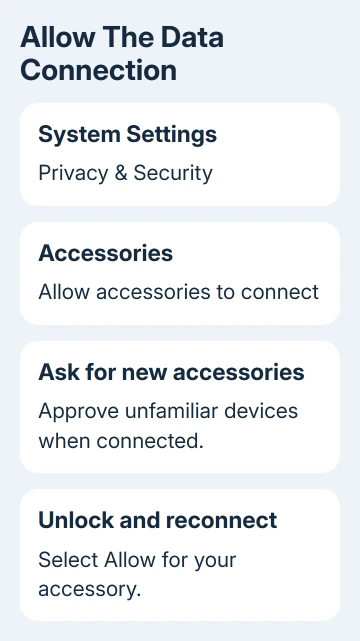
Apple's accessory permission instructions explain this distinction. In current macOS, open System Settings > Privacy & Security > Accessories and review Allow accessories to connect.
Choose Ask for new accessories if you want a prompt when you connect an unfamiliar device. To request approval on every connection, choose Always ask.
Older macOS versions can display the accessory setting directly within Privacy & Security rather than in a separate Accessories panel.
Open the lid, unlock the Mac and reconnect your device. If it now appears, approval was stopping the connection.
If the setting is controlled on a supervised work laptop, ask IT whether an accessory policy blocks it rather than changing unrelated security controls.
3. Bypass the dock and check its power
For a USB Devices Disabled or device-needs-more-power message, unplug and reconnect the affected accessory. Try another USB-C port, then bypass the hub or dock for a direct connection.
If the hub has its own AC adapter, connect that adapter. A hub being attached to the Mac doesn't mean it has the separate power supply it needs for everything plugged into it.
Choose a cable rated for the data connection your accessory needs. A cable that charges a device isn't necessarily suitable for its Thunderbolt or high-speed data link.
Swap the cable with one specified for the device before concluding the Mac's port is defective.
If the accessory works directly, the next step is the dock, its adapter or its cable. Ask the dock maker about the exact Mac model and macOS version.
Keep using the Mac's built-in ports while you check the dock, and test each accessory as you reconnect it.
If a group of USB or Thunderbolt ports stopped working after an update, use the Mac port troubleshooting guide.
That case differs from a single SD card or audio-output setting.
4. Test HDMI as a display connection
Connect the monitor directly to the Mac's HDMI port for this check. Select the matching HDMI input on the display and try another known-working HDMI cable. Leave the dock or USB-C video adapter disconnected for this HDMI test.
The 2021 model's built-in HDMI supports one display at a maximum of 4K, 60 Hz. Its M1 Max configuration supports up to three additional displays at up to 6K and 60 Hz over Thunderbolt.
Later MacBook Pro HDMI specifications don't apply to this model.
Choose a lower display resolution or refresh rate if the current mode exceeds what this Mac and connection support. A monitor advertising a higher refresh rate doesn't mean the built-in HDMI output can supply it at every resolution.
If the display works on another source but remains black on this Mac, follow the external monitor detection checks for display settings and detection.
With that result, focus on the video connection rather than the SD card slot.
5. Check the card slot and audio output separately
For an SD card, insert it with the metal contacts facing down and toward the computer. Remove and reinsert a card that doesn't mount; insertion that's too slow or too quick can prevent proper mounting.
Approve an accessory prompt if one appears.
Try another compatible card to compare the slot with the original card. A microSD card needs an adapter, so check that adapter as well as the card. Don't format a card containing files you need just to see whether the slot works.
If the card appears but says it cannot be modified, eject it and check its physical lock slider. A write-locked card is different from a slot that never recognizes any card.
Move the slider to its unlocked position before reinserting it.
For wired headphones, open System Settings > Sound > Output. On macOS Monterey, use System Preferences > Sound > Output. Select the headphones or external output you intend to use, then check output volume and mute.
Try another pair of headphones in the same jack. If they work, check the first pair. If neither pair appears or produces sound, note that result separately from the USB or HDMI failures so a technician knows which connection to check.
6. Run diagnostics when direct connections still fail
Install any macOS updates available for your Mac, save your open documents and restart.
If known-working accessories still fail directly, shut it down and disconnect external devices except the display, keyboard, mouse, Ethernet if needed, and AC power.
Press and hold power. Let go when startup options appear. Release it, then hold Command-D to start Apple Diagnostics. Follow the onscreen instructions and keep any reference code.
This Apple silicon model doesn't use the Intel startup shortcut of holding D immediately after power-on.
If failures persist, book a hardware assessment with Apple Support or a service provider authorized by Apple. Give them the exact model, macOS version, affected sockets and results with direct connections.
A connector that fails only sometimes can still need a service check even if the test gives no error code.
The Short Version
Approve accessories on an unlocked Mac, bypass the dock and check the data cable. Treat HDMI limits, SD-card mounting and headphone output as separate cases.
Persistent failures with working accessories call for diagnostics followed by a service check.
Checked November 9, 2026.

Isaac Smith is the founder and editor of PC Glance, a website that covers computers, laptops, and technology. He is a tech enthusiast and a computer geek who loves to share his insights and help his readers make smart choices when buying tech gadgets or laptops. He is always curious and updated about the latest tech trends.