
An HP printer that prints colors but leaves black text blank often has an empty black cartridge or a blocked ink path. Check the black supply, then run the printer's built-in printhead cleaning if the ink isn't depleted.
Black missing from the printer's own diagnostic page points toward the printer or its supplies. A clean diagnostic page with bad output from your computer calls for print settings and driver checks instead.
1. Check the black supply and any new cartridge
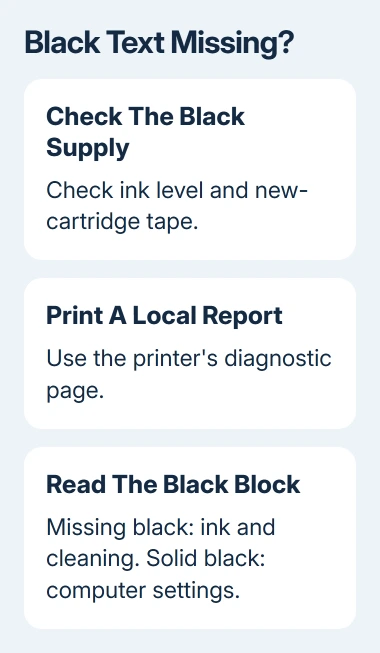
Open HP Smart, select your printer, and check its estimated ink levels. Check the printer's ink display too, if it has one. A low estimate can help you spot depleted ink, but a full reading doesn't tell you whether ink reaches the paper.
For a cartridge printer, check whether the black cartridge was just installed. Remove its protective tape if it was left on, then reseat it using that model's installation steps. Avoid touching its ink nozzles or electrical contacts.
Match the cartridge number to the printer and its sales region. A cartridge that looks the same isn't necessarily the right replacement. The HP ink replacement guide explains the different loading arrangements.
Smart Tank printers use refillable tanks rather than the black-and-tricolor cartridge arrangement of many DeskJet and ENVY models. Inspect the black tank's level using its markings and follow that model's refill directions if it needs ink.
LaserJet printers use toner, not liquid ink. If that's the model on your desk, check the black toner supply and follow its toner and drum instructions. Don't run an inkjet printhead-cleaning procedure on a laser printer.
After correcting an empty supply or installation problem, print a short page of black text. If black is still missing, compare that page with one printed directly from the printer before spending time reinstalling software.
2. Print a diagnostic page without the computer
Load clean plain paper and use the printer's control panel or its HP maintenance software to print a Print Quality Diagnostic or equivalent test report. The name and button sequence depend on the model.
On a model with a touchscreen, look in Setup, Tools, or Maintenance for its print-quality report. A button-only printer needs its own documented button combination; don't borrow one from a different DeskJet family.
Inspect the black block and black text. Missing black, pale streaks, or gaps on this report mean the fault happens even without your document and Windows app. Continue with inkjet cleaning or the model's supply checks.
If the report prints solid black, keep it for comparison and move to the computer settings section. I'd compare these pages before spending money on another cartridge. It can save replacing a working supply for a document or driver problem.
Microsoft says a printer-generated test page helps separate Windows faults from printer faults.
If an error stops the printer from producing the report, deal with that message first. A cartridge-not-recognized message needs an installation or compatibility check before a cleaning cycle will be useful.
3. Run inkjet cleaning and compare the result
In HP Smart, select the printer, then open Printer Settings. Where offered, choose Maintenance/Tools > Clean Printhead. On some models, you'll find the maintenance tools in advanced printer settings instead.
Alternatively, use Setup or Maintenance > Clean Printhead on a printer with that control. The menu names vary, so follow the route your model offers.
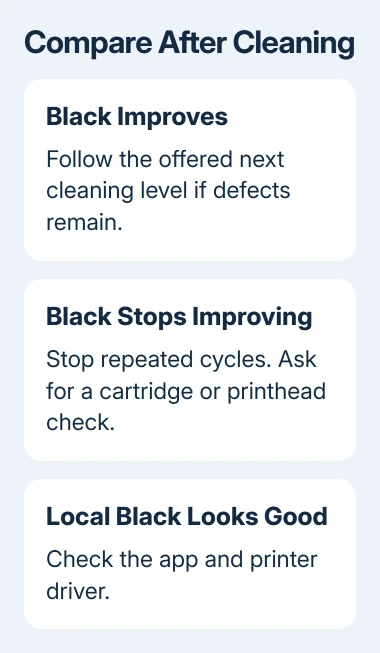
Start with the first cleaning level. Let it finish, then print the diagnostic page again. A darker black block or fewer gaps means more ink is reaching the paper. Follow the offered next level only if defects remain.
Cleaning uses ink, so don't keep starting cycles after the report stops improving. Keep the most recent page and use your model's instructions to decide whether another cycle or a waiting period is appropriate.
Alignment is a different tool. It helps line up printing, but it can't restore a missing black ink supply. Choose cleaning for missing ink and alignment for the placement defects that your model's report identifies.
If a new cartridge still produces no black after installation checks and supported cleaning, ask HP to assess it or the printhead. Some models have the printhead in the cartridge; others have a separate component.
4. Correct Windows settings when local black prints well
In Windows 11, open Settings > Bluetooth & devices > Printers & scanners, choose the HP printer, then open Printing preferences. In Windows 10, use Settings > Devices > Printers & scanners > Manage > Printing preferences.
Set print quality to Normal or Best, turn off Draft or an economy setting, and choose the loaded paper type in the driver. Select Apply, then print a short black-text document again.
Check the print dialog inside the app too. An app can use its own saved print settings even when the Windows defaults are right. Compare a simple document in another app with the original problem file.
If one file alone loses black text, inspect its text color and print preview. If several apps fail while the printer's internal report looks right, continue with the driver rather than more printhead cleaning.
For missing color rather than missing black, the HP color-printing checks cover Color, Black Ink Only, and grayscale choices. Those settings can use different ink combinations depending on the driver.
5. Repair the driver or request a supply assessment
On Windows, right-click Start > Device Manager, expand Printers or Print queues, then right-click the printer and choose Update driver. Use Windows Update for available driver updates as well.
If no update is available and the driver still seems to be the problem, follow the supported steps to remove and reinstall the printer. Keep the printer model and network details ready so the same device can be added again afterward.
On a Mac, compare another app and the printer's internal report before changing the printer entry. A missing black block on that internal page stays a printer problem regardless of whether the job began on macOS, Windows, or a phone.
If black is still absent locally, give HP printer support the model, supply details, and diagnostic pages from before and after cleaning. Ask whether the ink supply qualifies for replacement or the printhead needs service.
The Short Version
Check the black supply and new-cartridge tape, then inspect a printer-generated report. Clean the inkjet printhead only when that report is defective. Good local black output calls for app settings and driver checks.
Checked November 9, 2026.

Isaac Smith is the founder and editor of PC Glance, a website that covers computers, laptops, and technology. He is a tech enthusiast and a computer geek who loves to share his insights and help his readers make smart choices when buying tech gadgets or laptops. He is always curious and updated about the latest tech trends.