

Excel's footer tools are under Insert > Header & Footer. Click a footer box along the lower page edge and add text or a page-number field.
The footer appears in Page Layout and Print Preview, so it won't remain visible in Normal view.
Open the printed page and choose the footer position
Select the worksheet that needs the footer. In desktop Excel for Windows, choose Insert > Header & Footer. The sheet switches to Page Layout view, which shows separate printed pages around the cells.
Find the footer along the lower page edge and click one of its boxes. There are three positions: left, center and right. Choose the one that fits the report, then type a short entry such as a department name or document reference.
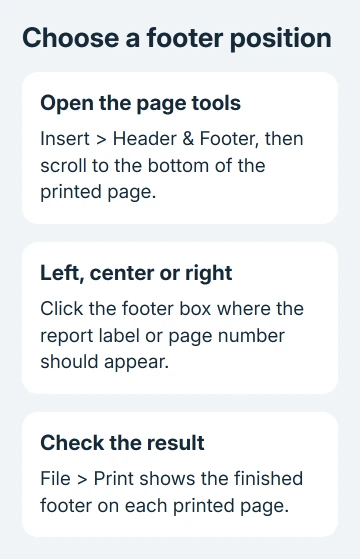
Click a worksheet cell when you've finished typing. The footer is part of the printed page, not your last row of data. Adding more worksheet rows doesn't turn those rows into the footer.
Microsoft says these tools add headers and footers to printed worksheets. The Windows editions listed in its worksheet header and footer instructions include Excel 2024 and 2021.
If the command opens the upper page area, that's the header. Move to the lower edge to choose the footer. Typing at the top creates a header even though the same ribbon command opened both tools.
Insert page numbers that change with each page
Click inside the footer again to display its ribbon tools. Depending on your version, the tab that appears is labeled Header & Footer or Design under Header & Footer Tools.
Choose Page Number where the number should appear. Excel inserts a field, which is a placeholder that becomes the correct number for each printed page. Don't type the same number into every footer yourself.
For a page count, type Page, add a space, insert Page Number, type of with spaces around it, then insert Number of Pages. The result in Print Preview should read like Page 1 of 3 for a three-page output.
The editing box can show a code such as &[Page] instead of the finished number. Click outside the footer or open Print Preview to see the result. The placeholder is normal while the field is being edited.
Other ribbon buttons include File Name, Sheet Name and Current Date. Use a field when you want Excel to fill in that information from the workbook. Type ordinary text when the report needs a fixed label, such as a specific reporting period.
Use Custom Footer for a compact editing window
The Page Setup dialog gives you another way to add a footer without scrolling through a large sheet. Select Page Layout, then open the dialog launcher beside Page Setup.
Open Header/Footer and choose Custom Footer. Enter the text in Left section, Center section or Right section. The buttons in that window insert items such as the page number and filename.
I'd choose the dialog for a footer with three separate parts. All three editing boxes are visible together, making it easier to check whether a long center label will crowd the entries at either side.
Click OK in Custom Footer, then OK in Page Setup. Open File > Print and inspect the footer. If the content overlaps, shorten the label or move one item into another section before changing the worksheet's scale.
For a chart sheet, use Page Setup to add the footer. A chart sheet has a different layout from a worksheet full of cells, so you add its footer through the dialog rather than the page editing boxes.
Handle Mac and browser workbooks separately
On a Mac, choose Insert > Header and Footer in desktop Excel. Use the Left, Center or Right footer section for your text. The Mac menu layout differs from the Windows ribbon route.
Choose the footer position, insert its text or fields and confirm the dialog. Check the result through File > Print. The footer still belongs to the printed page, even though you reach its controls differently on a Mac.
Excel for the web doesn't provide the same desktop header and footer editing tools. Use desktop Excel when creating or changing the footer, then save it back to its original location if that's where colleagues use it.
Don't put a replacement label in the last visible row just because the browser lacks the command. That creates worksheet data, and it won't repeat at the bottom of every printed page like a real footer.
Check first-page settings, size and repeated sheets
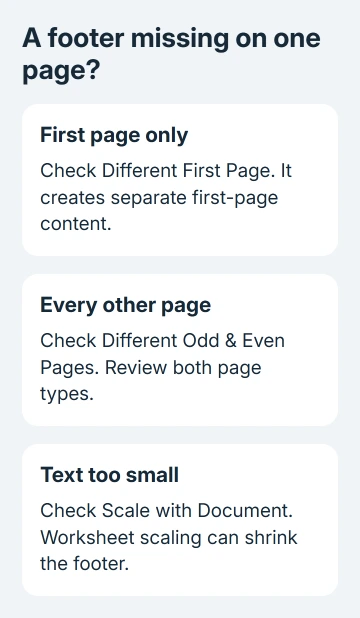
If page one has no footer but later pages do, inspect Different First Page in the footer options. That setting lets page one use a separate header and footer. Clear it when the same footer should appear throughout.
Different Odd & Even Pages creates separate odd-page and even-page content. When that's enabled, inspect both kinds of page in Print Preview. Editing an odd page doesn't necessarily fill the even-page footer too.
Check Scale with Document when the footer becomes unexpectedly small. With it selected, worksheet print scaling also affects the footer. Clear it if you want the footer to stay the same size when you change the cells' print scaling.
A footer on one worksheet doesn't automatically add itself to every other sheet. For a shared footer, select the intended worksheet tabs before opening Page Setup. Ungroup the sheets afterward so later edits don't affect them together.
If the report needs a new page at a specific row, use the Excel page-break steps separately. A footer adds page information; it doesn't decide which records fit on each page.
Preview, remove or get help with a missing footer
Use File > Print to check the first, a middle and the final page. Confirm that the footer isn't clipped or crowded by the worksheet content. Correct the page margins in Page Setup if the layout needs more space.
To remove all footer content from a sheet, open Page Setup > Header/Footer and choose (none) in the Footer list. To remove just one entry, select its footer box and delete that text or field.
Return to View > Normal for everyday editing. If page outlines distract you afterward, the Excel dotted-line guide explains the separate page-break display settings.
If the saved file still prints without its footer, give Microsoft 365 support the Excel version, file type and Print Preview result. For a work template, ask its owner to check the sheet layout first.
The Short Version
Use Insert > Header & Footer, click a footer position and add text or fields. Custom Footer in Page Setup is another desktop route. Check the page numbering, first-page options and Print Preview, then return to Normal view.
Checked November 9, 2026.

Isaac Smith is the founder and editor of PC Glance, a website that covers computers, laptops, and technology. He is a tech enthusiast and a computer geek who loves to share his insights and help his readers make smart choices when buying tech gadgets or laptops. He is always curious and updated about the latest tech trends.