

To create a rule in Outlook, start with a message that matches the mail you want organized. Its Rules > Create rule menu can send future messages from that sender to a chosen folder without moving unrelated mail.
Check the account before starting. New Outlook supports a different set of rules and account types from classic Outlook, and a rule for incoming mail does not automatically sort every old message.
Choose a narrow condition and a destination
Pick one sender and a folder in the intended mailbox. Microsoft documents the message-menu rule setup for both Windows Outlook editions.
If the destination does not exist, create the Outlook folder first. A rule needs a place to move matching mail; naming a folder alone does not create that automation.
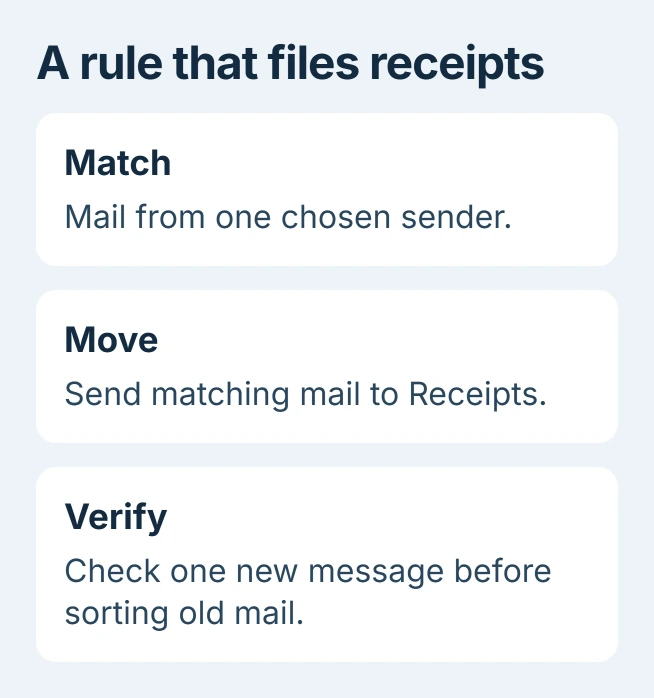
Status: Microsoft's Outlook rule creation, processing order and account limitations checked October 30, 2026. The Receipts example is illustrative; no mailbox or rule was changed.
Our starting point is one sender rather than a broad word such as receipt. Review the condition and destination together, since an overbroad match can move messages that should remain visible in the Inbox.
Set up the rule in the Outlook version you use
In new Outlook, right-click the chosen message, open Rules > Create rule, choose its destination folder and select OK. For additional conditions or exceptions, use More options, complete the rule and save it.
Microsoft says new Outlook cannot manage rules for third-party accounts such as Gmail, Yahoo and iCloud. For those mailboxes, create the filter through the provider's own service instead.
In classic Outlook, right-click a message and choose Rules > Create Rule. Select the sender condition, enable the folder-move action and choose the destination. Confirm with OK, checking that the condition names the intended sender.
Leave the option to run the new rule on existing messages unselected until its behavior has been checked. That prevents the initial setup from immediately reorganizing a folder full of older mail.
Decide whether later rules should still run
A single email can match several conditions. Microsoft states that Stop processing more rules prevents subsequent rules from acting on that message, even if their conditions match too.
For example, a sender rule might file a receipt while a later rule handles every message with an attachment. Decide whether both actions are intended before allowing the message to reach the second rule.
In new Outlook, open Settings > Mail > Rules, edit the relevant rule and change Stop processing more rules. Save the result. Microsoft's processing-order guide covers this control.
In classic Outlook, use Manage Rules & Alerts, select the rule and choose Change Rule > Edit Rule Settings. The action stage includes the stop-processing checkbox. Finish the wizard after reviewing its exceptions.
Verify new mail before applying a rule to old messages
Wait for a new message that meets the condition, or arrange a test from that sender. Open the destination folder and verify the message arrived there. Then check the Inbox for mail that should have stayed outside the rule.
If expected email is missing from both locations, the mailbox search and delivery checks help determine whether it reached the account at all. An absent message cannot prove a rule ran.
Microsoft's rule troubleshooting guidance distinguishes rules that run on the server from those requiring classic Outlook to be open.
Moving into a folder stored only on the PC requires a client-side rule. A server-side filing rule needs a server mailbox folder. That distinction matters when mail moves only after opening classic Outlook.
For an unwanted result, disable the affected rule while reviewing its condition, destination and place in the rule list. A work or school mailbox that still ignores a supported rule needs its mail administrator to check the account.
The Short Version
Create a sender rule from a matching message and choose its folder. Review later-rule behavior, then verify new mail before sorting older messages. For third-party accounts in new Outlook, use the provider's filters.

Isaac Smith is the founder and editor of PC Glance, a website that covers computers, laptops, and technology. He is a tech enthusiast and a computer geek who loves to share his insights and help his readers make smart choices when buying tech gadgets or laptops. He is always curious and updated about the latest tech trends.