
Somebody swears they sent it. Your inbox says otherwise. You have refreshed enough times to feel a bit silly. Mail that vanishes quietly is worse than mail that bounces, because nothing announces itself.
In almost every case the message did arrive and landed somewhere you are not looking. So this page lists those places, commonest first.
Seven of them. Stop when you find yours.
1. The Other tab
Outlook splits your inbox in two, and forgetting the second half exists is remarkably easy.
Documented by Microsoft on its Focused Inbox page: Focused Inbox "separates your inbox into two tabs", puts "your most important email messages" on the Focused tab, and leaves the rest "easily accessible" but, in Microsoft's own words, "out of the way" on the Other tab.
Read that last phrase again. Out of the way is exactly your problem. A sender Outlook decided was unimportant lands in Other and never disturbs you.
Click Other at the top of your inbox and look.
2. Turn the split off entirely
Mail keeps landing in the wrong half? Stop the sorting rather than fighting it.
Documented by Microsoft. In Outlook on the web: Settings, Mail, Layout, then choose Don't sort my messages and Save.
In the Outlook app: View, View Settings, pick your account under Mail, then Layout, then Don't sort my messages and Save.
Everything arrives in one inbox after that. Busier, but nothing hides from you.
3. Teach it about one sender instead
If the split suits you and only one sender keeps landing wrongly, fix that sender rather than the whole system.
Documented by Microsoft: right-click the message, choose Move, then Always move to Focused inbox or Always move to Other inbox.
That sticks for future messages from that sender, which is what people actually want when they complain about the Other tab.
4. Junk, and the list you never made
Check the Junk Email folder, obviously. Then check the thing behind it that gets missed.
Your account keeps a blocked senders list, and addresses land on it by accident. One misfired click on Block while clearing junk quietly bins everything from that sender forever.
In Outlook on the web, go to Settings, then Mail, then Junk email. Read the Blocked senders and domains list properly. If nothing at all is reaching this machine, check a PC that keeps losing its connection before you blame the mailbox.
Ours, and marked as ours: look for whole domains, not just addresses. Blocking one address is annoying. Blocking a domain quietly kills mail from everybody at that company.
5. A rule you set up and forgot
Rules run before you ever see a message. An old one outlives its purpose by years.
In Outlook on the web: Settings, Mail, Rules. In the app, the Rules button on the ribbon.
Read every one, not only the ones with obvious names. Look hardest at anything that moves mail into a folder, and anything that deletes it.
A rule you made for one project in 2023 is still filing that client's mail into a folder you stopped opening in 2024.
If classic Outlook refuses to load your rules at all, the Outlook rules page has Microsoft's way out.
Older mail missing from your folders is another story, since classic Outlook may keep only a year of it on the PC.
6. The mailbox is full
Simple, and it produces this exact symptom with no warning you are likely to spot.
A mailbox at its storage limit stops accepting new mail. Your sender may get a bounce. They may not, depending on the service.
Check your account's storage in its settings. Near the limit? Emptying Deleted Items and Junk buys the most room fastest, because that is where large attachments pile up.
If the machine itself is also short of room, a PC that is short of room covers that side.
7. A rule somebody else set up
This last one is why I wanted to write the page at all, and nobody else covers it.
Reported by an owner on the Microsoft Q&A boards, 25 February 2026, after working the usual list: "nothing has worked so far. account got hacked a few days ago and that is when the incoming emails stopped."
That timing is the tell. Mail stopping at the moment an account was compromised is not a coincidence.
When somebody gets into an email account, one of the first things they commonly do is set a rule. Sometimes it forwards a copy of everything to them.
Sometimes it deletes messages containing certain words, so you never see the password reset or the bank alert that would give them away.
Nobody confirmed a fix there. The owner was still stuck when the thread ended.
So if your mail stopped at a specific moment, and anything else about the account has been odd, check three things in this order. Start with the rules list, for anything you did not create.
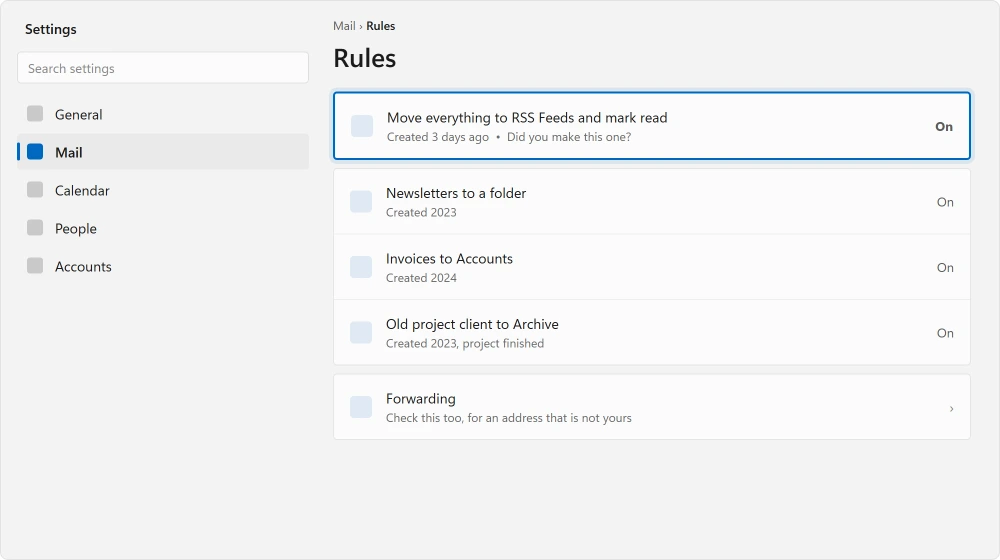
Then check forwarding, in Outlook's Settings, Mail, Forwarding, for an address that is not yours. And check recent sign-in activity, in your account's security settings, for logins from places you have not been.
Ours, and marked as ours: if you find any of those, change your password before you delete the rule, and turn on two-step verification while you are there. Removing the rule without changing the password just tells them to make a new one.
Status: written 21 August 2026. Microsoft documents Focused Inbox as putting less important mail "out of the way", which is the phrase that explains most of these cases.
Why are my emails going to the Other tab?
Because Focused Inbox sorts them there. Microsoft describes it as keeping less important messages accessible but out of the way. You can switch the sorting off entirely under Layout, or right-click one message and choose Always move to Focused inbox for that sender.
How do I stop Outlook sorting my inbox?
In Outlook on the web, go to Settings, Mail, Layout, and choose Don't sort my messages. In the Outlook app it is View, View Settings, then your account, then Mail, then Layout, and the same option.
Why did my emails suddenly stop arriving?
A specific moment, rather than a gradual decline, points at a change. A new rule, a full mailbox, or an address landing on your blocked list. If the account has been compromised, a rule that deletes or forwards incoming mail is a very common thing for an intruder to leave behind.
Can someone else hide my incoming email?
Yes, with a rule inside your account. It is a known move after a compromise, either forwarding a copy elsewhere or deleting messages that would alert you. Check your rules and your forwarding settings, and change the password before removing anything.
The Short Version
- Microsoft describes the Other tab as keeping mail "out of the way", and it means it.
- Don't sort my messages under Layout turns the split off completely.
- The blocked senders list can hold whole domains, not just addresses.
- An old rule from a finished project still files mail into a folder you never open.
- A full mailbox stops accepting mail, often without a bounce you would notice.
- Mail stopping the moment an account was compromised usually means a hidden rule.
Where to Next
If Word and Excel are misbehaving too, this is not a mail problem at all. Office has its own repair, and it keeps your emails where they are.
Sending one you immediately regret is the opposite problem, and the fix for it is narrower than people expect. Recall works in one case only.
Even with your mail arriving fine, go and read the rules list. Hardly anybody ever has, and old rules never announce themselves.
If your problem is the opposite, the same message arriving over and over, that has a different cause entirely, and duplicate emails on an iPhone covers the account-level version.
And where mail fails on one machine but not the others, rule out a PC that keeps losing its connection first.
If Outlook will not start at all rather than not receiving, that is a different list and it is sorted by what the app does.
Say in the comments whether the missing mail comes from one sender or from everybody. That single answer splits this into two very different problems, and I would rather point you at the right one.

Isaac Smith is the founder and editor of PC Glance, a website that covers computers, laptops, and technology. He is a tech enthusiast and a computer geek who loves to share his insights and help his readers make smart choices when buying tech gadgets or laptops. He is always curious and updated about the latest tech trends.