

You open Rules and Alerts in classic Outlook and it says there was an error reading the rules from the server, every time. That is frustrating when rules sort your mail. I would write your rules down before anything else.
It sits on Microsoft's known-issue list, still under investigation. Its only workaround is to delete every rule and build them again, and owners have asked about it on Microsoft's Q&A board since 2024.
What sets it off
Microsoft says the error shows up "After making changes to classic Outlook rules", when you next open Rules and Alerts. The full message adds that the format of the server rules was not recognized.
Microsoft reproduced it with a rule that shows a desktop alert. Adding that action, in its words: "This operation will make the rule a higher version". Copy the rule, remove the alert from the original, and the error follows.
One owner noticed a second sign: "a new 'client-only' rule shows up in my Manage rules pane everytime I open Outlook, even when I delete it".
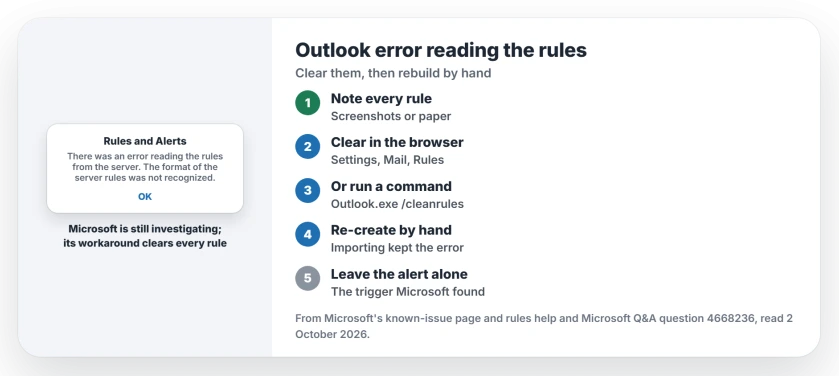
Status: checked 2 October 2026. Microsoft is still investigating. Its only workaround is to delete every rule and re-create them, from Outlook in a browser or with outlook.exe /cleanrules.
1. Write your rules down first
Every fix here deletes your rules, so record them first. An MVP, Robert Sparnaaij, put the order plainly: "Once you've taken notes of your current rules, start Outlook with the /cleanserverrules switch".
Ours: open each rule and take a screenshot of its conditions and actions, or write them on paper.
2. Delete the rules in Outlook on the web
Microsoft's first workaround is to "Use the Outlook web app to delete all the rules". Open Outlook in your browser, then go to Settings, Mail and Rules.
Delete each rule there, then reopen classic Outlook. Microsoft's rules help covers creating them again afterwards.
3. Or clear them with a command
The second workaround uses a switch: close classic Outlook, then right-click Start and pick Run.
Microsoft's step: "Type or paste the command Outlook.exe /cleanrules and then select OK", and Outlook starts with no rules at all.
4. Re-create the rules by hand
Microsoft is clear about the end of it: "The only workaround for this issue is to delete all the rules and start over and re-add your rules".
Be careful with importing an old rules file. One owner tried to "Export all rules to a local file, restart outlook and import the rules", and reported: "The error keeps showing up".
So build them again from your notes, one at a time, and open Rules and Alerts after each one to check.
Leave the desktop alert alone for now
Ours, based on Microsoft's own steps: until a fix arrives, avoid adding and then removing the desktop alert action on a rule. That is the change Microsoft used to trigger the error.
Still want alerts for the mail your rules move? Give the alert a rule of its own, so your filing rules keep running unchanged.
What did not help
Before importing, that owner had also deleted the rule that started it. Neither change stopped the message. These reports are user-reported, and Microsoft's page explains why only a full clear works.
A broken rule can also send mail somewhere you never look. If messages seem to vanish, the missing emails page lists the places to check.
What does error reading the rules from the server mean?
Classic Outlook cannot read a rule stored in your mailbox, usually after a rule was changed. Microsoft has logged it and is still investigating.
Will outlook.exe /cleanrules delete my emails?
No. Microsoft describes the switch as a way to delete the rules, and your messages and folders stay where they are. You do have to re-create the rules.
Can I import my old rules afterwards?
One owner who did kept getting the error. Re-creating the rules by hand from your notes is the safer route.
If Outlook misbehaves in other ways too, repairing Office is the next step after the rules.
The Short Version
- Changing a rule can break how Outlook reads them.
- Microsoft is still investigating the error.
- Write your rules down first.
- Delete them in Outlook on the web.
- Or run Outlook.exe /cleanrules.
- Re-create the rules by hand, not by import.
- Avoid removing a desktop alert from a rule.
Where to Next
Screenshot each rule, then clear them all from Outlook on the web. Re-create them one by one and reopen Rules and Alerts after each.
If the error comes back with one particular rule, tell me what that rule does, and I will look for a pattern and record it on this page.

Isaac Smith is the founder and editor of PC Glance, a website that covers computers, laptops, and technology. He is a tech enthusiast and a computer geek who loves to share his insights and help his readers make smart choices when buying tech gadgets or laptops. He is always curious and updated about the latest tech trends.