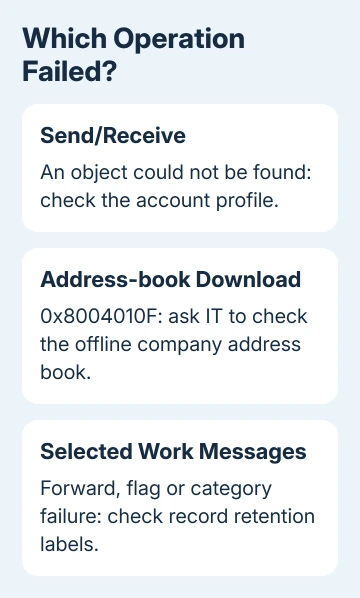
Outlook's operation-failed error has several fixes. An object could not be found during Send/Receive suggests a profile or address-book fault. Retention labels can stop forwarding, flagging, or categorizing selected work emails.
For an error that appears during ordinary mail work, restart Outlook and retry the action once. If it returns, keep the full wording and follow the matching branch rather than deleting mailbox files for every version of the error.
In this guide
1. Separate one bad message from an account problem
Note the full message, error number, and command that triggered it. With 0x8004010F, check whether Send/Receive failed or Outlook couldn't download the offline address book. The same error number can need different steps.
Try the same action on a different ordinary message in the same mailbox. That result shows whether the failure follows one item or affects the account more widely.
Look for File at the top left. The profile, COM add-in, and Cached Exchange Mode instructions in this guide apply to classic Outlook for Windows, not the new Outlook app or Outlook for Mac.
If new Outlook is freezing rather than showing one of these classic errors, start with the Outlook opening and startup checks. Don't look for classic data-file controls in its Settings panel.
I'd keep the error screenshot and one example message before changing anything. If the next step doesn't clear it, those details save the administrator from having to guess which operation failed.
2. Test classic Outlook without its add-ins
For a repeatable failure during normal app use, close Outlook, press Windows + R, enter outlook.exe /safe, and press Enter. Choose your usual profile if prompted.
Safe mode starts classic Outlook without its normal add-ins. Retry the action that failed. If it now works, test the add-ins rather than rebuilding the whole mailbox immediately.
Open File > Options > Add-ins. At Manage, select COM Add-ins, then Go. Record which add-ins were enabled, clear their checkboxes, and select OK.
Quit the app, then launch it normally. If the action still works, enable each add-in separately. Restart Outlook and retry the action after each change. When the error returns, you've found the add-in to update or report to its developer.
If safe mode gives the same error, follow the section that matches your message or account problem. It hasn't shown that an add-in is responsible, so cycling through unrelated add-in removals is unlikely to help.
3. Follow Send/Receive errors to their own checks
For a broader mail failure, try File > Account Settings > Account Settings > Email, choose the account, then Repair when available. Follow its prompts and restart Outlook before testing again.
Repair isn't available for an Outlook 2016 connection to Exchange. If Repair is missing, leave the existing account intact and ask IT which repair options that client supports.
For 0x8004010F, use the Send/Receive error branches. That guide covers data-file access, an offline company address-book download, and a separate profile while preserving the existing one.
An offline address book is the downloaded company address list. Tell IT if that's the task that failed, especially if coworkers have the same problem. The older 2010/2013 data-file steps don't apply to every current Outlook error.
4. Forward a record-labeled message without previewing it
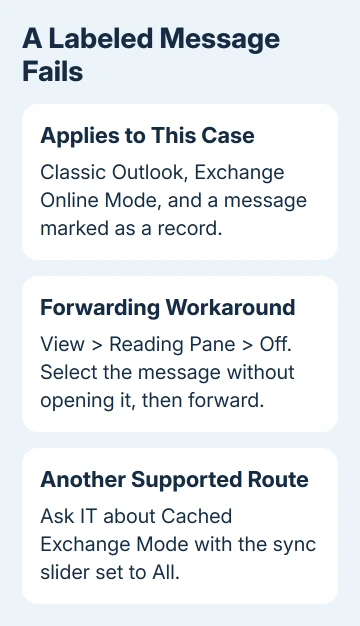
For an Exchange mailbox in Online Mode, forwarding, categorizing, or flagging a message marked as a record can produce the shorter operation-failed error. It may not happen to every message with that label.
For forwarding, turn off the reading pane through View > Reading Pane > Off, select the message without opening or previewing it, then forward it. This is a workaround for that specific case.
Microsoft says this record-label problem affects Online Mode. A record label protects work information under a retention policy; it's different from an ordinary color category.
Retry forwarding with the pane off before opening the item again. This helps when you need to forward the message. It doesn't give you a separate fix for every categorizing or flagging failure.
If an ordinary unlabeled message forwards normally and the labeled one doesn't, pass both results to the administrator. The next check is the message's record status rather than deleting all rules or clearing every cache.
5. Switch the affected Exchange account to Cached Mode
The other supported workaround is to turn on Cached Exchange Mode and set the download slider to All. Cached Mode keeps a synchronized copy locally rather than working only against the online mailbox.
Ask IT before changing this on a managed computer. Downloading a large mailbox uses disk space, and the organization may control whether the setting is available.
In classic Outlook, open File > Account Settings > Account Settings. Select the Exchange or Microsoft 365 account, then choose Change. Under Offline Settings, enable Use Cached Exchange Mode.
On semi-annual subscription builds, the checkbox can read Use Cached Exchange Mode to download email to an Outlook data file. The Cached Mode controls describe that label difference.
Set the mail-history slider to All, following the older-email download instructions. Close Outlook and restart it, then allow the account to synchronize before retrying the affected command.
If the checkbox is missing, check the account type with IT. This feature needs Exchange; POP and IMAP accounts can't use it. An administrator can also disable the setting, so changing unrelated accounts won't reveal it.
6. Have IT check the record label if the fault remains
The administrator can inspect the applied retention policy or File Plan in Microsoft Purview and check whether it marks messages as records. The known issue can affect some record-labeled messages without affecting all of them.
Provide the affected message, the failed action, and whether the account was in Online or Cached Mode. An administrator can reproduce the failure and collect the server error details using the diagnostic steps in the support instructions.
Keep the company retention label in place while IT checks it. Removing a business record's protection is a policy decision, not a routine Outlook repair.
If the matched steps fail, send IT or Microsoft Support the full error, Outlook version, failed command, and results from safe mode and the second message. Those details identify which remaining account or policy check is needed.
The Short Version
Use the complete error wording to choose your next step. Test add-ins and profile repair for broad classic Outlook failures, address-book access for download errors, and the retention workaround for selected labeled work messages.
Checked November 11, 2026.