

An Outlook Send/Receive error doesn't have one fix: the failed account and full message tell you where to start. Check the connection status and try the same mailbox in webmail before changing its setup.
Server, data-file and address-book errors can appear in the same progress window but need different fixes. Use these steps with classic Outlook for Windows. Keep your profile and local mail until a replacement setup works.
1. Read the failed task and restore online mode
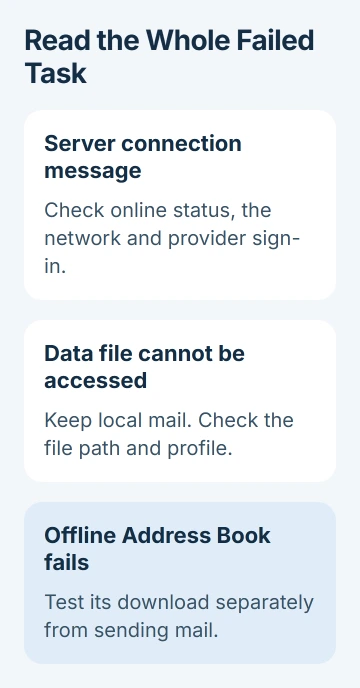
When the error appears, open the Send/Receive progress details and read the Errors tab. Note the account, whether the task says Sending or Receiving, the full code and the words after it.
Look at the bottom of Outlook for Working Offline, Disconnected or Trying to connect. If it says Working Offline, select Send/Receive > Work Offline to go back online, then try the failed task again.
Microsoft recommends checking Outlook's connection early. If Outlook is already online, clicking Work Offline will switch it back offline.
For messages stuck in the Outbox without a useful error, use the Outlook sending checks. Continue here if Outlook reports a failed task, especially one naming a server, data file or address book.
2. Compare the same account in webmail
Open your email provider's normal website and sign in to the account named in Outlook's error. Send a short message without an attachment, then check whether a reply arrives.
If webmail also fails, check for an account or storage warning. Full Microsoft cloud storage can stop sending and receiving. Resolve any account restriction or provider outage before trying to repair your desktop profile.
If webmail works, your account can send and receive through the website. Check classic Outlook's connection and settings next; don't start changing the recipient's address simply because the desktop app failed.
For a work account, tell IT whether coworkers have the same problem. If several mailboxes fail together, IT should check the service or network before you each replace your desktop profiles.
You can use webmail while the desktop problem is being checked. It won't show mail saved only in a local archive or an old POP data file, so keep those files in place.
3. Follow server and sign-in errors to the account
Codes such as 0x800CCC0D, 0x800CCC0F and 0x80042109 can mean trouble finding a server, a dropped connection or an outgoing-server failure. Read the message too; the code alone doesn't mean Outlook itself is broken.
Check that ordinary websites open on your PC. If they don't, get the network connection working first. If only Outlook fails, complete any sign-in request caused by a recent password change.
Open File > Account Settings > Account Settings and find the failed account and its type. Compare any server details you entered with your provider's current instructions. Another provider's port numbers won't tell you what yours needs.
Gmail and Yahoo accounts showing 0x800CCC0E or 0x800CCC0F have a separate authentication repair. Use that guide when it matches your account; connection failures don't all have the same cause.
Use an app password only if your provider requires it. Other accounts use a browser-style sign-in to give Outlook access. Follow that sign-in instead of guessing a password setting and creating another problem.
If security software says it's blocking mail, give the error to that product's support team. Keep protection running while they check its email-scanning settings instead of turning off the firewall to try to fix Outlook.
4. Separate data-file access from an address-book error
Read the words after 0x8004010F. Outlook data file cannot be accessed points to the profile's data-file setup. If an Exchange task says an object wasn't found, the problem can instead be its offline address book.
For a data-file error, open File > Account Settings > Account Settings > Data Files. Note the file's location, extension and account. A .pst can hold local mail; an .ost keeps an offline copy of account data.
Before changing either file, save any local mail you can access and keep your existing backup. Don't delete a file just because it has the same extension as one in another repair guide.
For an Offline Address Book error, use Send/Receive > Send/Receive Groups > Download Address Book, then OK. Try sending and receiving mail separately afterward to see whether only the address-book task still fails.
If the download still fails, the address-book procedure covers updates and administrator checks. Tell IT which task failed and whether mail works to help them check the address-book download.
5. Try a fresh profile without removing the old one
A profile stores your Outlook accounts, data files and settings. Create another to try a separate setup for the same account. I'd do this before reinstalling Office when webmail works and only one profile fails.
Close Outlook. Hold Shift while starting classic Outlook to open the profile picker. Select Options, then New, give the test profile a different name and add the email account that's failing.
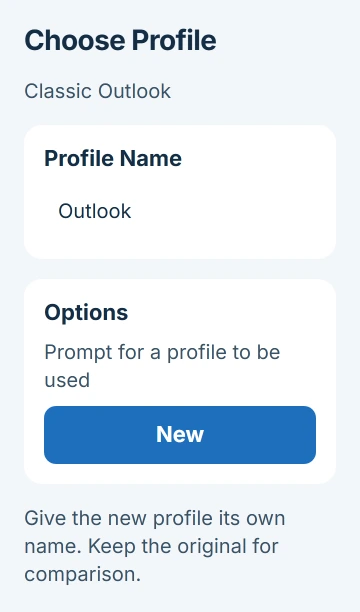
Follow the current profile creation steps, including the option to ask which profile to use at startup. You can then keep the original available while you compare sending and receiving.
A new profile won't automatically show every old local archive. Check recent mail, sent mail and any folders stored only on your PC before deciding it's ready to use. Keep the old profile until you've finished checking.
For Outlook 2010 or 2013, the specific 0x8004010F instructions use Control Panel's Mail settings. That older route isn't the one to use for every current account.
6. Repair the file or program named by the remaining fault
If Outlook says a .pst is damaged, close Outlook and back it up. Use the Inbox Repair Tool instructions to open SCANPST.EXE, browse to the file, scan it and choose Repair if it finds errors.
After repair, open Outlook with the profile that uses the file and check its folders. Recovered items can appear in Lost and Found, while damaged items may be missing. Keep that backup while you review the recovered messages.
If sending works only with outlook.exe /safe, an add-in needs checking. Tell IT or the add-in vendor that it works in safe mode. For problems affecting more of the program, follow the Office repair options.
If the error remains, contact your provider, Microsoft Support or your mail administrator. Give them the exact task text, account type, Outlook version, and webmail and new-profile results so they know what you've already checked.
The Short Version
Read the account and full error, get Outlook online, then try webmail. Use the message to choose server, data-file or address-book checks. Keep your local mail while trying another profile or repairing a PST file.
Checked November 5, 2026.

Isaac Smith is the founder and editor of PC Glance, a website that covers computers, laptops, and technology. He is a tech enthusiast and a computer geek who loves to share his insights and help his readers make smart choices when buying tech gadgets or laptops. He is always curious and updated about the latest tech trends.