
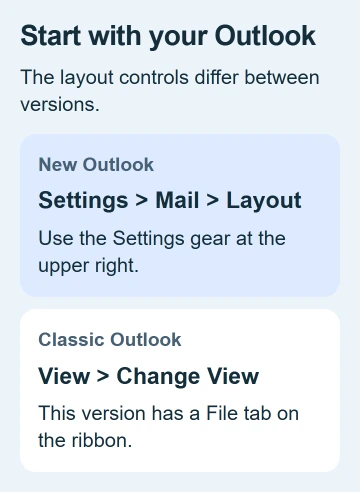
Outlook's inbox layout changes through Settings > Mail > Layout in new Outlook, or View > Change View in classic Outlook. Choose the route for your version, then adjust the message list and reading pane separately.
A narrow list, hidden preview or messages grouped into conversations can make your mailbox look completely different. Check the view controls first. A changed layout doesn't mean your email is missing.
Identify the Outlook version before choosing a menu
Look for File on the ribbon, the row of tabs across Windows Outlook. Classic Outlook has that tab. New Outlook has a Settings gear near the upper right, with Home, View and Help on its ribbon.
Microsoft's version-identification guide shows those differences. A browser tab running Outlook.com is the web version, even when its mailbox resembles the new Windows app.
Decide what you want to change first. The reading pane controls where a message opens. Density changes the list's spacing. The font for composing changes the text you write, rather than your inbox layout.
I'd change one option, then check the same folder. That way, it's easier to get back to a layout you like without losing track of which option changed the screen.
Arrange the message list in new Outlook
Open Settings > Mail > Layout. Under Message organization, choose whether to group related messages as conversations or show messages separately. Check the inbox after changing it.
If you group conversations, also choose whether the reading pane shows the whole conversation or only selected messages. Several messages can sit in a conversation that takes up just one inbox row.
Open Layout for these message-list settings. You can change them without switching to classic Outlook or creating another mail account.
Under Message list format, choose Sender name first or Subject first. Put the sender first if you look for email by who wrote it, or the subject first if you look by topic.
If you don't want separate Focused and Other tabs, change Focused Inbox in the same Layout area. Turn off sorting into those two tabs to see the messages together in one inbox view.
Check Other before assuming a message disappeared. If the message is still missing after these display checks, use the Outlook receiving checks rather than continuing to rearrange the screen.
Put the reading pane where it fits
In new Outlook's Mail > Layout, find Reading pane. Choose Right, Bottom, Fill screen or Popout only, depending on what's shown. Pick the layout that gives you enough room to read the message.
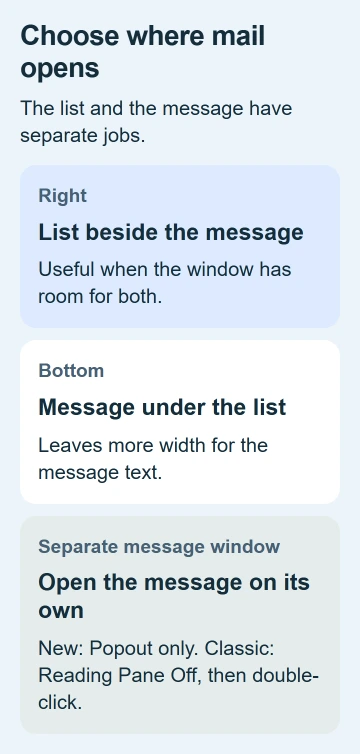
A right-hand pane puts the list and message side by side. A bottom pane gives the message more width. A separate message window keeps your inbox available without squeezing both into one window.
In classic Outlook, select View > Reading Pane, then Right, Bottom or Off. With Off selected, double-click a message to read it in its own window.
The reading-pane procedure explains those classic controls. Moving the pane doesn't change the email's formatting.
If only the text inside messages is too small, use reading zoom. The Outlook font guide separates that from the default font for composing new messages.
Choose Compact, Single or Preview in classic Outlook
Open the mail folder you want to change, select View > Change View and pick a view for the way you work. Inbox uses Compact by default. Single and Preview give you other list layouts.
Check the folder after applying the view. Sent Items or your project folder may still have their old layout, so look at them separately before deciding whether to adjust them too.
For a list with visible columns, choose Single or Preview first. Then select View > View Settings > Columns. Add the fields you need and remove any that take up space without helping you.
For example, a size column helps when you're reviewing a folder with large attachments. Choose columns that help with that folder, so the ones you need don't get squeezed together.
Confirm your changes in the Columns window, then check the folder. If a new field doesn't appear where you expect, check that you're still using a list view. Compact shows the list differently.
Save a classic view before making bigger changes
Classic Outlook can save your layout as a named view. Open View > Change View > Manage Views. Select the current view settings and choose Copy to start from your existing layout and keep the original.
Give the copy a useful name, such as Attachment review. Choose where it will be available, then adjust Advanced View Settings. Select Apply View when you're ready to use it.
The custom-view instructions also explain New for starting from scratch. I'd copy the current view when just a few parts need changing.
To reuse your layout, select View > Change View > Apply Current View to Other Mail Folders. Choose the folders and confirm. Check each one afterward to see whether the layout works there too.
Use the web layout controls without changing mail content
If you open your mailbox in a browser, use Settings > Mail > Layout for message organization and the reading pane. Open these settings inside your signed-in mailbox, rather than in the browser's settings.
For spacing, use View > Density where available. Roomy leaves more information and space in each row, while Cozy and Compact reduce the spacing. Choose the spacing you can scan comfortably.
If you can't find a control or your chosen view won't stay selected, tell IT or support your Outlook version, the folder and the exact option. Say whether it happens in one folder or across the mailbox.
The Short Version
Use Mail > Layout in new or web Outlook, and View > Change View in classic Outlook. Adjust grouping, density and the reading pane for the part of the screen that needs changing. Copy a classic view before bigger layout changes.
Checked November 5, 2026.

Isaac Smith is the founder and editor of PC Glance, a website that covers computers, laptops, and technology. He is a tech enthusiast and a computer geek who loves to share his insights and help his readers make smart choices when buying tech gadgets or laptops. He is always curious and updated about the latest tech trends.