

Your rules file new mail into folders, and since then Outlook has gone quiet: no pop-up, no sound, just a number next to the folder.
I would add one extra rule that does nothing but show the alert, and leave the rules that move your mail as they are. New Outlook cannot do this yet, so I also cover what it can do.
An Outlook 2007 user raised this on Super User in December 2009, and the page has 95,884 views. The same complaint about new Outlook reached Microsoft Q&A in August 2026.
Why the alert never fires
The alert watches your Inbox, not your folders. Microsoft says it plainly: "if you're using message rules and a new message is moved out of the default account Inbox, you might not receive a Desktop Alert notification".
A rule that moves mail on arrival skips the Inbox. So the pop-up never gets its turn. The unread count on the folder still climbs, which is why this looks like a bug.
Ours: classic Outlook on this laptop, version 16.0.20430, lists display a Desktop Alert among its rule actions. Its Rules Wizard also tags some rules with (client-only). That tag matters in step 2.
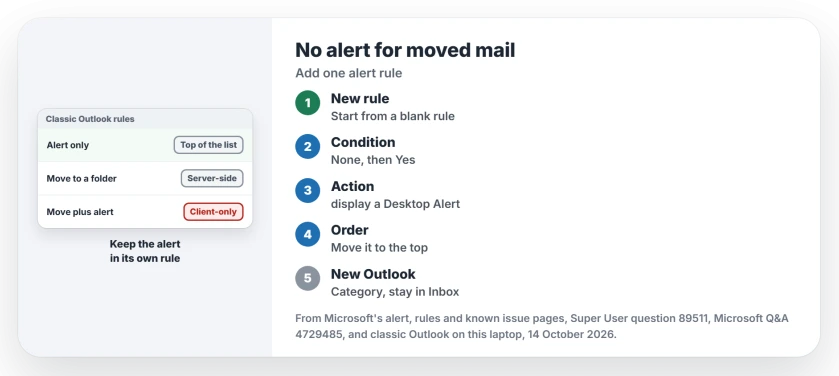
Status: Microsoft's alert, rule and known issue pages read 14 October 2026, against classic Outlook 16.0.20430 on this laptop. No rule was created or changed here.
1. Classic Outlook: add a rule that only alerts
Go to File, then Manage Rules & Alerts, and choose New Rule. Pick Start from a blank rule, then Apply rule on messages I receive, and click Next.
Tick no condition at all and click Next. Outlook warns that the rule will apply to every message you receive, so click Yes.
Tick display a Desktop Alert and click Finish. Back in the list, use the arrow buttons to move the new rule to the very top, ahead of your move rules.
The order matters. A move rule set to stop processing more rules would end the run before a lower alert rule could fire, so I keep the alert rule first.
The 2009 question accepted exactly this answer. One owner confirmed: "Leaving the condition blank did the trick". Another wrote "Works Perfectly on Outlook 2010", and a third, on an Exchange account, said "it works as expected".
The asker ran several Gmail accounts, each moved by its own rule. The global rule brought their sound back, but no pop-up. Outlook's own test alert failed on that PC too.
Classic Outlook must be open for any of this, because the alert rule runs inside it. Microsoft's guide to server-side and client-side rules explains why.
2. Why not tick the alert inside your move rule?
Because it changes how that rule runs. Microsoft lists Display a desktop alert among the actions that make a rule client-side, and client-side rules wait "until you log into classic Outlook for Windows with the account that you used to create the rule".
So a move rule that also alerts stops moving mail whenever classic Outlook is closed. The accepted answer warned of exactly that on Exchange: "the rule will become a local rule so that it will only execute when Outlook is running".
There is a second trap. Microsoft reproduced its known rules error by giving a move rule the desktop alert, copying the rule and then taking the alert back off. That issue was still under investigation when I checked it.
Seen that message already? The rules error has its own page. A separate alert rule avoids both traps, since your move rules stay exactly as they were.
New Outlook has no alert action yet, so keep the mail in the Inbox
New Outlook only runs rules on the server. Microsoft states: "New Outlook doesn't support client-side rules".
A Microsoft support specialist tested it on the 10+ thread from May 2025. The report back: "Notifications are only triggered for messages that arrive in the Inbox". The August 2026 asker hit the same wall.
Microsoft's own table of rule features lists Display a desktop alert as Upcoming for new Outlook. That was its state on 14 October 2026, so check the page again later.
Until then, change the rule's action. Instead of moving the mail, give it a category, which new Outlook rules support. The category then marks those messages in your Inbox list. The mail lands in the Inbox, where new Outlook does alert.
If folder alerts are part of your job, classic Outlook is the other route, while your organization still lets you switch back.
Alerts missing from the Inbox too?
Then the rule is not your problem. In classic Outlook, go to File, Options, Mail, and under Message arrival make sure Display a Desktop Alert is ticked.
Microsoft's alert settings page also sends you to Windows Settings, System, Notifications, where Outlook must be switched on.
Two quiet moments are normal. Microsoft notes that alerts "don't appear during the initial synchronization of an email account or when you request a manual Send/Receive".
Reminders vanishing behind other windows instead? That one has a separate fix.
The Short Version
- Outlook's alert only fires for mail that arrives in the Inbox, so mail a rule moves arrives silently.
- In classic Outlook, add a blank rule with only display a Desktop Alert, and move it to the top.
- Keep the alert out of your move rules, which would then only run while Outlook is open.
- New Outlook has no alert action yet, so tag that mail with a category and leave it in the Inbox.
- No alerts at all? Check Outlook's Message arrival box and Windows notifications.
Where to Next
Say in a comment which Outlook you run, classic or new, and how many rules move your mail. I can then say where your alert rule belongs.

Isaac Smith is the founder and editor of PC Glance, a website that covers computers, laptops, and technology. He is a tech enthusiast and a computer geek who loves to share his insights and help his readers make smart choices when buying tech gadgets or laptops. He is always curious and updated about the latest tech trends.