

Outlook rules can fail because they're disabled, target an old folder, or need classic Outlook open. Check the switch and destination first. In new Outlook, rebuild imported rules you can't view or edit, using supported actions.
New Outlook also doesn't manage rules for Gmail, Yahoo or iCloud accounts. Those accounts need their provider's filters. A rule that ignores old mail, meanwhile, may simply need a manual run rather than a repair.
1. Open the right account's rules and enable the rule
Identify the app first. Classic Outlook for Windows has File at the top. New Outlook and Outlook in a browser use a rule list in Settings. Each app has its own controls.
For new Outlook and the browser app, open Settings > Mail > Rules. Check the selected mailbox, then turn on the switch beside the rule you need. Save an edited rule before closing its settings.
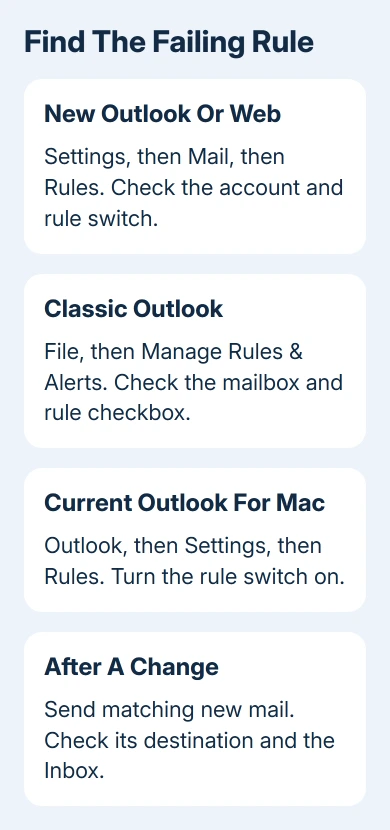
In classic Outlook, choose File > Manage Rules & Alerts. On E-mail Rules, check the mailbox in Apply changes to this folder if several accounts are listed. Tick the box beside the rule and choose Apply or OK.
In current Outlook for Mac, open Outlook > Settings > Rules and turn on the rule's switch. To correct it, open its three-dot menu > Edit rule, make the changes and choose Save.
A rule with the right name in the wrong mailbox won't sort the account you need. Read the sender condition and destination together, rather than assuming the selected rule is the one you created last.
Test with a new message that matches the rule's condition. Check its destination and the Inbox. If the email hasn't reached the mailbox at all, use the missing-message checks before changing rules.
2. Repair a red Error entry in classic Outlook
In classic Outlook's Rules and Alerts window, a broken rule can appear in red with Error beside it. Select that rule and inspect its description instead of deleting the whole collection.
Microsoft's broken-rule instructions say to select the links under Rule description and correct the folders or other items they point to. A moved or deleted destination folder is one item to check.
Choose the current folder in the intended mailbox and confirm with OK. For other changes, use Change Rule > Edit Rule Settings, work through the conditions, actions and exceptions, then finish the wizard.
An exception can explain a rule that works for some messages and ignores others. For example, a rule that excludes messages with attachments won't act on an otherwise matching email containing a file.
Test mail that meets every condition and isn't excluded by an exception. If the red error clears but mail still goes elsewhere, check processing order next. Another rule may be taking priority now that the folder reference works.
3. Check the earlier rules that match the same message
Rules run in the order shown. A rule near the top can move a message or stop later rules before your intended rule gets its turn.
For the browser app and new Outlook, return to Settings > Mail > Rules. Move the specific rule earlier using the list's ordering controls. Edit an earlier matching rule to review Stop processing more rules, then save any change.
In classic Outlook, select the rule in Manage Rules & Alerts and use the move-up or move-down controls. To change its stop action, choose Change Rule > Edit Rule Settings and review the action stage.
On current Mac versions, reorder the rules using the move controls in the same Rules window. Edit the earlier matching rule to review Stop processing more rules; it is enabled by default for new Mac rules.
For example, a general rule for all mail from a supplier can intercept messages intended for a later invoice rule. Put the narrow invoice rule first if those messages need their own destination.
Don't disable stop-processing across every rule at once. That setting may be there to prevent a later rule from deleting or moving the message. Change the competing pair, then check a new message before rearranging anything else.
The rule-creation guide covers building a narrow sender rule. Use it when the original condition is too broad, rather than adding more overlapping rules to counteract it.
4. Replace rules that new Outlook cannot run
An imported rule may display This rule can't be edited or viewed. That can happen when it uses a client-side condition or action. That means it needs features on your computer, rather than running entirely on the mail server.
Client-side rules aren't supported by new Outlook, Outlook.com or the web app. Re-create the rule in Settings > Mail > Rules using the conditions and actions offered there.
If the required action isn't listed, rebuilding the same unsupported action won't fix it. Keep that task in classic Outlook, or choose a supported server action that achieves what you need, such as moving mail to a mailbox folder.
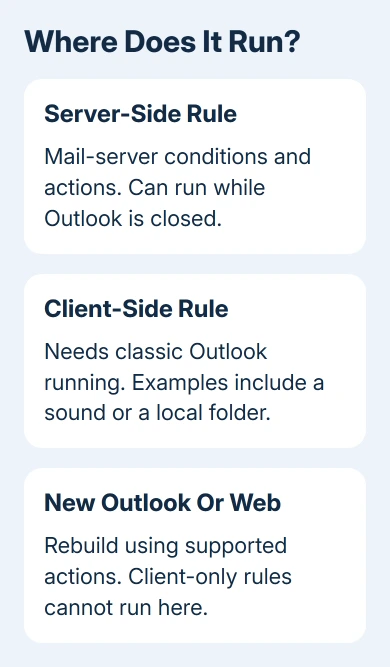
Playing a sound or moving mail to a PC-only folder requires classic Outlook running with the original account. A server-side rule can run with the app closed when the server handles all its conditions and actions.
For Gmail, Yahoo or iCloud in new Outlook, configure the filter through that account's own service. The missing rule support is an account limitation; changing Windows search settings won't add it.
5. Run the rule against existing mail when needed
A rule for incoming mail doesn't necessarily sort messages that were already in the folder. Check a fresh arrival separately from a backlog of older mail.
In new Outlook, open Settings > Mail > Rules and use Run rule now beside the rule when that control is available. Let it finish before checking the destination.
In classic Outlook, open File > Manage Rules & Alerts > E-mail Rules > Run Rules Now. Select the intended rule, choose the source under Run in Folder, and set Apply rules to for all, read or unread messages.
On current Outlook for Mac, open the rule's three-dot menu and choose Run rule now. Older Mac layouts instead use Message > Rules > Apply after selecting the source folder; that legacy manual command applies to On My Computer rules.
Choose Include subfolders only when those folders belong in the operation, then select Run Now. I'd test a narrow folder first for a rule that moves or deletes messages; a manual run can affect a large backlog immediately.
When a supported rule still fails
For the separate rules-reading error, use the specific rule-reading repair. Don't clear every rule because one message wasn't filed correctly.
Ask your workplace's Microsoft 365 administrator to check the mailbox. Include the app version, account type, rule condition, destination and a matching email's sender and time. For a personal account, send those details to Outlook Support.
The Short Version
Enable the correct account's rule, repair broken references and check earlier competing rules. Keep client-only actions in classic Outlook, use provider filters for unsupported accounts, and run rules manually for older mail when needed.
Checked November 9, 2026.

Isaac Smith is the founder and editor of PC Glance, a website that covers computers, laptops, and technology. He is a tech enthusiast and a computer geek who loves to share his insights and help his readers make smart choices when buying tech gadgets or laptops. He is always curious and updated about the latest tech trends.