

A Serato library that won't open on Mac may not have permission to access an external music disk. Allow Removable Volumes for Serato, then reopen it. If the library opens but forgets changes, check for read-only storage.
When only the Music app's imported library is missing, check Media & Apple Music permission instead. These are different access controls, so start with the one that matches what's missing rather than rebuilding your crates.
1. Allow Serato to reach the external drive
Connect the drive containing your music and launch the Serato app you normally use. If macOS asks whether it can access a removable volume, allow that access. This is the permission needed to reach files on the connected disk.
Serato's external-drive permission guidance also covers a previously refused prompt. Missing permission can prevent access to music and, in some cases, stop imported tracks from staying in the library after a restart.
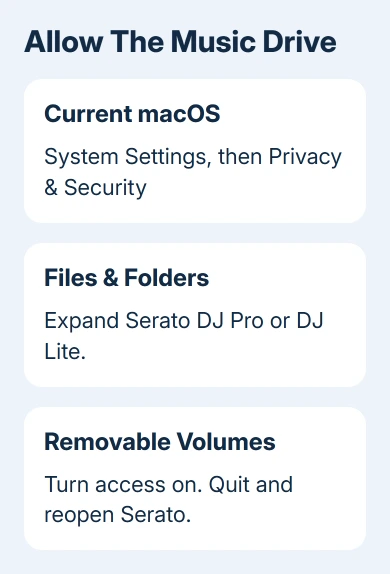
On macOS Ventura 13 and newer, open Apple menu > System Settings > Privacy & Security > Files & Folders. Expand Serato DJ Pro or Serato DJ Lite, then enable Removable Volumes if listed.
For Monterey (macOS 12) or an older release, use System Preferences > Security & Privacy > Privacy > Files and Folders. Unlock the pane if needed, select your Serato app, and allow removable-volume access.
Quit Serato normally and open it again. Check whether the drive and music appear. If they do, load a track from that disk. If a track on your Mac plays but one on the external drive won't, check that drive's permissions or connection next.
If the permission isn't enough, the vendor notes that Full Disk Access may also be needed. Open that category in the same privacy settings, enable your installed Serato app, then relaunch it. Add the app from Applications if necessary.
2. Check that Finder can read the same music
Open Finder and select the external drive under Locations. Find one of the actual music files used in the library. Confirm that the disk is connected and the expected folders are present.
When Finder can't see that disk either, follow the Mac external-drive checks before changing Serato's library. The app can't use music on a disk that macOS hasn't mounted.
If the drive appears but a folder is inaccessible, select that folder and choose File > Get Info. Expand Sharing & Permissions to inspect your account's access. Check the specific music location, not an unrelated folder with the same name.
Apple says its permission settings control Read only and Read & Write access. On a drive you own, change your account's access if it's set incorrectly, and enter your credentials if asked.
Avoid applying permission changes across the entire Mac. If the disk belongs to work or another person, have its owner correct access to the music folder. Then return to Serato and check that same file.
3. Look for a read-only drive or file
A library can load music without being able to save changes beside it. In Serato's Files panel, look for a gold lock beside the drive. A lock beside a track can instead mean that particular file is read-only.
Hover over the lock to read its message. A read-only drive can lose library, crate and track-metadata changes when you quit or disconnect it. That's why everything can seem fixed until you open Serato again.
Read Format in the drive's Finder Get Info window. NTFS disks can be readable on macOS without the write access Serato needs. Check for a write-protect switch, a locked encrypted disk or restricted permissions too.
A read-only file on a writable disk behaves differently: changes can remain in the Serato library without being written into the music file itself. Read the lock's message so you know whether the problem affects one file or the drive.
Don't erase or reformat the music disk as a quick test. Copy the music and library data first and check that the copy works. Then arrange storage that Serato can write to. Test a small copied set there before moving a whole collection.
4. Restore access to the Music app library
When ordinary crates work but the imported Music library doesn't, open Setup > Library + Display in Serato DJ Pro or Lite. Check that Show iTunes Library is enabled, if that is the library you're trying to import.
On current macOS, open System Settings > Privacy & Security > Media & Apple Music and allow your Serato app. Quit and reopen the app, then check its imported library again.
This permission is separate from access to an external drive. Turning on Removable Volumes won't substitute for permission to read the Music app's media library.
Versions earlier than Serato DJ Pro or Lite 3.2.1 may not show the permission error, and a previously disabled permission can also leave the library missing without that message. Check the permission even without an error message.
5. Protect the library before attempting recovery
If access is correct but the library still won't open, don't delete its database yet. Copy your music files and the _Serato_ folder in your Mac's Music folder to separate storage, with Serato closed.
Copy the _Serato_ folder on each external music drive too. These folders contain library information; backing up only the songs won't preserve the same set of crates and settings.
Also copy the Library folder inside your user Library > Application Support > Serato folder. In Finder, hold Option while opening Go, choose Library, then open Application Support > Serato.
Keep this backup alongside the _Serato_ folder backups. You need both because they hold different library information. The complete backup instructions include all three parts: songs, _Serato_ folders and the newer Library folder.
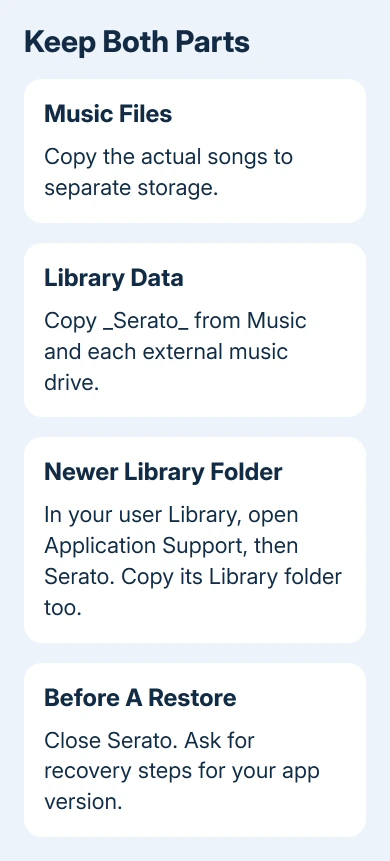
Recovery depends on your app version. The backup instructions call database V2 a legacy file; newer versions use different library backups. I'd get restore steps for the installed version from support before replacing a database file.
If storage is full, review the Mac's space use without removing Serato's library folders. Send Serato Support the exact message, app and macOS versions, drive format, lock message and whether Finder opens the music.
The Short Version
Allow drive access, compare Finder access and distinguish read-only disks from locked tracks. Use Media & Apple Music permission for missing Music imports. Back up your songs and library folders before asking for database recovery steps.
Checked November 9, 2026.

Isaac Smith is the founder and editor of PC Glance, a website that covers computers, laptops, and technology. He is a tech enthusiast and a computer geek who loves to share his insights and help his readers make smart choices when buying tech gadgets or laptops. He is always curious and updated about the latest tech trends.