
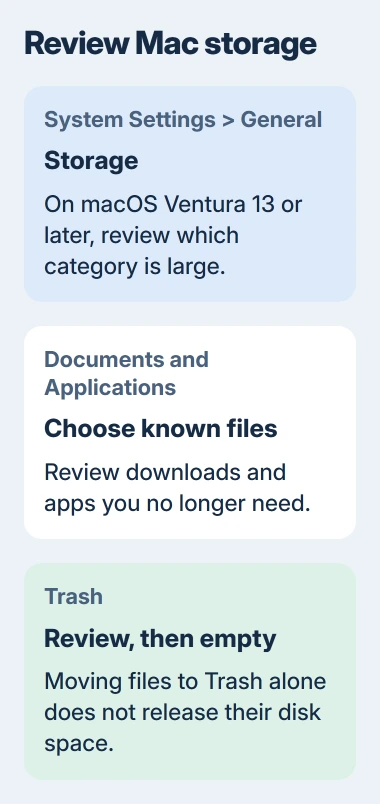
Start with System Settings > General > Storage to see which files are taking up your Mac's disk space. Remove downloads and apps you no longer need, move files you want to keep, then empty the Trash to release the space.
Adding iCloud storage doesn't make your Mac's internal drive larger. For files already saved in iCloud Drive, you can remove the downloaded copy from your Mac while keeping the file in iCloud. Deleting the file is a different choice.
Find the large category before deleting files
From the Apple menu, open System Settings > General > Storage for macOS Ventura 13 and newer. Earlier versions use Apple menu > About This Mac > Storage. Give the categories time to finish calculating.
Look for the category taking up the space. Applications, Documents, Messages and Trash can offer a More Info button with details and cleanup options. Open that category before guessing which folder to clear.
Apple says System Data holds files that don't fit the more specific categories in its storage guide. System Data isn't one folder you can safely empty.
For an unusually large System Data category, use the Mac System Data checks. Start with ordinary files and downloads you recognize. Leave unfamiliar Library folders alone.
Note the available space before you start, then check it again after removing a large item. The categories update as the Mac counts your changes, so use the sizes of the files you're removing to guide you while the display catches up.
Clear Downloads and finish with Trash
In Finder, choose Go > Downloads. Review installers, disk images, ZIP archives and videos. Open or preview anything you don't recognize before deciding whether it belongs in the Trash.
A downloaded installer can stay behind after you install its app. Check that the app works from Applications before throwing the installer away. Move documents you can't replace to a folder you're keeping.
Use Finder's list view and sort by size to spot large files. Deleting a few old videos can free more space than spending a long time deleting tiny documents. Start with files large enough to make a useful difference.
Move unwanted items to Trash, then open it and check what's there before choosing Finder > Empty Trash. The space used by those files becomes available when you empty Trash.
Emptying Trash is permanent, so back up important files first. If you change your mind while an item is still in Trash, use Put Back to return it instead of emptying Trash.
Remove apps through their proper uninstall route
Open Applications in Finder and look for software you no longer use. Check whether the app has an uninstaller or a removal command in its own menu, and use it if available.
The app-removal procedure recommends using the app's uninstaller because it can also remove supporting files. If the app has no uninstaller, drag it from Applications to Trash, then empty Trash when you're ready.
Quit the app before removing it. If it's still running in the background, restart your Mac and try again. If you see an in-use message, leave unrelated system folders alone.
Some apps that come with macOS are required and can't be removed in Finder. Leave them in place. Removing an app's Dock icon leaves the app installed too, so that won't free its disk space.
I'd remove a large unused app through its own uninstaller before trying a cleaner that promises to identify every leftover file. The app maker knows which supporting components belong to its software.
Remove local iCloud downloads while keeping the files
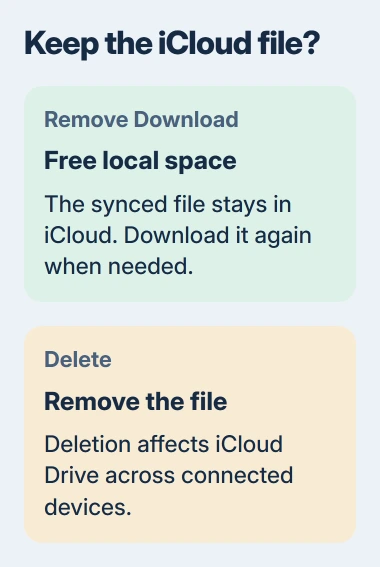
Open iCloud Drive in Finder. If a file is already stored there and you don't need it offline, Control-click it and choose Remove Download. The file stays in iCloud while its downloaded copy is removed from your Mac.
Use Remove Download to free local space. Choosing Delete removes the file from iCloud Drive across your connected devices.
The iCloud Drive file controls also include Download Now for bringing an online file back. You'll need an internet connection to download it again.
On newer versions, Keep Downloaded marks files that should stay on your Mac. If it's on for a file you no longer need offline, clear the setting before removing its downloaded copy.
Check that a file has finished syncing before relying on its iCloud copy. Keep travel documents and other files you need without internet downloaded, so you're not left without them when you're offline.
Delete old device backups through Finder
If you've backed up an iPhone or iPad on your Mac, an old backup may take up a lot of space. Connect the device by USB, select it in Finder, then open General > Manage Backups.
Select the backup you no longer need, open its context menu and choose Delete. Check the device and date before confirming. You may no longer need a retired phone's backup, but another could be your only way to recover important data.
The backup-management instructions explain Delete, Archive and Show In Finder. Archive keeps later backups from replacing that copy, but it still takes up the same space.
You can't recover a deleted backup through this manager. Keep a current backup you can use before deleting one you might need to restore. Use this manager to remove whole backups rather than deleting pieces from their folders.
Move wanted media to another drive
For videos and ordinary documents you want to keep, copy them to a suitable external drive and open the copies to check them. Remove the copies on your Mac only after the transfer finishes and you've checked that the files work.
A Photos library needs its own procedure. Quit Photos, locate Photos Library in your home folder's Pictures folder, and move it to a drive using either the APFS format or the Mac OS Extended (Journaled) format.
Open the library from its new location to check it. If you use it with iCloud Photos, set it as the System Photo Library by following the Photos library move instructions.
Use a supported drive connected directly to your Mac for that library, rather than a network share, USB flash drive or the drive you use for Time Machine backups. Keep a separate backup of photos that matter.
Once the library works in its new location, you can put the old copy in Trash and empty it. Deleting individual photos inside a synced library can remove them from your other devices too, so keep that separate from moving the library.
Check the space again and deal with recurring growth
Return to Storage and compare the available space with what you started with. Try the download, copy or installation that failed. The space you need depends on that task; there isn't one cleanup target for every Mac.
If space quickly disappears again, note which category grows and which app was running. For a Mac where the storage tool itself makes the fan race, use the ApplicationsStorageExtension checks.
If you can't explain why storage use keeps growing, keep important files safe and contact support with the before-and-after sizes. Leave unfamiliar system folders alone while support checks what's taking up space.
The Short Version
Review Storage, remove unwanted downloads and apps, and empty Trash. Use Remove Download for synced iCloud files you want to keep online. Manage old device backups in Finder and move wanted media before deleting its internal copy.
Checked November 4, 2026.

Isaac Smith is the founder and editor of PC Glance, a website that covers computers, laptops, and technology. He is a tech enthusiast and a computer geek who loves to share his insights and help his readers make smart choices when buying tech gadgets or laptops. He is always curious and updated about the latest tech trends.