
Yes, low space on a Mac can slow browsing because the Mac itself is struggling. It doesn't directly reduce your internet plan's speed. Free local space if apps also lag; check the connection if other devices struggle too.
Check what's slow before choosing a fix: the browser, a download, or the connection itself. A nearly full disk can affect saving a file or the Mac's general response while the Wi-Fi connection remains healthy.
In this guide
Separate a slow Mac from a slow connection
Open a page you normally use, then switch to Finder and open an ordinary local folder. Notice whether clicking, typing, and changing apps also take longer than usual. Those delays happen without waiting for a website.
Compare the same website on a phone connected to the same Wi-Fi, turning off cellular data during this comparison. If both devices struggle, the Mac's free disk space can't explain the phone's problem.
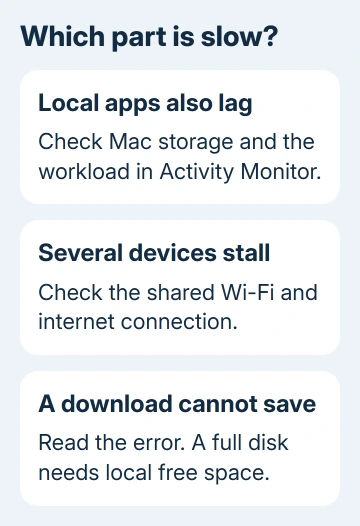
If browsing works on the phone while even Finder stalls on the Mac, start with the Mac's storage and running apps. The comparison points you toward the Mac, though it doesn't measure your internet speed precisely.
A download that transfers and then fails to save is a third case. Read its error message. If it reports no free space, clear some storage on the Mac. If it says the connection was lost, move on to the network checks.
Don't compare a phone on cellular with a Mac on Wi-Fi and assume the devices share the same internet connection. That changes the network as well as the device, making the result much harder to interpret.
Check local storage before deleting anything
For macOS Ventura 13 or a newer release, use Apple menu > System Settings > General > Storage. Wait for the categories to load, then check how much space remains and which categories occupy the drive.
For versions up to macOS Monterey 12, choose Apple menu > About This Mac > Storage. The older window looks different, but you're still checking storage on the computer rather than your iCloud subscription.
Apple lists insufficient startup-disk space among the reasons a Mac can run slowly. That supports checking the disk when the whole computer is sluggish.
It doesn't give a universal amount of free space that guarantees fast browsing. Different apps and workloads need different amounts, so a fixed percentage isn't a reliable diagnosis for every Mac.
Compare local storage with iCloud storage carefully. Buying more iCloud space doesn't by itself remove files from the Mac. You can have plenty of room in iCloud while the Mac's own disk is still full.
If System Data is the large category, it isn't a single folder you can safely erase. It groups files that don't fit the other categories. Start with files you recognize and the Mac's built-in storage options instead.
Make room with files you recognize
Open Downloads in Finder and review old installers, archives, and files you've already saved elsewhere. Keep anything you still need and delete the unwanted items. Large files you still need can go on an external drive.
Before deleting an important original, check that the external copy opens. Moving irreplaceable photos or work files deserves more care than removing an installer you can download again.
Review the Applications and Documents categories in Storage where management options are available. The Mac disk-space cleanup guide covers the detailed choices without treating every large folder as disposable.
Empty the Trash after reviewing its contents. Files sitting there still occupy storage until they're removed. Then return to Storage and check the updated figures rather than assuming the cleanup changed the free space.
With an almost-full disk, I'd reclaim space before changing the router's settings. That tackles a known reason for a slow Mac and gives downloads room to finish saving.
Retry the same browser task after making room. If Finder and app switching improve but web pages still stall, you've helped the computer; the remaining connection problem needs its own checks.
Check memory when tabs slow the whole computer
Disk storage and memory aren't the same. Storage keeps your files; memory, also called RAM, holds the work your apps are using right now. Too many demanding apps can strain memory even with free disk space.
Open Finder > Applications > Utilities > Activity Monitor, then select Memory. Look at Memory Pressure and Swap Used near the bottom while the slow browser task is happening.
Memory Pressure shows how well the Mac's memory is keeping up. Swap Used shows how much startup-disk space it's using to hold inactive information from RAM. The two readings help explain why disk space and app response can be connected.
A Swap Used figure greater than zero isn't a problem on its own. Compare the Mac's behavior and the memory graph as you close unused browser tabs and quit apps you don't need, using the app's Quit command.
If that makes typing and scrolling responsive again, reduce the workload before blaming Wi-Fi. The slow Mac guide covers other causes when reducing the browser workload doesn't settle it.
If the computer stays responsive while only one website is slow, compare another website and another browser. Check the affected site or browser next. Deleting more files won't address a problem limited to either one.
Follow the network branch when several devices are slow
When multiple devices struggle on the same Wi-Fi, check whether the problem affects all websites. A single unavailable site can look like a bad connection even though everything else loads normally.
Move the Mac nearer the router and compare again. If the connection improves there, work on wireless coverage or interference. Removing more documents from the Mac won't improve the signal reaching its Wi-Fi radio.
Restart the router if you control the network and other users can tolerate the interruption. On a work, school, or hotel network, ask its administrator instead of changing shared network equipment.
For a problem limited to this Mac, check whether a VPN or third-party network filter is involved. Disconnect your personal VPN briefly, then reload the page; ask IT before changing security settings managed by your workplace.
The Wi-Fi menu also offers a built-in check. Hold Option, click Wi-Fi from the menu bar or via Control Center, and choose Open Wireless Diagnostics. Follow its instructions and keep the results for support.
If the Mac works on another network, ask your internet provider or the network administrator to check the original connection. Report whether other devices fail too and whether the trouble changes near the router.
Get help for the symptom that remains
If local apps stay slow after you've freed space and closed unused apps, describe the delays to Apple support. Give them the macOS version, available storage, what the Memory Pressure graph shows, and whether a restart changes the delay.
Ask the provider about line trouble when several devices share the connection failure. For one website only, keep its address and the browser error. Those details prevent another round of cleanup that doesn't fit the symptom.
The Short Version
Low local storage can slow the Mac and make internet use feel sluggish. Compare local apps and a second device, reclaim recognizable files if the disk is crowded, then follow the network branch if the connection itself remains slow.
Checked November 15, 2026.





