Newer Windows Steam clients aren't supported by Whisky, which is no longer maintained. For repeated startup errors on an Apple silicon Mac, check the game's Mac version or try maintained compatibility software.
A download stuck inside a working Steam window is different. Whisky still lists restarting Steam and switching MSync to ESync as a fix for stalled downloads.
In this guide
1. Check which stage fails
Check whether Whisky itself opens, the Windows Steam installer fails, or Steam starts but a game won't download. Each stage involves different software or settings. If only one game has trouble, reinstalling Steam isn't always the answer.
Whisky's maintenance notice says WhiskyWine won't get updates or new Steam fixes. That software limit doesn't mean your Mac needs repair.
A bottle is Whisky's separate folder containing a Windows-style installation and its settings. Steam inside that bottle is the Windows client. The regular Steam app in your Mac's Applications folder is a separate macOS installation.
Keep your existing bottle while comparing another route. It can contain locally saved games and other files that aren't available from an account sign-in. Deleting it is unnecessary just to check whether a fresh setup can open Steam.
2. Check the installer and Rosetta separately
For Whisky, use the Windows Steam installer, an .exe file, from the official Steam download page. A Mac .dmg installer belongs to the native Mac app and isn't the file to run inside a Windows bottle.
Select the intended bottle in Whisky and choose Run…. Find the Windows installer, select it, and click Open. Allow time for the program window to appear before deciding the launch has failed.
The Whisky Steam page warns that its interface can take a long time to open and may respond poorly. A window that eventually loads differs from a recurring startup error offering only quit or restart.
If macOS asks to install Rosetta for an Intel Mac component, follow its prompt while online. Rosetta support covers Intel Mac apps on Apple silicon, rather than Windows executables.
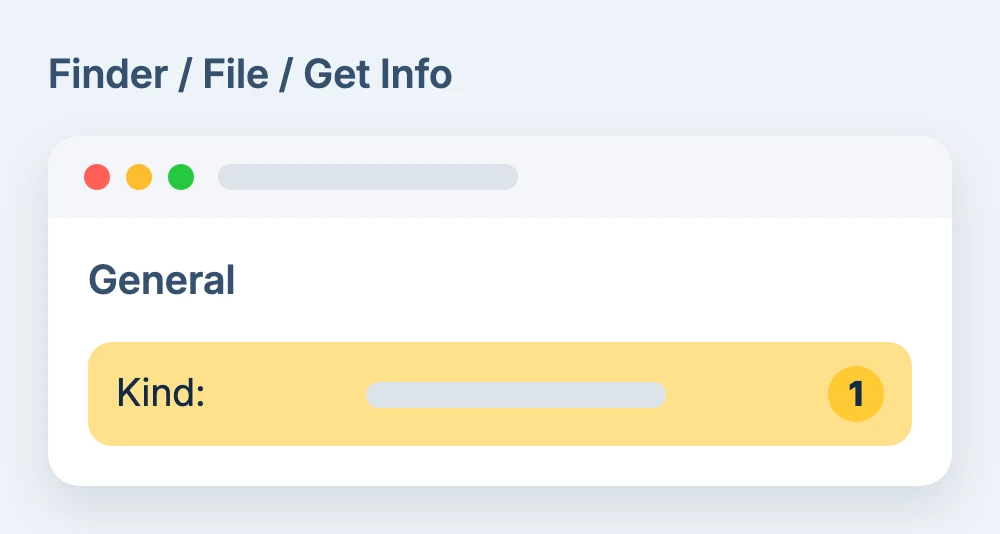
Select the Mac app in Finder, press Command-I, and read Kind. Intel, Universal, and Apple silicon are Mac app types. For an error about the app's processor type, use the Bad CPU type checks.
On an Intel Mac, don't follow Whisky steps written for Apple silicon as though both Macs used the same hardware. Check the chosen compatibility app's current requirements for that Mac before installing it.
3. Restart a stalled download and change synchronization
If Steam opens and signs in but a download won't finish, restart Steam and retry the affected download. This is the narrower fix in the Whisky Steam instructions.
If it stays stuck, open the bottle's configuration and change MSync to ESync, then restart Steam. These settings control how the software running Windows apps coordinates tasks. They aren't Steam account or download-region settings.
Check whether download progress resumes and completes after the restart. If the download finishes, that part is fixed. Next, check whether the installed game actually runs.
If the same startup-error dialog appears before you can access downloads, try software that's still maintained. Changing a synchronization setting intended for a stuck download doesn't provide newer Steam compatibility.
4. Understand the limits of the old-client workaround
For startup error 0x3008, the Whisky instructions restore a Steam client from March 6, 2025, then block normal client updates. This rolls back to an old client rather than repairing the current release.
The instructions warn that Valve doesn't recommend outdated Steam because of security risks. I wouldn't keep a Steam account on that pinned client long term. Even if it opens, you'd still be using out-of-date software.
That change also requires regenerating shortcuts, and the documentation suggests a new bottle if its workaround fails. A fresh bottle lets you compare a new setup with the old one, but it won't bring back WhiskyWine updates.
If you want to play now, the practical choice is between a game's supported Mac release and a maintained compatibility app. Keep the old bottle until the game and its saves have been checked in the replacement setup.
5. Try maintained Steam support before buying
The CrossOver Steam procedure uses a built-in installer. It selects the bottle type, required components, and download locations without reusing Whisky's old client.
Install CrossOver, open it, and select the Steam icon. Click Install, approve the required components when prompted, and complete the Steam installer with its default options. Let Steam finish updating before signing in.
Check the intended game in the developer's compatibility database as well. Signing in successfully doesn't mean a game's graphics, launcher, or online play will work through the software running it on your Mac.
The Mac app offers a fully functional 14-day trial. Test the actual game during that period before paying. Load a save and try a demanding scene or online play; reaching the title screen isn't enough.
If the game won't run, contact CrossOver support with the game name, Mac model, macOS version, and point of failure. Explain whether you can't sign in to Steam or the game fails after Steam is already running.
6. Use a native Mac release when it's available
A game with a supported macOS edition can use the native Mac Steam client. Download that client from the official Steam page and check the game's Mac system requirements before installing it.
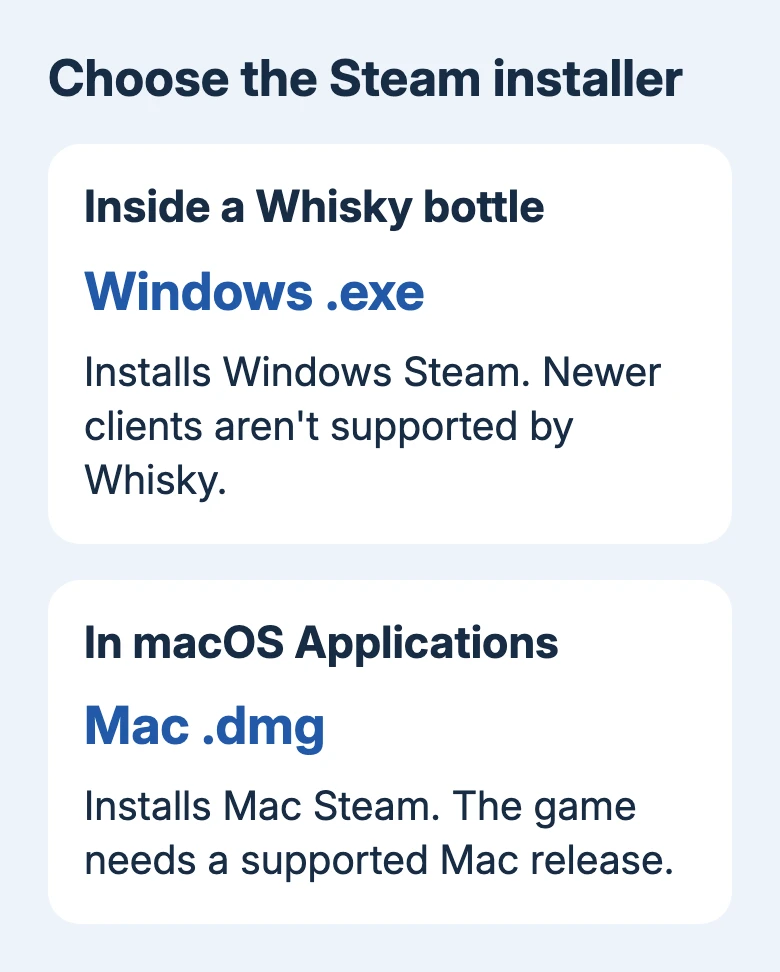
A Windows-only listing doesn't become Mac-compatible just because it appears in your account library. Look for the Mac system requirements and match them to your hardware and macOS release.
The game directory instructions locate installed files, which can be separate from saved progress. Keep your old bottle until the saves you need work in the replacement setup.
If neither the native release nor a maintained compatibility app supports the game, play it on Windows hardware that meets its requirements. Repeating Whisky installations won't resolve an unsupported game's requirements.
The Short Version
Whisky no longer receives Steam compatibility fixes. Restart Steam and try ESync for stuck downloads, but use a supported Mac release or test a maintained compatibility app for persistent startup failures.
Checked November 27, 2026.
 If you have any business, I can build it online