
Steam can open a PC game's directory on whichever drive holds its installation. Right-click the game in Library, then choose Properties > Installed Files > Browse.
Epic and GOG provide their own folder commands. Use the launcher that installed the game rather than guessing a path under Program Files. Saved progress can live somewhere else entirely.
Open the installation through the right launcher
Game publisher Microids documents these folder commands in its PC executable-location guide. Start with an installed game in the appropriate library.
Each route opens that game's folder in File Explorer. Opening a directory does not require launching an unfamiliar executable or changing its permissions.
Status: Steam, Epic and GOG folder routes checked against publisher documentation on November 2, 2026. No game files, ownership settings or installations were changed.
- Steam: right-click the game in Library, choose Properties, open Installed Files, and click Browse. Older wording can say Local Files.
- Epic Games Launcher: open Library, use the game's three-dot menu, select Manage, then Open Install Location.
- GOG Galaxy: select the game in Library, open its Settings, then choose Manage Installation > Show Folder.
Check the folder's name and contents before using it in another tool. A game installed on an external drive needs that drive connected. An unfinished download also needs time to complete; Steam requires an awake computer for that transfer.
Locate the executable without changing the file
The .exe may be in the directory that opens, or inside a folder such as Binaries, Win64 or Launcher. Microids identifies these as possible locations, not a guarantee for every game.
Microsoft documents revealing extensions through View > Show > File name extensions in Windows 11. Its file-extension guide identifies exe as an executable program file.
Do not rename another file to end in .exe. Microsoft says changing an extension does not convert the file's format. If support needs the executable, ask the game publisher which file to provide when the directory contains several launchers.
The File Explorer controls guide explains extensions and hidden items. Revealing a filename is enough for inspection; taking ownership of protected Windows folders is not part of locating a game.
Keep installation files separate from saved progress
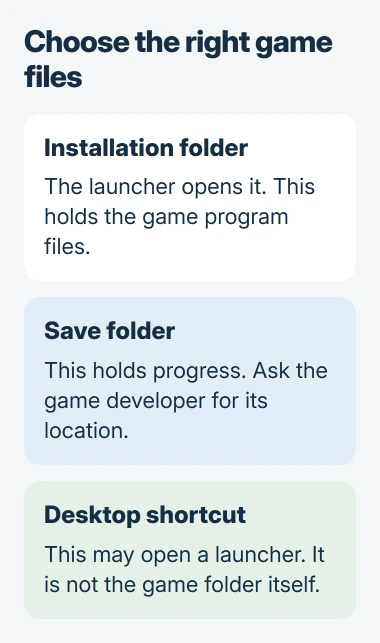
The folder holding a game's executable is not automatically its save location. Valve's Steam Cloud documentation says developers choose which files, if any, their game stores in the cloud.
Cloud data can include saves, settings or other game information. Valve directs players to the developer for game-specific file locations. Consult that game's instructions before backing up progress or replacing a configuration file.
A desktop shortcut is also not reliable proof of the installation path. It may hand a game identifier to the launcher instead of pointing directly at an executable. The library's folder command avoids that uncertainty.
Keep a useful folder handy and handle missing installs
For a directory you revisit, Microsoft states that Pin to Quick access is available from its right-click menu in File Explorer. Pinning does not move the installation.
If the library offers Install instead of the expected installed-game controls, check the launcher account, connected drive and download status. Do not start moving folders simply to make them match an example path.
When files exist but the launcher cannot recognize them, ask its support about detecting an existing installation. Give the game name, library drive and displayed status. Locating files and registering an install are different tasks.
The Short Version
Use the game's folder command in Steam, Epic or GOG. Show extensions to identify an executable, and ask the developer for its save location. A shortcut, cloud save or example drive path does not establish where the game is installed.

Isaac Smith is the founder and editor of PC Glance, a website that covers computers, laptops, and technology. He is a tech enthusiast and a computer geek who loves to share his insights and help his readers make smart choices when buying tech gadgets or laptops. He is always curious and updated about the latest tech trends.