
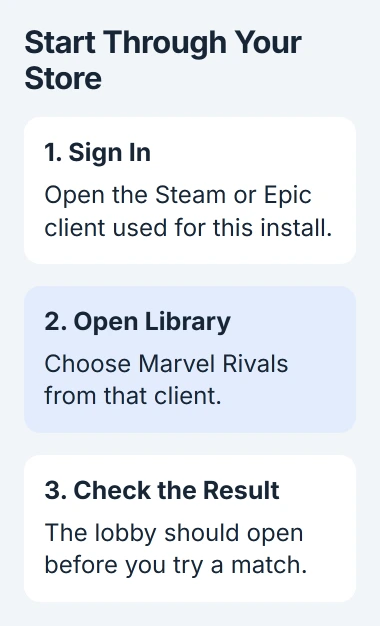
For Marvel Rivals error code 10 on PC, reopen your signed-in Steam or Epic client and launch from its Library. The message alone doesn't identify whether the failure is your login, the launcher, or the service.
I'd check the launcher before reinstalling the whole game. One player reported that a launcher reinstall fixed this error after a game reinstall failed. They were using Heroic and Proton on Linux, though, rather than Windows.
1. Launch from the account that owns the installation
Close Marvel Rivals and open the store app you installed it through. Check that you're signed in, then start the game from its Library instead of an old desktop shortcut or the game's program file.
For Epic, keep Epic Games Launcher open while the game starts. For Steam, start the installed copy through Steam. A shortcut can start the game without confirming that you're signed into the store successfully.
Status: error-code research checked November 3, 2026. Launcher repairs are user-reported. The confirmed Heroic result is kept separate from Windows troubleshooting.
If the lobby opens, try entering a match before calling the problem solved. If you can log in but lose the connection during a match, that's a separate problem. Note what happens when the match disconnects.
If the same error appears before the lobby, close both the game and the store app fully. Reopen the store, sign in or finish any update it asks for, and try once more. Then follow the checks for the store you use.
2. Check whether the connection fails outside the game
Open a normal webpage and check whether the store's Library loads. If several services fail, work on the PC's connection first. A game reinstall can't repair a disconnected Wi-Fi connection.
Microsoft says to test a second device using that network in its Wi-Fi troubleshooting instructions. Compare the results to see whether just your PC is offline or the other device is affected too.
If Windows can't get online, use the Windows Wi-Fi repair steps before changing game files. When other apps work, check Marvel Rivals' official announcements for maintenance or an outage.
If the error started suddenly, note the time and your region, and tell support if other players are affected too. Those details help describe the problem, but they can't tell you which service failed or when it'll return.
I'd leave Windows' firewall on while checking this message. You can reopen the launcher and check the game files with that protection running. Error code 10 doesn't point to a particular firewall rule.
3. Verify the installed files through your store
Verification compares your installed game files with the store's copy and replaces any that don't match. You can try this repair before deleting and downloading the entire game again.
In Steam, open Library, right-click Marvel Rivals, and choose Properties. Select Installed Files, then the option to verify the game files. Leave the process to finish before starting another copy of the game.
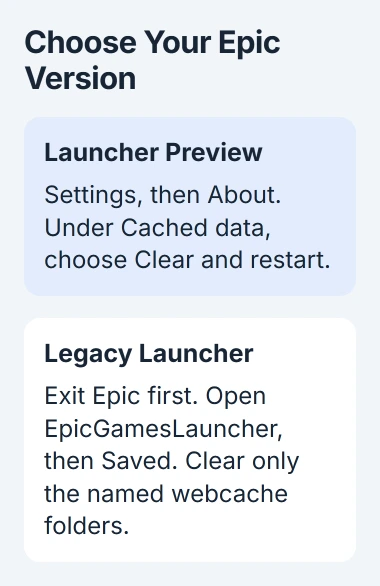
For the legacy Epic launcher, find Marvel Rivals in Library, open its three-dot menu, and choose Manage > Verify. Epic's current instructions give Launcher Preview a different layout: select the game, then use the menu beside Play.
That Preview menu also leads to Manage > Verify. Follow the layout you see in your launcher, since older screenshots may show the button somewhere else.
Epic explains that verification repairs changed or damaged game files without affecting saved data. If the error remains, try the next step for your launcher; checking those same files again won't tell you anything new.
4. Clear Epic's cache if the Epic client also misbehaves
This is for the Epic version, especially if the launcher also has blank panels, won't load, or has sign-in errors. Its cache holds temporary information that the launcher builds again after you clear it.
In Epic Games Launcher Preview, select the Epic logo, open Settings, then About. Under Cached data, choose Clear and restart. Let the client reopen and sign in if requested.
With the legacy launcher, clear the cache folders this way:
- Exit Epic through its notification-area icon near the Windows clock.
- Press Windows+R, enter
%localappdata%, and open that location. - Open EpicGamesLauncher, then Saved.
- Delete only the listed cache folders that exist:
webcache,webcache_4147, andwebcache_4430. - Start Epic again and launch Marvel Rivals from Library.
Leave the surrounding Saved folder and game installation folders in place. The Epic cache instructions name these specific temporary folders.
If support asks where the game is installed, use the store's installation-folder command. Keep the game directory separate from the launcher's temporary files.
5. Keep the Linux workaround separate from Windows
The Steam discussion about error 10 has a fix reported by an owner using Heroic and Proton, tools for running games on Linux. They were playing their Epic copy.
They said the error kept returning after a game reinstall, changes to the Proton version, and Heroic restarts. Their final reply says that reinstalling the launcher fixed it.
Another participant reported success with a SteamDeck launch option. It's written as a Linux startup command, so it isn't suitable for pasting into Steam Properties on Windows.
For Heroic, keep a copy of your account and installation details before following its repair instructions. Reinstalling helped that player on Linux; the cause of error 10 on Windows is still unclear.
When the error survives these checks
Contact Marvel Rivals support with your store, operating system, error text, and when it happened. Say whether you ever reached the lobby, what the file check found, and whether you tried Epic's cache repair.
If the store client itself still fails, contact Steam or Epic as well. Before uninstalling the launcher, ask how that will affect your installed games and downloads.
The Short Version
Use your signed-in store client, check connectivity, and verify the files. Epic cache steps apply to Epic installations. The successful Heroic repair came from Linux; its launch options aren't Windows commands.

Isaac Smith is the founder and editor of PC Glance, a website that covers computers, laptops, and technology. He is a tech enthusiast and a computer geek who loves to share his insights and help his readers make smart choices when buying tech gadgets or laptops. He is always curious and updated about the latest tech trends.