
A Kraken V3 X microphone that works on another computer but stays at zero in Windows 11 may have a problem with this PC's USB connection or driver. Try another direct USB port first, then test the selected Kraken input in Windows.
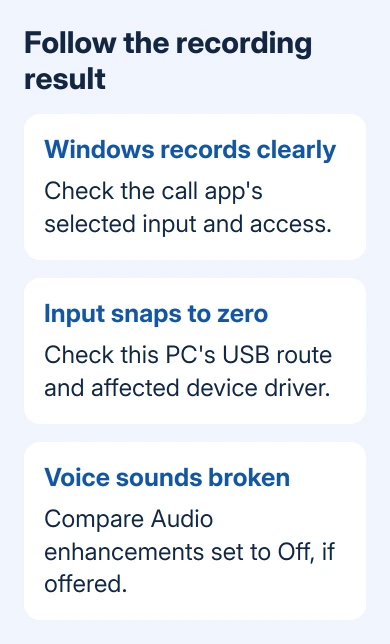
The headphones can play sound while the microphone isn't working. If the Windows sample plays clearly while Discord or Teams stays silent, check app input and permissions. A level that snaps to zero needs the USB and driver checks instead.
In this guide
1. Try another USB connection and check physical mute
Check the headset's microphone mute button, then reconnect it using a computer USB socket. The Kraken V3 X uses USB audio, so the laptop's analog headset socket and its jack-detection pop-up aren't involved.
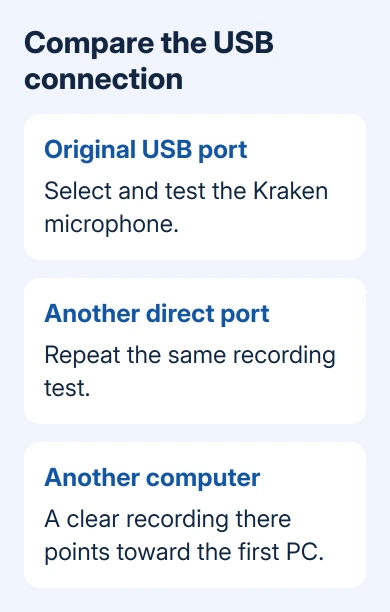
Try another direct USB port before using a dock. After changing ports, make another recording with the headset and listen for a difference. If it starts recording, keep that working port for now.
The Kraken microphone discussion includes an IT support report where a USB-C hub connection restored recording. That result led them to check the laptop's USB controller rather than replace the headset.
If direct ports still fail and you already have a suitable hub, try it for comparison. Buying a hub isn't necessary for this comparison. Record the hub and direct-port results separately for support.
If possible, record with the headset on a second compatible computer. If your voice records clearly there, continue troubleshooting the first PC. Silence on both computers means the headset needs its own hardware and support check.
2. Test the Kraken microphone rather than the laptop mic
Open Settings > System > Sound. Under Input, select the Razer Kraken V3 X microphone. Choosing the Kraken as the output only changes what you hear, not which microphone Windows records.
Open that input's properties, raise Input volume if it stays adjustable, and choose Start test. Speak normally, then end the test. Use Play to hear the sample if offered.
Microsoft's microphone troubleshooting instructions cover input selection, testing, and app access. Hearing your voice in that sample tells you Windows can record from the mic, rather than just detect its name.
If the slider immediately returns to zero, note that behavior rather than repeatedly dragging it. The original case had exactly that symptom despite the microphone being detected and working on a second laptop.
If a clear recording plays, continue with the calling app in section 3. If the recording is silent, check enhancements in section 4 and then the affected device's driver. Don't judge the whole headset from a single game lobby.
On Windows 10, the comparable check is Settings > System > Sound > Input, then Choose your input device and Test your microphone. Its layout differs from Windows 11's microphone properties page.
3. Give a silent calling app the correct input and access
Choose the named Kraken input within the calling app's audio settings. Avoid leaving the app on a laptop microphone or an input tied to a disconnected device. Use its microphone test if it offers one.
For a push-to-talk game, speak while holding the assigned key. For a meeting, check the meeting's mute control too. A working Windows recording won't override the app's own mute or voice-activation setting.
In Windows 11, open Settings > Privacy & security > Microphone. Enable Microphone access. Turn on Let apps access your microphone too, and allow the calling app if listed.
Also enable the Let desktop apps access your microphone switch. Desktop programs aren't managed through the same individual switches as Store apps. Restart the calling program once access is allowed, and run its recording test again.
In Windows 10, find those controls at Settings > Privacy > Microphone. If you're following instructions from a Windows 10 laptop, use Windows 11's Privacy & security category on the newer computer.
The general Windows microphone guide covers recording-device and permission controls in more detail. Continue with the PC's USB setup when Windows itself still can't record from this headset.
4. Turn off input enhancements if recording sounds broken
Open Settings > System > Sound, select the Kraken under Input, and look for Audio enhancements. If available, set it to Off, then compare another recording of the same spoken sentence.
This changes additional audio processing, not the headset's physical microphone. Some drivers don't show an enhancements control. If yours doesn't, don't install an unrelated Realtek console just to make it appear.
One owner later reported better Teams sound with enhancements off. Another owner got recording back after USB driver work but described poor quality, so getting Windows to record again didn't finish the repair.
If enhancements make no difference, restore the previous choice. Keep a clear sample and a distorted one to show the sound-quality difference to support. That gives them more detail than a report that the mic sounds bad.
For the separate Barracuda model, use its boom connection and model-specific checks. Its detachable microphone and wireless dongle aren't the same hardware as the Kraken V3 X USB connection.
5. Reinstall the affected device before changing controllers
Save your work. Open Device Manager > Sound, video and game controllers, identify the Kraken audio device, and choose Uninstall device from its context menu. Restart and let Windows attempt to reinstall it.
Recheck Input and make a new recording. If Windows doesn't redetect the device, choose Action > Scan for hardware changes from Device Manager's menu. Check the PC maker's USB or chipset updates if several USB devices misbehave.
The thread also contains a confirmed USB-controller reinstall outcome, followed by a later owner's success report. It doesn't give one controller name that works for every laptop, and one owner said the problem later returned.
Don't uninstall every USB controller while using a USB keyboard or mouse; they can stop responding. Have IT or the computer maker identify the failing port's controller and handle its reinstall if the simpler checks failed.
I'd use a port that records clearly while arranging repair. Give support the model, Windows build, working and failing ports, and result on another computer. Ask about USB controller recovery for a detected microphone stuck at zero.
When neither computer records, ask Razer Support for a mic or warranty assessment with the headset model and purchase proof. If only one app fails, give the app developer your successful Windows recording result instead.
The Short Version
Check mute and another USB port, then select and record from the Kraken input. Repair app access when Windows records correctly. Try enhancements for broken sound, and use targeted driver support when the input stays at zero on just one PC.
Checked November 17, 2026.






